AI assistant that learns from your Dropbox files, automatically

If your price lists, policies and course materials already live in Dropbox, you don't need to upload them to your AI assistant and then remember to upload them again after every change. Link the folder once. From then on, when a file changes in Dropbox, the assistant knows the new version within minutes, and when you drop a new file into the folder, it's added by itself.
This guide shows how to connect Dropbox to an AOVA knowledge base, which files are read, what happens with recordings, and what happens when a file changes or disappears. It takes about five minutes, and AOVA asks Dropbox for read-only access: your files are never changed, moved or deleted.
Who this is for
- A shop or service business whose price list is a spreadsheet in Dropbox that changes every month.
- A coach, consultant or course creator with a folder of handouts, worksheets and recorded sessions.
- A small team that keeps its policies and manuals in a shared Dropbox and wants one source of truth, not a copy inside the assistant that drifts out of date.
If you upload files by hand today, nothing changes for the files you already have. Linked folders simply sit next to them in the same knowledge base.
How it works
- You link one or more Dropbox folders to a knowledge base.
- AOVA reads the documents in them and the assistant starts answering from them, on every channel you use: your website chat, Telegram, WhatsApp or the API.
- Dropbox tells AOVA whenever something in those folders changes. Edited files are read again, new files are added, deleted files stop being used.
The same assistant can also answer from files you uploaded directly, from your website and from recordings. Dropbox is one more source, not a separate assistant.
Step 1. Connect Dropbox
Open Knowledge in the left bar, click your knowledge base, then Add knowledge → Dropbox.
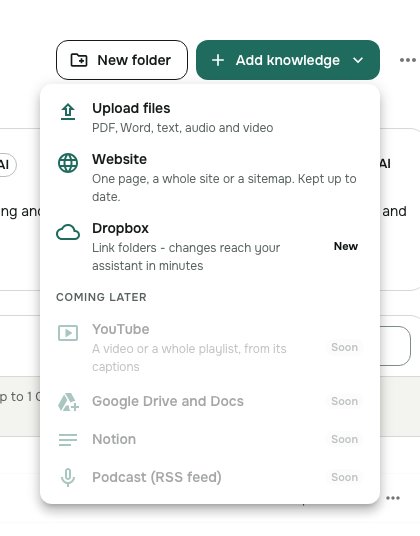
The first time, click Connect Dropbox. Dropbox opens in a new window: sign in and click Allow. If no window appears, your browser blocked it; click Continue in this tab instead.
Dropbox shows you exactly what AOVA is asking for: permission to read files. AOVA can't write, move or delete anything, and it reads only the folders you choose in the next step.
Step 2. Choose the folders
Tick the folders (or single files) your assistant should know. Open a folder to look inside; ticking a folder includes everything in it, including subfolders.
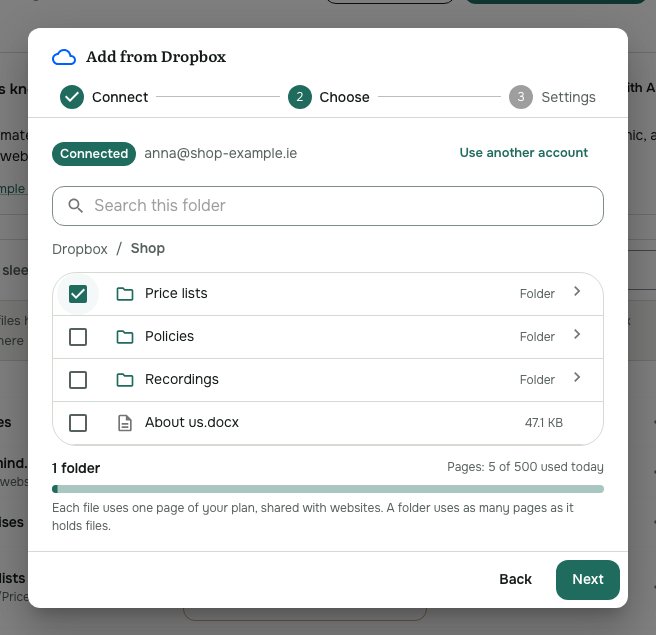
A few things that make the biggest difference to answer quality:
- Link the folder with the final versions, not the one with drafts. The assistant can't tell a draft price list from the real one.
- Keep one topic per folder where you can: "Price lists", "Policies", "Course 1". Each linked folder becomes its own folder in the knowledge base, which keeps a growing library easy to read.
- Leave out photos and design files. Images, archives and Pages/Keynote files are skipped anyway (listed as Not supported), but a folder full of them makes the list noisy.
Click Next.
Step 3. Default metadata and finish
On the Settings step you can set default metadata for the files in this folder: a description, or buttons that appear under the assistant's answers (for example "Book a call" with your booking link). Every new file that lands in the folder gets this metadata automatically, and you can still change any single file later. This step is optional; most people skip it the first time.
Click Add to knowledge base.
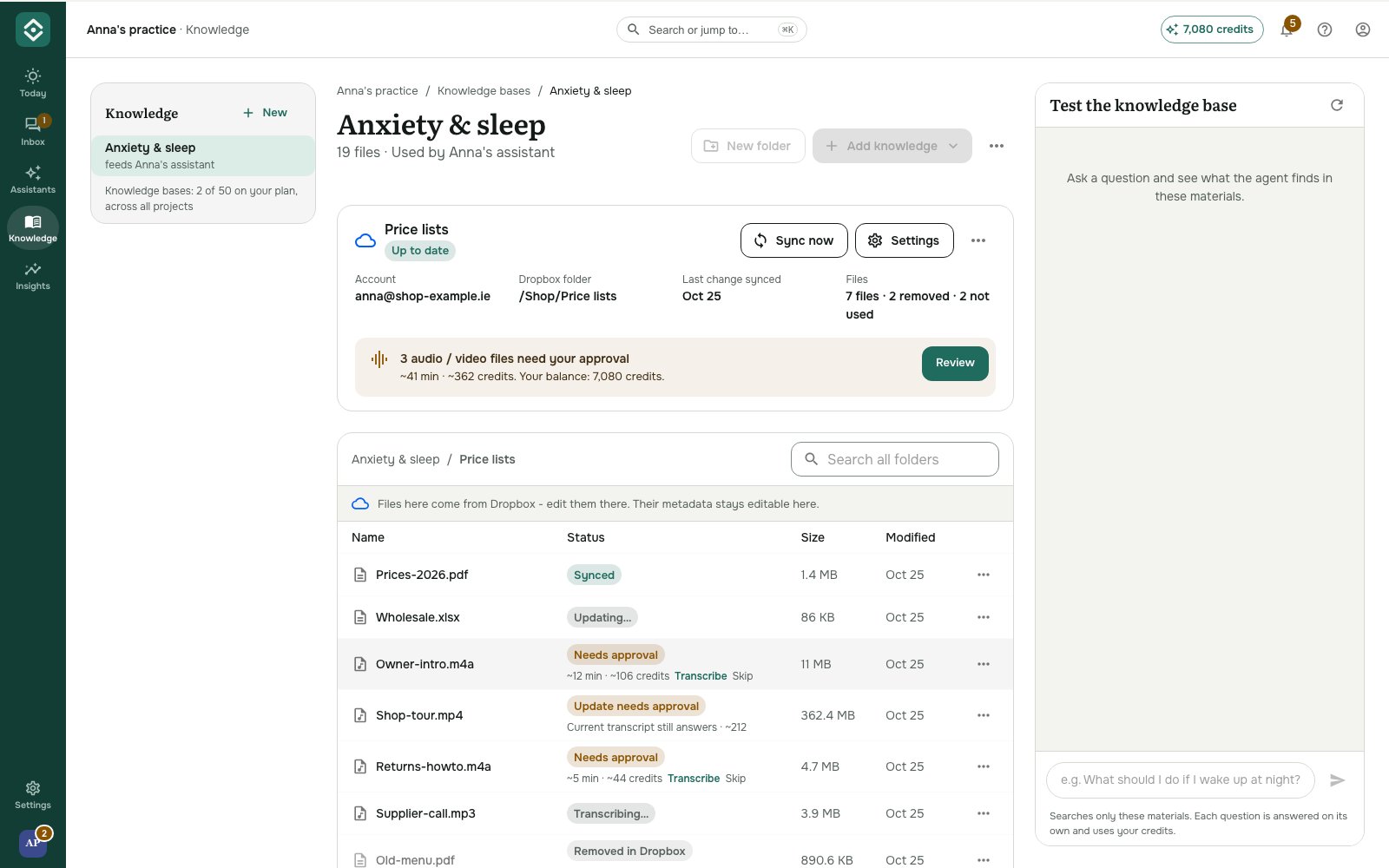
Each linked folder appears in the knowledge base with a cloud icon. Loose files you picked go into one extra folder, Dropbox files. Documents (PDF, Word, Excel, CSV, text, Markdown, web pages, up to 50 MB each) are read right away and show Assistant knows it once they're ready, usually within a minute or two.
Step 4. Ask it a question
Use Test the knowledge base on the right. Ask the way a client would: "How much is delivery to Cork?" rather than "delivery pricing policy". If the answer is wrong or vague, the fix is almost always in the file itself: a missing line, an outdated number, a price buried in a long paragraph. Fix it in Dropbox, and the assistant has the new version a few minutes later.
Recordings: you approve before anything is charged
Audio and video in a linked folder (MP3, M4A, WAV, MP4 and more, up to 1 GB / 4 hours) aren't transcribed automatically, because transcription costs credits (8.8 credits per minute). They're listed as Needs approval with their length and price, and nothing is charged until you decide.
Open the folder and either click Transcribe or Skip on a single file, or click Review on the banner to see every waiting recording with its length, the credits it would cost, the total and your balance, and transcribe the ones you want.
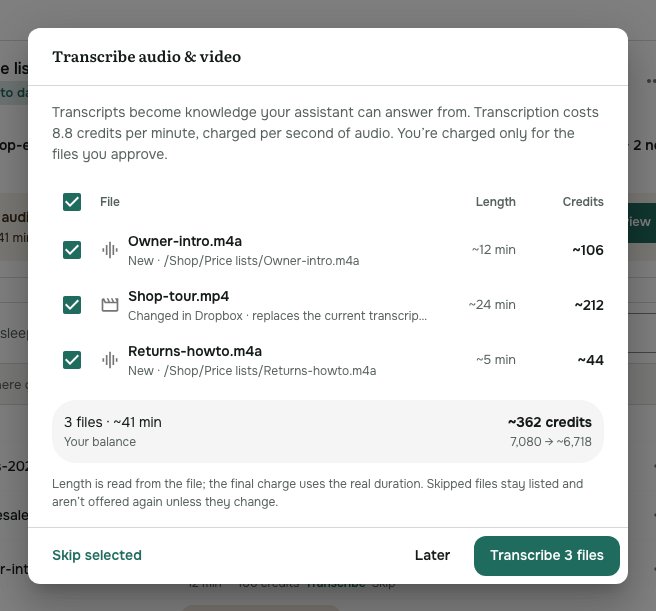
A skipped file stays in the list and isn't offered again unless it changes. If a transcribed recording changes in Dropbox, it shows Update needs approval and the current transcript keeps answering until you approve the new one. You're never charged twice for the same recording.
When files change, move or disappear
This is the part that saves you the most time, so it's worth knowing exactly what happens:
| In Dropbox you… | In AOVA… |
|---|---|
| Edit a file | It's read again; the assistant answers from the new version within minutes. |
| Add a file to the folder | It's added with the folder's default metadata. |
| Rename or move a file inside the folder | It keeps its metadata and transcript. |
| Delete a file, or move it out of the folder | It shows Removed in Dropbox. The assistant stops using it at once. |
| Restore that file within 30 days | Everything comes back by itself: metadata, transcript, no new transcription charge. |
A removed file is kept for 30 days as a safety net, then deleted for good. Delete now in the file's menu removes it sooner.
The content of a linked file can't be edited or replaced inside AOVA, because Dropbox is the source of truth: change it there. Its metadata stays editable in AOVA (Details and links in the file's menu).
Managing a linked folder
Open the folder and you'll find:
- Sync now: read the folder again straight away. Changes normally arrive within minutes anyway, and every linked folder is checked in full once a day.
- Settings: change the folder's default metadata. Files you edited by hand keep their own.
- ⋯ → Remove linked folder: takes its files out of the knowledge base. Your Dropbox isn't touched, and you can link the folder again later.
- ⋯ → Disconnect Dropbox…: stops AOVA reading your account altogether. Choose Keep imported knowledge (the files stay as they are and stop updating) or Remove it.
If Dropbox stops accepting AOVA's access, for example after you change your Dropbox password, the folder shows Reconnect needed. Nothing is deleted; click Reconnect and syncing resumes.
What it costs
Linking Dropbox is included in every plan, and reading documents costs no credits. Each file uses one page of your plan's allowance, the same pages your linked websites use: Free 20, Pro 500, Business 5,000, Enterprise 20,000. Files over the allowance are listed as Over plan limit and added as soon as there's room.
Recordings cost credits only when you approve them: 8.8 credits per minute of audio, so a one-hour webinar is about 528 credits. Answering from a transcript afterwards costs the same as answering from any document. Plans are on the pricing page.
FAQ
Can AOVA change or delete my Dropbox files? No. AOVA asks Dropbox for read-only access and reads only the folders you ticked. You can see and revoke the permission any time in your Dropbox account under Connected apps.
Does the assistant answer from my whole Dropbox? Only from the folders and files you chose. Everything else in your account is invisible to it.
How fast do changes show up? Usually within a few minutes of saving the file in Dropbox. Click Sync now if you don't want to wait.
Can I link a shared folder? Yes, any folder you can see in your Dropbox, including folders others shared with you. Changes made by anyone with access are picked up the same way.
What about Google Drive? Dropbox is the first cloud drive AOVA follows. Until other drives are supported, you can still upload files or add a website directly.
Full reference: Add knowledge from Dropbox.