AI chatbot handoff to a human: a guide for small teams

The fear we hear most from small business owners and specialists is simple: "If a bot answers my clients, I lose the personal touch." It's a fair worry. Some conversations should never be left to an AI: a client who is upset, a booking with special conditions, a question that needs your judgement.
The answer isn't to avoid AI. It's to let the assistant handle the repeat questions and hand the conversation to you when a person is needed. This guide shows how that works in AOVA and how to set it up so nobody is left waiting.
What human handoff means
Your assistant answers clients on its own, day and night. When a client asks for a person, or the assistant can't find the answer in your materials, it:
- tells the client that a person will reply, in the client's language,
- marks the conversation Waiting in your Inbox and, if you like, sends you an email,
- goes quiet in that one conversation while you answer.
You reply from Inbox. Your message reaches the client in the same chat: from your Telegram bot, or in the chat window on your website. When you're done, you give the conversation back to the assistant, or it comes back by itself after a time you choose.
The client never has to start again somewhere else. There's no "please email us instead". The conversation just continues, with a person in it.
When the assistant should hand over
There are two triggers, and you choose which ones to use.
The client asks for a person. "Can I talk to someone?", "operator", "I want the manager"... in any language. This one is on by default, and we recommend keeping it on. A client who asks for a human and gets another bot answer is a client you lose.
The assistant can't find the answer in its materials. Off by default. Turn it on when a wrong or vague answer costs more than a short wait. For example:
- a therapist or coach, where a careless answer can hurt,
- a clinic or salon, where bookings have rules the materials don't cover,
- a shop with custom orders, where the price depends on details.
If most of your questions are simple (opening hours, delivery, prices), leave it off, so you don't get a handover for every unusual question. Tell the assistant in its instructions what to say when it doesn't know, for example to suggest booking a call.
Step 1: Turn it on
Open Assistants, then your assistant. On the Settings tab, click Human handoff and switch it on.
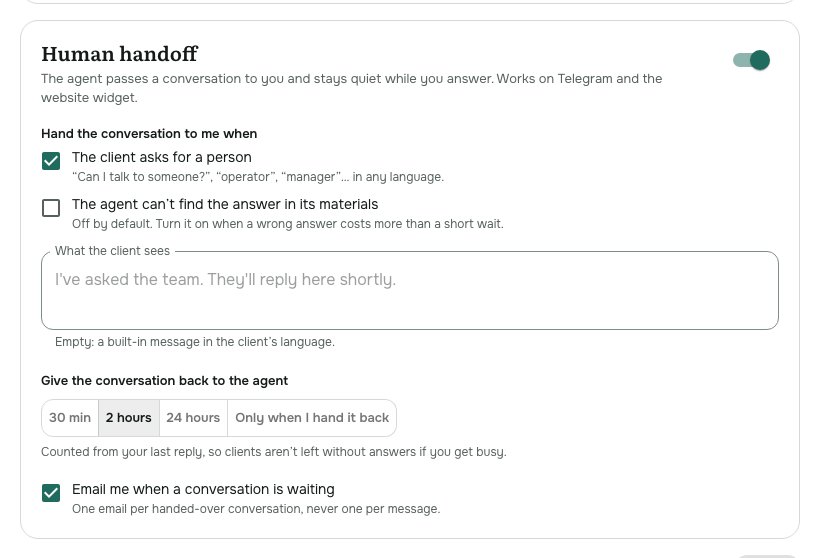
Then choose:
- Hand the conversation to me when: one or both triggers from above.
- What the client sees: the message the assistant sends when it hands over. Leave it empty to use the built-in one in the client's language ("I've asked the team. They'll reply here shortly."), or write your own, for example: "I've passed this to Anna. She usually replies within an hour on weekdays."
- Give the conversation back to the agent: after 30 min, 2 hours or 24 hours from your last reply, or Only when I hand it back. The timer means a client is never left without answers if you get busy.
- Email me when a conversation is waiting: one email per handed-over conversation, not one per message.
Click Save. Human handoff is available on the Pro, Business and Enterprise plans, for Telegram and the website widget.
Step 2: See who is waiting
When the assistant hands a conversation over, it shows Waiting in the list. The number of waiting conversations appears next to Inbox in the left bar and in the browser tab. Click Waiting above the list to see only those. They also come first on Today, under Needs you (Today and Insights).
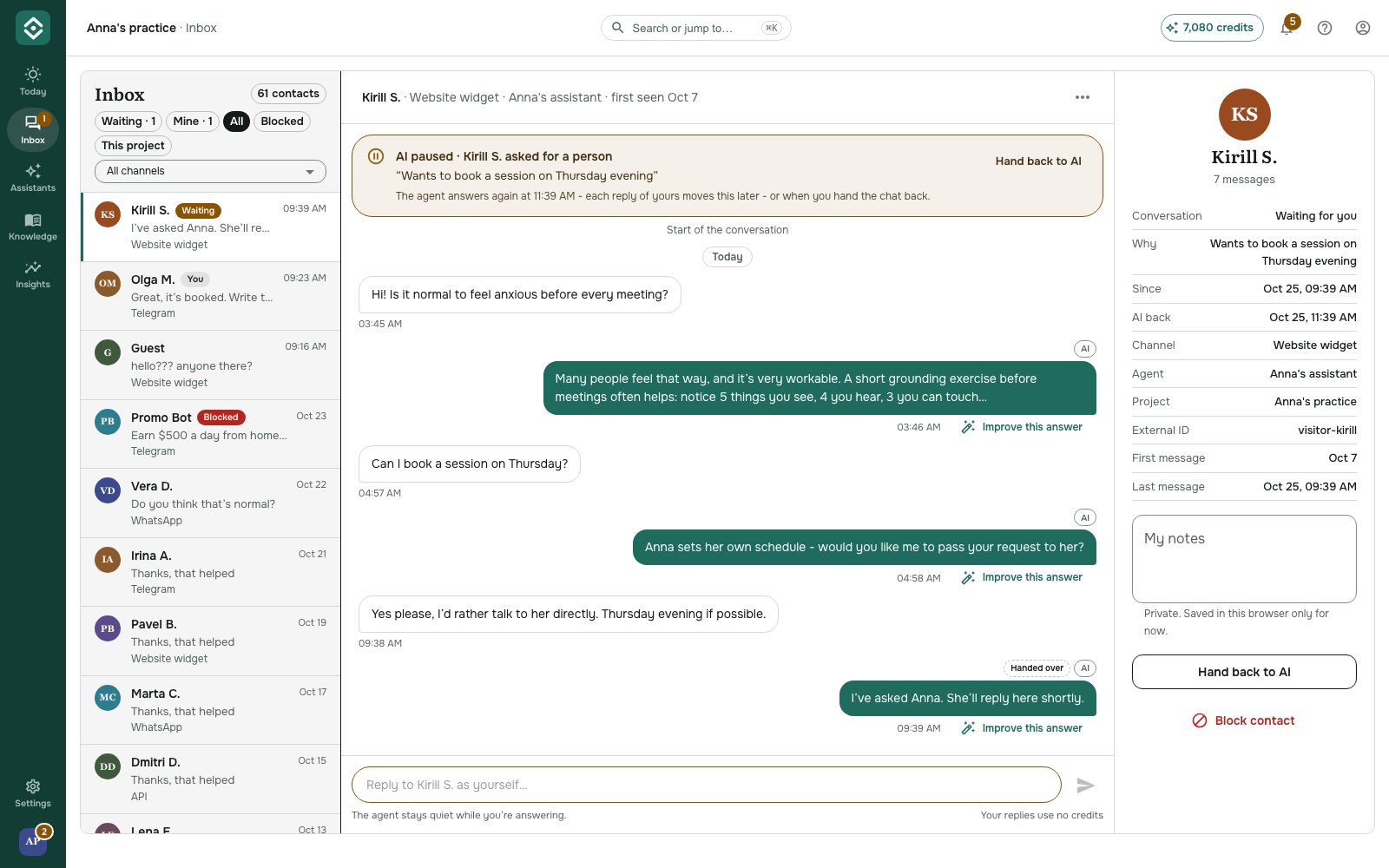
Open the conversation. The amber AI paused bar at the top tells you three things at a glance:
- why it was handed over (the client asked for a person, or the assistant didn't know),
- what the client needs, in one line, so you don't have to read the whole history first,
- when the assistant will answer again if you do nothing.
The full conversation is below, so you can see exactly what the assistant already said.
Step 3: Reply
Type in the box at the bottom and press Enter. Your message goes to the client as written, and your replies use no credits.
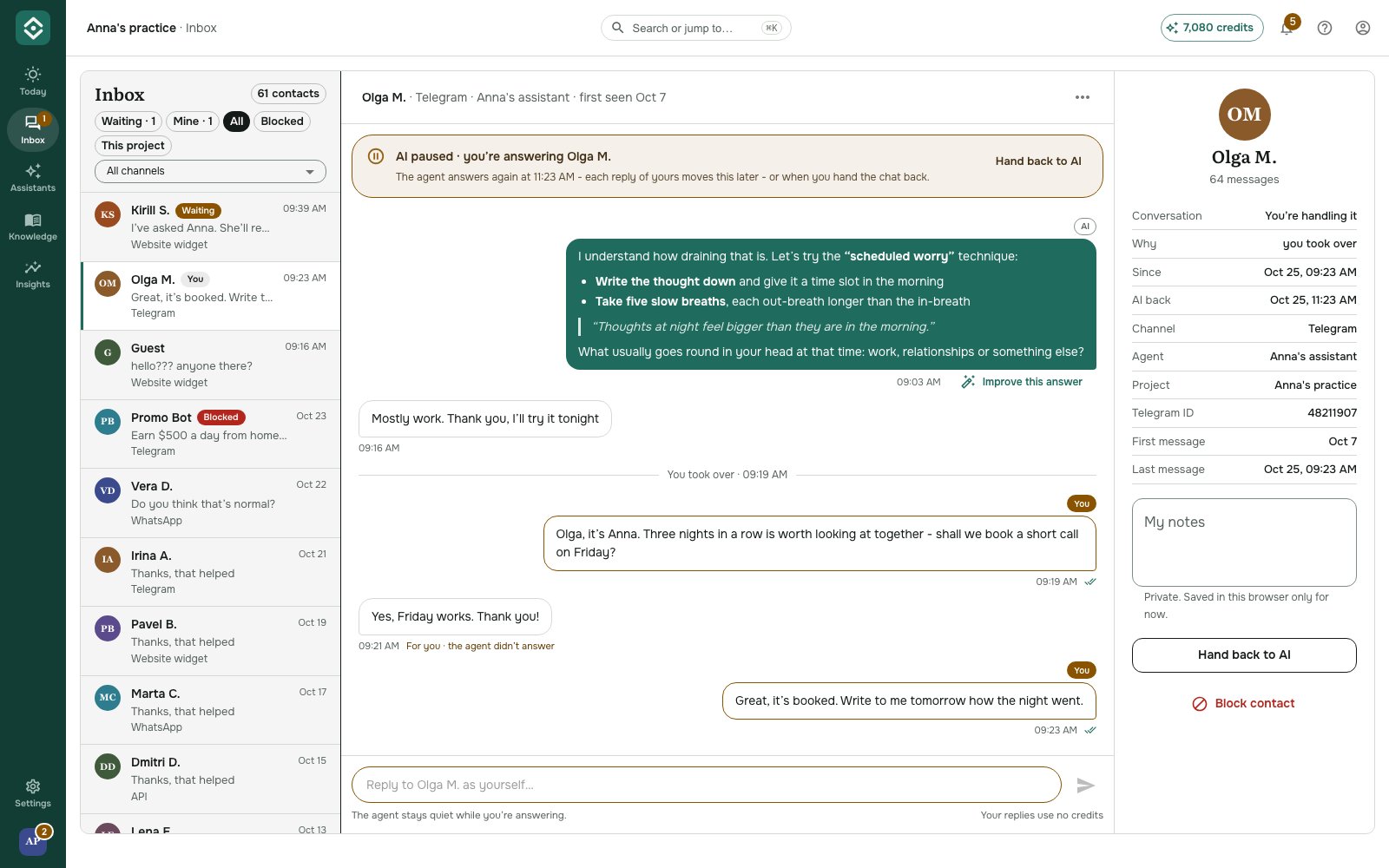
While you're answering, the conversation shows You're handling it and the assistant stays quiet. If the client writes again, their message is marked For you · the agent didn't answer, so nothing slips through. A ✓✓ under your message means the client's app accepted it.
You can also step in before anyone asks. If you see a conversation going the wrong way, open it and reply: the assistant pauses as soon as you write.
Step 4: Hand it back
When the question is settled, click Hand back to AI in the amber bar. The assistant answers the client's next message again.
If you forget, the assistant comes back on its own after the time you chose, counted from your last reply.
What the client sees
| Channel | What the client sees |
|---|---|
| Telegram | The handover message, then your replies from the same bot. |
| Website widget | The handover message, then A team member joined the chat and your replies. If they closed the chat, they see your replies when they open it again. |
Replying on WhatsApp and through the Chat API is coming soon.
Tips from small teams
- Write a handover message that sets expectations. "Someone will reply soon" is fine. "Anna replies within an hour on weekdays, 9 to 6" is better. People wait calmly when they know how long.
- Tell the assistant what not to answer. In the agent's instructions, list topics where it should always hand over: refunds, complaints, medical questions, custom prices. Combined with the "client asks for a person" trigger, this catches most sensitive cases.
- Pick a sensible timer. If you check your phone often, 30 minutes or 2 hours keeps things moving. If you prefer full control of tricky conversations, choose Only when I hand it back.
- Turn handovers into better answers. Each handover shows a gap. If the same question keeps coming to you, add the answer to the knowledge base, and next time the assistant can handle it.
- Keep email alerts on at first. Once you know how many handovers you get, you can decide whether you still need them.
Is it right for you?
Human handoff is for anyone who wants the speed of an AI assistant without leaving clients alone with it: therapists, coaches and consultants, clinics and salons, online schools, small shops and agencies. The assistant takes the repeat questions, and you take the conversations that need you.
Full details: Reply to clients yourself.