No website? Share your AI chatbot with a link and a QR code

You don't need a website to have an AI chatbot. AOVA gives your assistant its own web page: put the link in your Instagram bio or Google Business profile, send it in a message, or print the QR code on a flyer, a menu or a sign at your front desk. Clients open it on their phone and start typing - no app to install, no account to create.
This guide shows how to turn the link on, download the QR code, test it on your phone and keep the cost under control. It takes about five minutes once your assistant has a knowledge base, and it works on every plan, including Free.
Who this is for
- Salons, studios and clinics that live on Instagram and a booking app, not a website.
- Tutors, coaches and consultants who answer the same questions about prices, times and formats every week.
- Small shops and market stalls where people ask "Do you deliver?" and "Is it in stock?".
- Front desks and reception - a QR code on the counter answers the queue while you serve the person in front of you.
Have a website too? The link and the website widget share one look and one set of answers.
Where people put the link
| Place | What to do |
|---|---|
| Instagram, TikTok or Threads | Add the link to your bio, or as a link sticker in Stories. |
| Google Business profile | Use it as the website or booking link, so people asking questions land on it. |
| WhatsApp or Telegram profile | Add it to your profile, or send it as a reply to "What are your prices?". |
| Flyers, menus, price lists | Print the QR code with one line that says what to ask. |
| Front desk, window, receipt | A small QR sign: "Questions? Scan and ask our assistant". |
The assistant answers from your own knowledge base. No knowledge base yet? Follow the first steps of How to create an AI Telegram bot that answers from your documents, then come back here instead of connecting Telegram.
Step 1. Turn on the link
Open Assistants in the left bar, click your assistant, then its Channels tab.
In the Link & QR card, click Create a link. If the assistant already has a website widget, switch Link is on instead. You don't need a website for this: when there is no widget yet, AOVA creates one for you in the background, and the link works without any allowed websites.
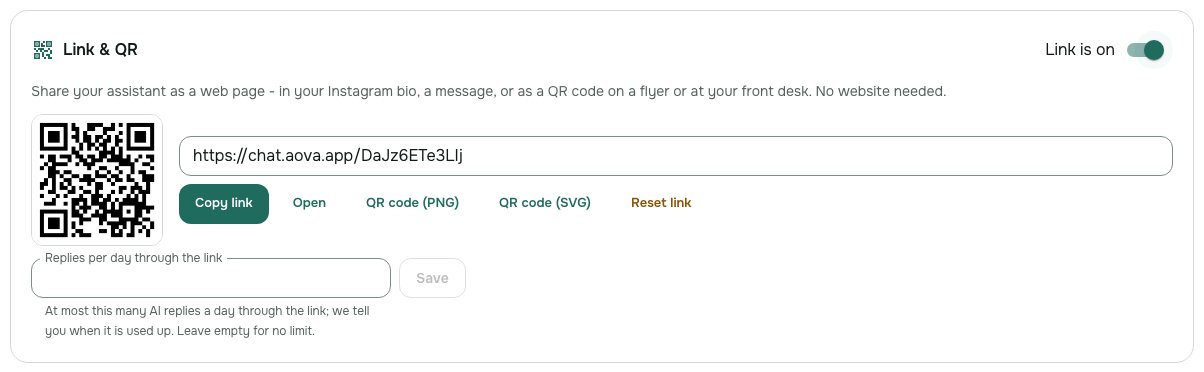
The card shows your link (it looks like chat.aova.app/ followed by 12 letters and digits) and its
QR code. Click Copy link to paste it anywhere.
Step 2. Download the QR code
Click QR code (PNG) for print - it's a 1024 px image, sharp enough for a flyer or an A4 sign. Click QR code (SVG) if a print shop asks for a vector file.
Two tips before you print:
- Print a size people can scan. At least 3 cm across on a flyer, bigger on a sign people read from a distance. Leave a white margin around it.
- Don't reset a link you've printed. Reset link gives you a new link and QR code, and the old ones stop working at once. Use it only if a link ended up somewhere you didn't want, and reprint afterwards.
Step 3. Test it on your phone
Scan the QR code with your phone's camera, or click Open on the card. Ask the questions your clients ask: "How much is a haircut?", "Are you open on Sunday?", "Can I pay by card?". If an answer is wrong or vague, fix the file in your knowledge base, not the assistant.
To change how the page looks - the colour, the avatar, the name and the greeting - click Customize on the website widget card. The link page uses the same settings as the widget.
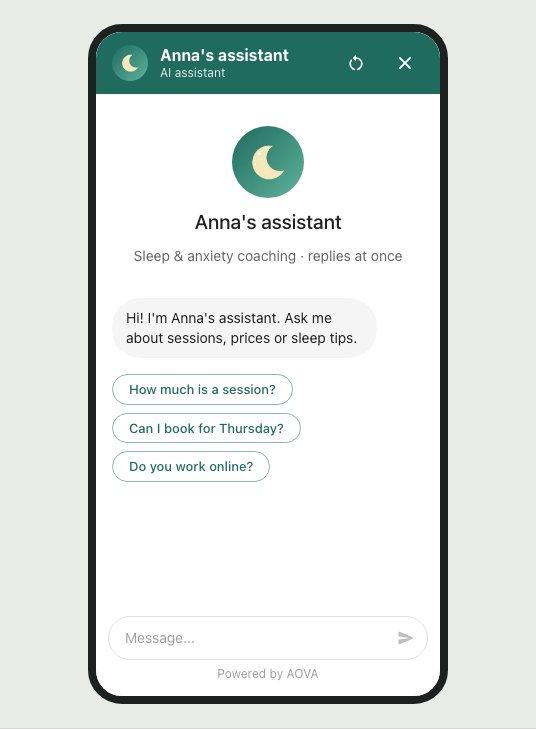
Add two or three Suggested questions while you're there: on a phone, people tap more than they type. Each conversation appears in your Inbox, marked via link.
A printable "Ask our assistant" sign
The QR code on its own doesn't tell anyone why to scan it. Put one short line above it and one example below it. Some wording that works:
| Where | Above the QR code | Below the QR code |
|---|---|---|
| Front desk or counter | Questions? Ask our assistant | Prices, opening hours, booking - answers 24/7 |
| Salon mirror or menu | Not sure what to choose? | Scan and ask: "Which treatment for dry skin?" |
| Flyer or business card | Ask us anything, any time | Scan with your phone camera. No app needed. |
| Shop window (closed) | We're closed - our assistant isn't | Scan to ask about stock, delivery and prices |
| Receipt or packaging | How to use, care, return? | Scan and ask our assistant |
Keep the promise honest: "answers questions" rather than "books your appointment", unless your knowledge base really explains how to book.
Limits and costs
Every AI reply uses credits. A link is public, so it comes with limits that protect them:
- Daily reply limit. On the Free plan, a link gives at most 50 AI replies a day; you can set a lower number but not a higher one. On Pro, Business and Enterprise there's no limit unless you set one in Replies per day through the link. When the limit is reached, the page asks visitors to come back tomorrow and AOVA tells you once.
- Message limits per person. Every channel starts with 8 messages a minute, 60 an hour and 200 a day per person. Through the link, a person can send at most 60 an hour even if you raise that.
- Limits per internet connection. The link page also allows 20 messages a minute and 300 a day from one connection, so starting a new chat doesn't get around the limits.
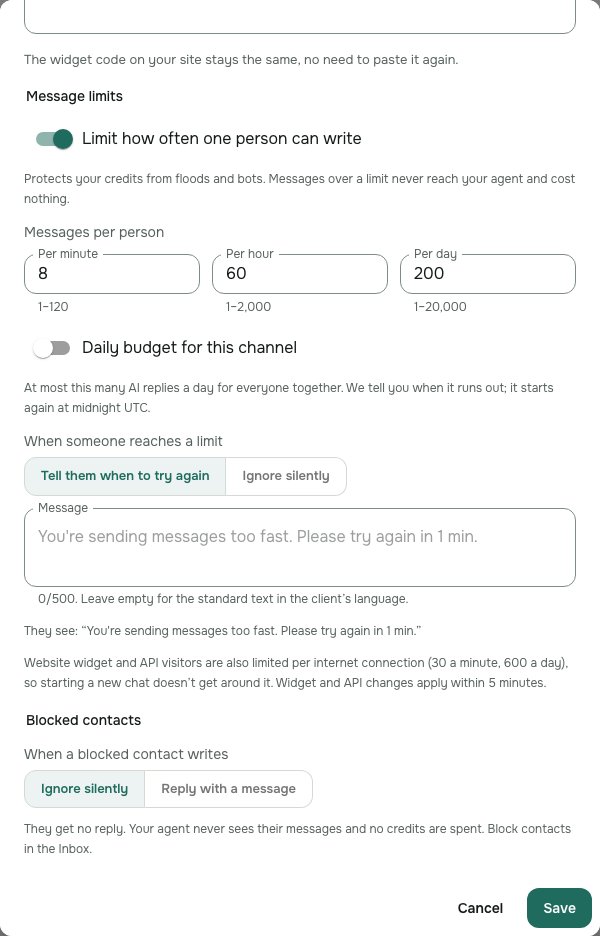
A message over any limit never reaches the assistant and costs nothing. To change the per-person numbers, open ⋯ → Edit settings on the website widget card. More in Limit how often people can write.
When a person should answer
Some questions need you: a complaint, a special request, a client who wants a human. On Pro and higher, turn on Human handoff for the assistant. The conversation then shows Waiting in your Inbox, you reply yourself, and the client sees your answer on the same page. How to set it up: AI chatbot handoff to a human.
FAQ
Do I need a website to use an AI chatbot? No. The link is a page AOVA hosts for you; you only need an assistant with a knowledge base.
Do clients need to install an app or sign up? No. The link opens in the phone's browser and they can type straight away.
Is the link free? Yes, the link and QR code are on every plan. Replies use credits as on any other channel; on Free a link gives at most 50 AI replies a day.
Can I change where the QR code leads? The QR code always points to the link. If you reset the link, the old QR code stops working, so keep the same link for anything you print. You can change the assistant's answers, look and knowledge base any time without touching the QR code.
Will Google show my chat page? No. The page asks search engines not to index it. It also tells visitors they are talking to an AI assistant.
Full reference: Share your assistant as a link and QR code.