Add audio and video
Recordings such as sales calls, webinars, lectures and voice notes can go into a knowledge base next to your documents. AOVA turns the speech into text, and your agent answers from that transcript like any other file.
Supported files
| What | Details |
|---|---|
| Audio | MP3, WAV, M4A, FLAC, OGG, AMR, WEBM |
| Video | MP4 (only the soundtrack is used) |
| Size and length | Up to 1 GB and 4 hours per file |
| Languages | Detected automatically: English, Russian, Ukrainian, German, French, Spanish, Italian, Portuguese, Polish, Turkish |
| Cost | 8.8 credits per minute of recording, rounded up per file |
QuickTime (.mov) and other formats that can't be transcribed are rejected as soon as you
drop them. Convert them to MP4 or M4A first.
Upload a recording
- Open Knowledge in the rail, click your knowledge base, then Add knowledge → Upload files, or drop the recordings onto the file list. You can mix them with ordinary documents.
- Check the Audio and video will be transcribed panel. It shows each recording's length, the estimated credits, the total, and your current balance.
- Optionally, set Spoken language. Leave it on Detect automatically unless the recording is very short or mixes languages, which can make auto-detection pick the wrong one.
- Click Upload.
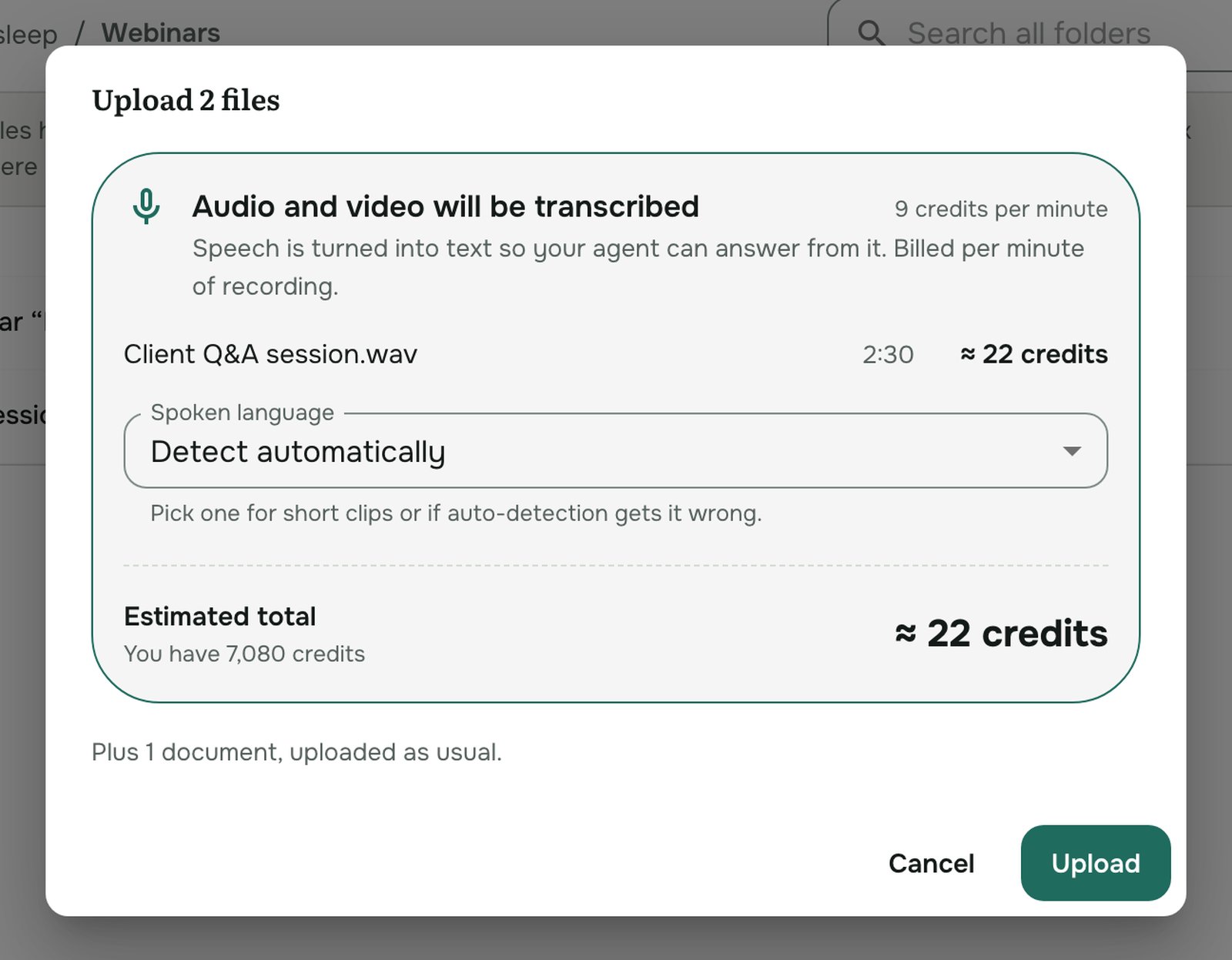
If the estimate is more than your balance, Upload is disabled and a Top up link appears. Remove some recordings or add credits first.
Follow the transcription
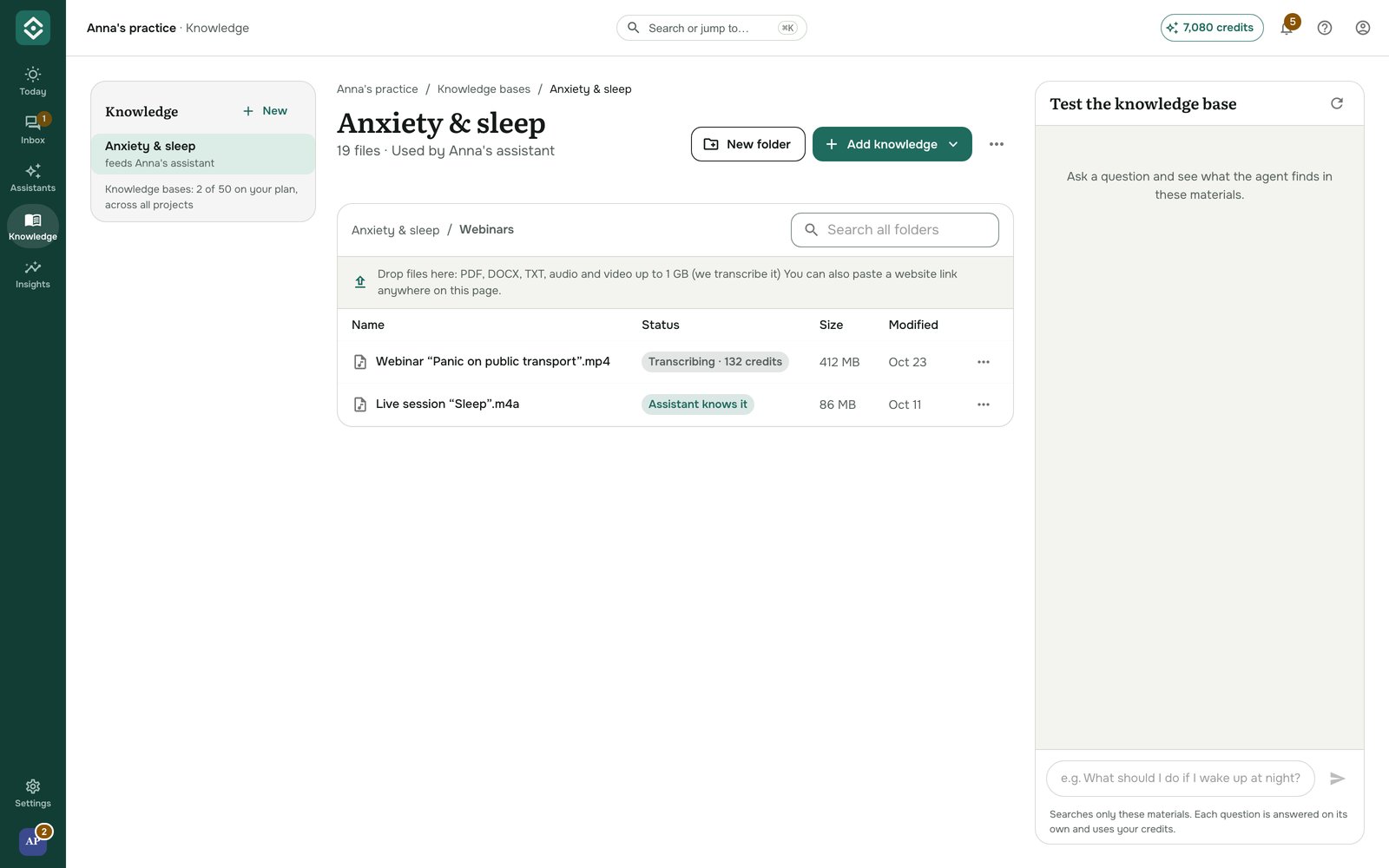
A new recording shows Transcribing in the Status column. After that it goes through the normal states, like any uploaded file: Waiting to index, Indexing, then Assistant knows it once your agent can use it. A few minutes of audio is usually ready within a minute or two.
See what it cost
The upload dialog shows the estimate before you upload. The credits actually charged are based on the real length, are taken from your balance a few seconds after transcription finishes, and are counted in Credits used on the Insights page.
Fix the transcript
Speech recognition can mishear names and unusual words. Click ⋯ → Edit transcript on the recording to correct the text; the agent answers from the corrected version within a minute or two. Download transcript saves it as a text file.
A recording can't be replaced with a new recording, because that would need a new paid transcription. Delete it and upload the new one instead.
The original audio or video file isn't kept after transcription. Only the text transcript stays in your knowledge base. Deleting the item removes the transcript too.
Troubleshooting
- Length says "measured after upload". Your browser can't read that format's length (common with AMR, and with FLAC or OGG in Safari). The upload still works: AOVA measures the length itself and charges for the real length.
- The status shows Error. Hover over it to see why:
- Not enough credits: nothing was charged. Top up and upload again.
- No speech detected: the recording is silent or music only.
- Unsupported or damaged file: re-export the recording as MP3, M4A or MP4.
- Names or brand words are misspelled in answers. Fix them with Edit transcript, or add a short document to the same knowledge base that spells them correctly.
Learn more
Which recordings work best, and how coaches and consultants use them: Transcribe webinars and calls into your chatbot's knowledge base.