Add knowledge from Dropbox
Keep your price lists, policies and manuals in Dropbox? Link the folders to a knowledge base and your agent stays up to date by itself: when you change a file in Dropbox, the agent knows within minutes. No more downloading and uploading after every change.
Link folders
- Open your knowledge base and click Add knowledge → Dropbox.
- The first time, click Connect Dropbox. Dropbox opens in a new window: sign in and click Allow. If no window appears, your browser blocked it — click Continue in this tab.
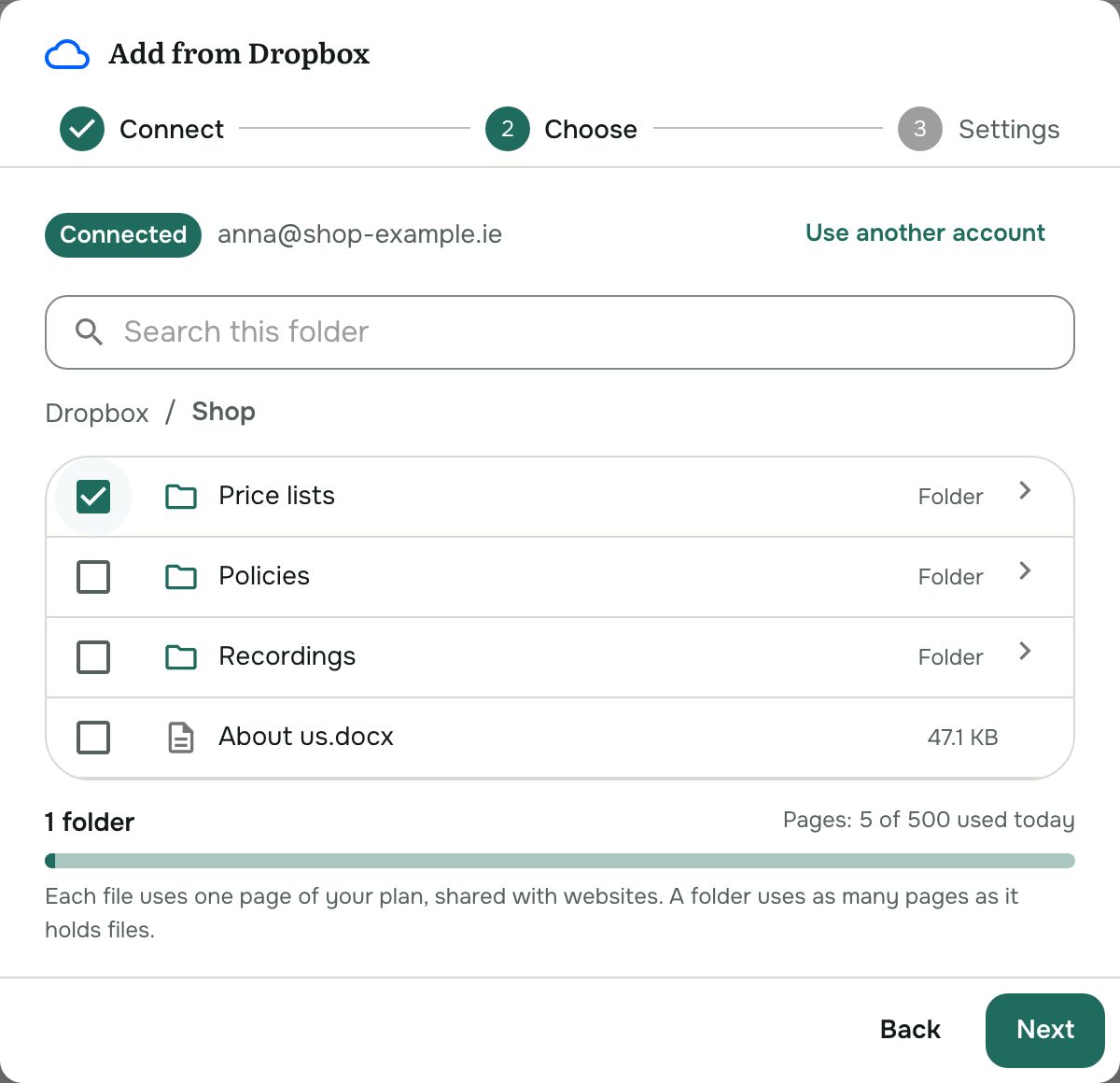
- Choose the folders (or single files) your agent should know. Open a folder to look inside; ticking a folder includes everything in it.
- In Settings, optionally set default metadata for these files (for example a description or buttons under the answer). New files get it automatically; you can still change any file.
- Click Add to knowledge base.
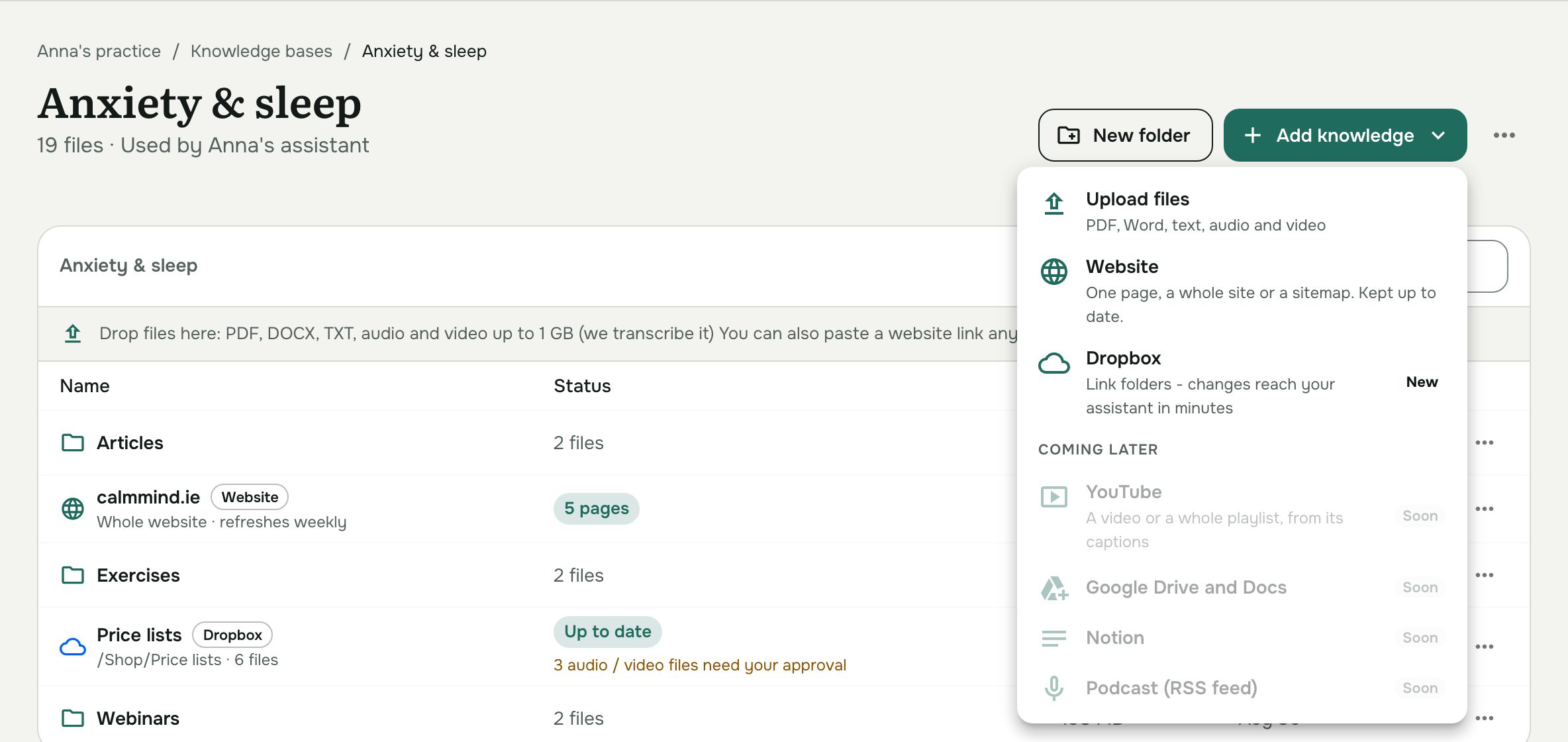
Each chosen folder appears in the knowledge base as its own folder with a cloud icon. Loose files you picked go into one more folder, Dropbox files.
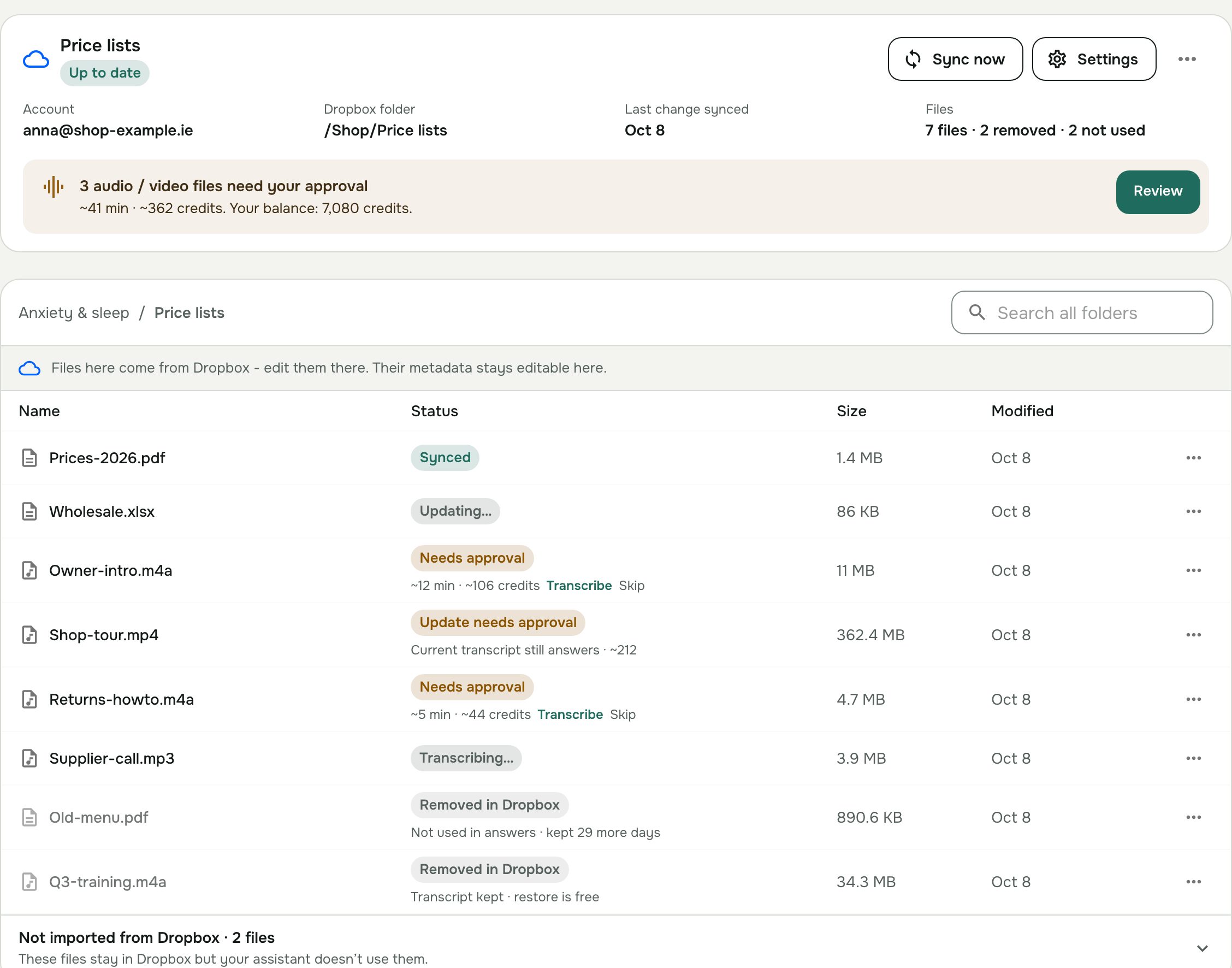
AOVA asks Dropbox for read-only access: it never changes, moves or deletes your files, and it reads only the folders you chose.
What is read
- Documents — PDF, Word, Excel, CSV, text, Markdown and web pages, up to 50 MB each — are read right away.
- Audio and video (MP3, M4A, WAV, MP4 and more, up to 1 GB / 4 hours) are listed as Needs approval with their length and price. Nothing is transcribed or charged until you approve it — see below.
- Other files (images, archives, Pages/Keynote, …) are listed as Not supported and skipped.
Each file uses one page of your plan's page allowance — the same pages your websites use (Free 20, Pro 500, Business 5,000, Enterprise 20,000). Files over the allowance are listed as Over plan limit and added once there's room.
Audio and video: approve first
Transcribing audio and video costs credits (8.8 credits per minute, charged per second), so linked recordings wait for you. Open the folder and either:
- click Transcribe or Skip on a single file, or
- click Review on the banner to see every waiting file with its length and credits, the total and your balance, then Transcribe the ones you want.
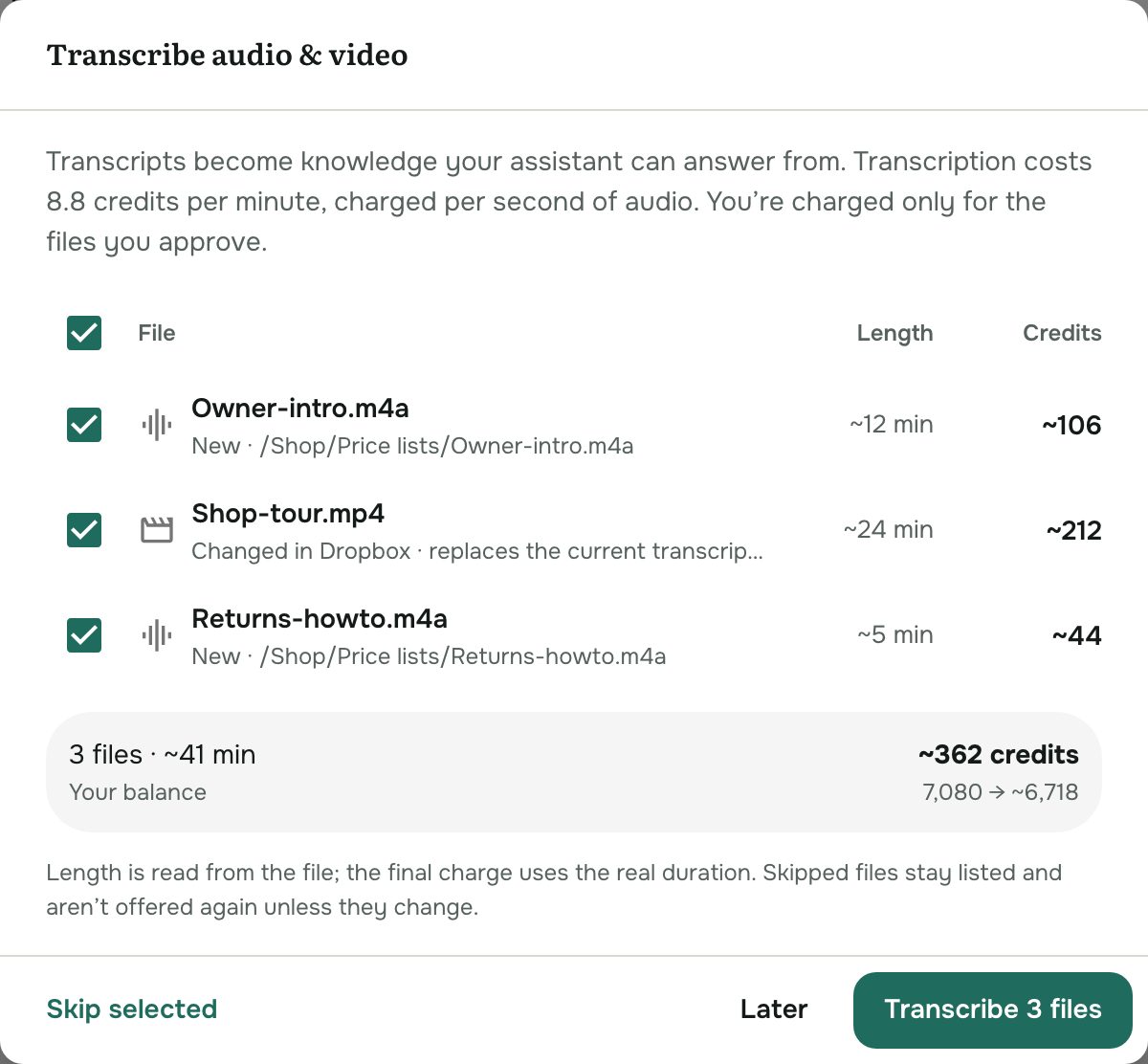
A skipped file stays listed and isn't offered again unless it changes. When a transcribed recording changes in Dropbox, it shows Update needs approval: the current transcript keeps answering until you approve the new one. You're never charged twice for the same recording.
When files change or are deleted in Dropbox
- Edited files are read again; renamed or moved files (inside the linked folder) keep their metadata; new files are added with the folder's default metadata.
- Deleted files (or moved out of the folder) show Removed in Dropbox. Your agent stops using them right away, but their metadata — and a recording's transcript — is kept for 30 days. If the file comes back in that time (restored from Dropbox's trash, or uploaded again to the same place), everything returns automatically, with no new transcription charge. After 30 days it's removed for good; Delete now in the file's menu removes it sooner.
Content of linked files can't be edited or replaced in AOVA — change it in Dropbox. Their metadata stays editable here (Details & metadata in the file's menu).
Manage a linked folder
Open the folder:
- Sync now reads it again straight away (changes normally arrive within minutes anyway, and every folder is fully checked once a day).
- Settings changes the folder's default metadata. Files whose metadata you changed by hand keep theirs.
- ⋯ → Remove linked folder removes its files from the knowledge base. Your Dropbox isn't touched, and you can link the folder again later.
- ⋯ → Disconnect Dropbox… stops AOVA reading your account. Choose Keep imported knowledge (files stay as they are and stop updating) or Remove it.
If Dropbox stops accepting AOVA's access (for example after a password change), the folder shows Reconnect needed. Nothing is deleted; click Reconnect and syncing resumes.