Build a knowledge base
A knowledge base holds the materials your agent answers from. A project can have several knowledge bases, for example one for a course and one for your consultations. Each agent uses one of them.
Create a knowledge base
- Open Knowledge in the rail.
- Click New knowledge base, give it a name and, if you like, a description only you see.
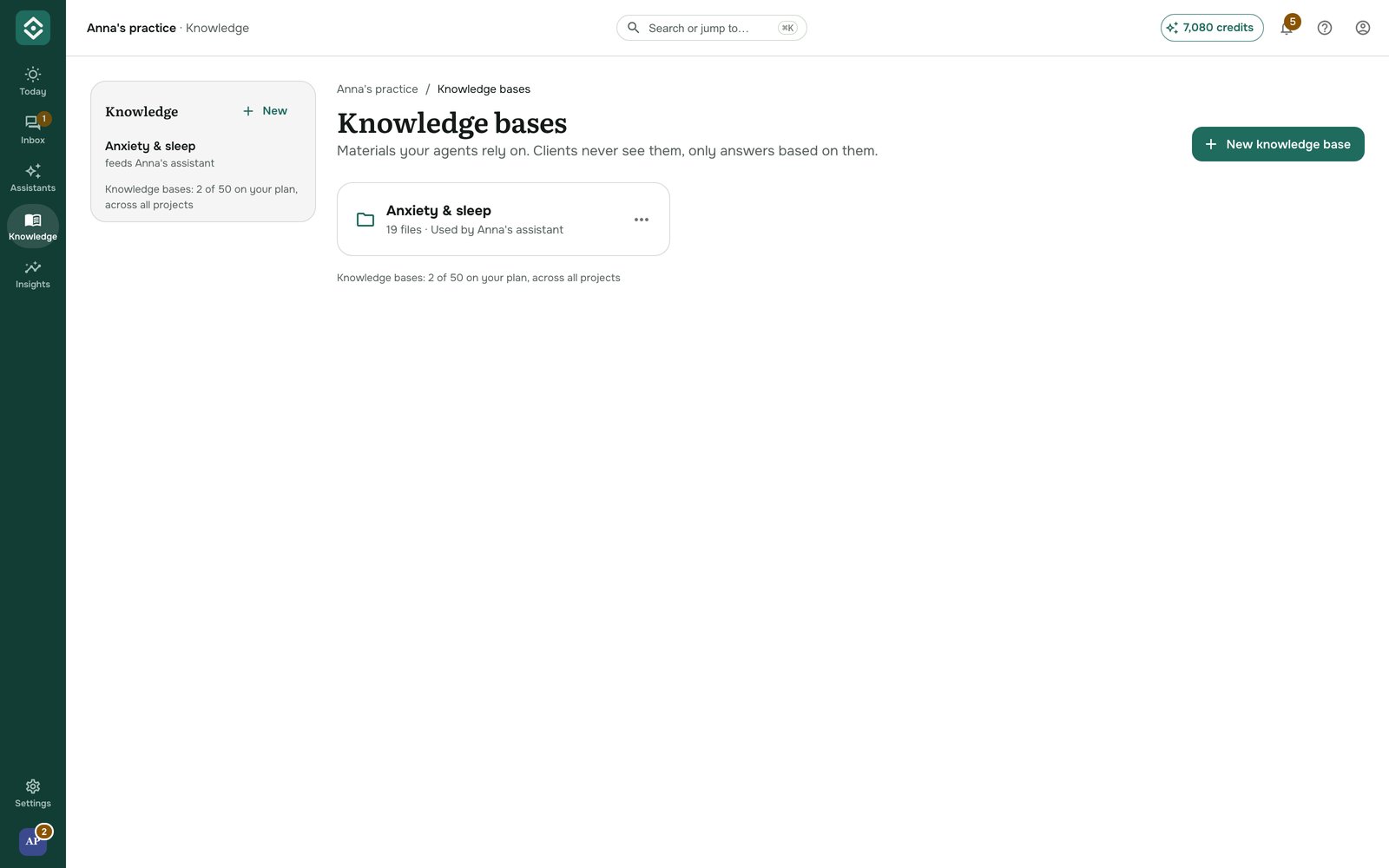
The list on the left shows your knowledge bases and which assistant each one feeds; click one to open it. Each card on the page shows how many files the knowledge base has and which agents use it.
Upload files
Open the knowledge base and click Add knowledge → Upload files, or drop files onto the file list. You can pick several files at once.
- Documents: for example PDF, DOCX, TXT, Markdown, CSV and HTML.
- Audio and video: up to 1 GB and 4 hours per file. They are transcribed to text, which costs credits. See Add audio and video.
- Your website: instead of files, add the site itself and keep it up to date. See Add your website.
- Your Dropbox: link folders and they stay in sync. See Add knowledge from Dropbox.
Each file gets its own progress bar. Files go up three at a time; finished ones clear from the list, and failed ones stay with the reason until you dismiss them.
When a file with the same name already exists
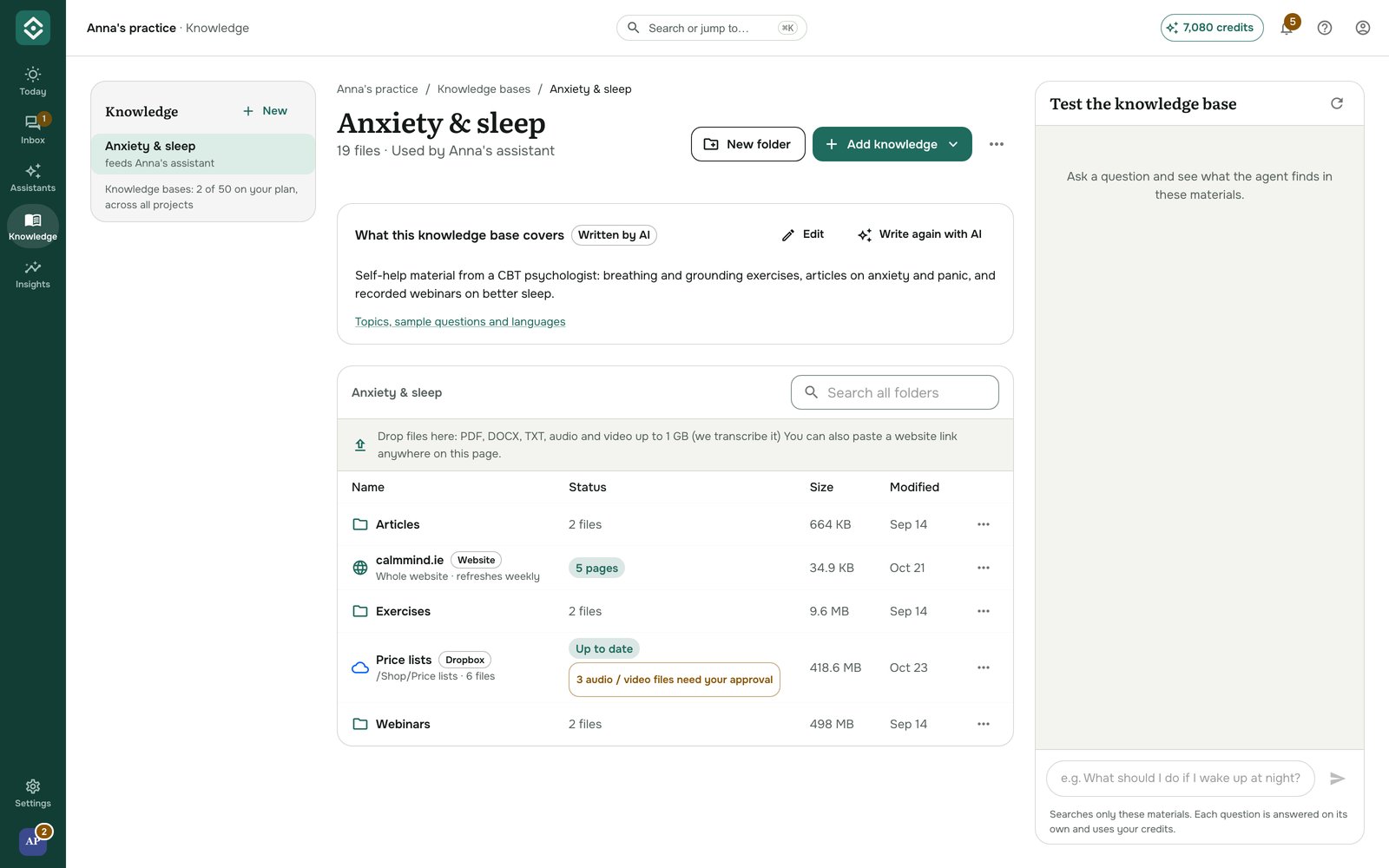
If a folder already has a file with that name, you choose what to do for each file:
- New version replaces the old file's content and keeps its name, folder and details.
- Keep both uploads the new file with a number, for example
Price list (1).txt. - Skip leaves the old file alone.
Check that the assistant knows a file
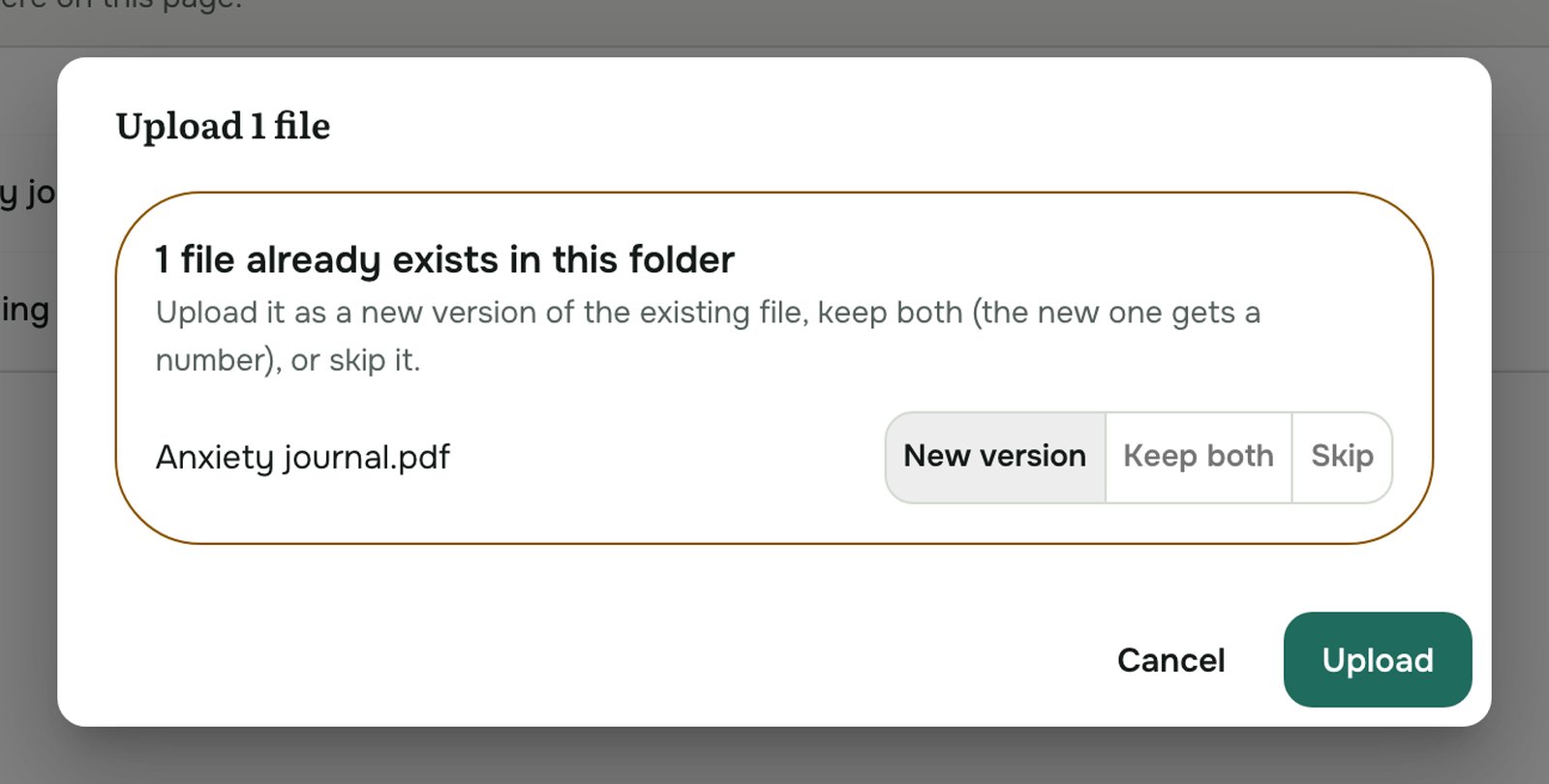
The Status column shows where each file is:
| Status | Meaning |
|---|---|
| Waiting to index | Uploaded, queued for indexing. |
| Indexing | Being processed. Usually takes a few seconds to a couple of minutes. |
| Transcribing | An audio or video file is being turned into text. |
| Assistant knows it | Ready. Your agents answer from it. |
| Error | The file couldn't be processed. Hover over it to see why, for example a password-protected PDF. |
Statuses update by themselves; you don't need to refresh the page.
See what the knowledge base covers
Once the first files are ready, AOVA reads them and writes a short description at the top of the knowledge base: a summary, the main topics, the languages and questions it can answer. It takes a few minutes after a file is ready, and it updates by itself as you add files (at most once an hour).
- Edit changes the text. After that, new files no longer change it.
- Write again with AI writes a fresh description from your current files. You can do this up to 10 times a day per knowledge base.
The description costs you no credits.
Organize with folders
Click New folder to group files. Folders can be nested up to 3 levels deep, and the path at the top of the file list shows where you are. Click a folder to open it, and click a name in the path to go back up.
To find a file in any folder, type in Search all folders.
Work with a file
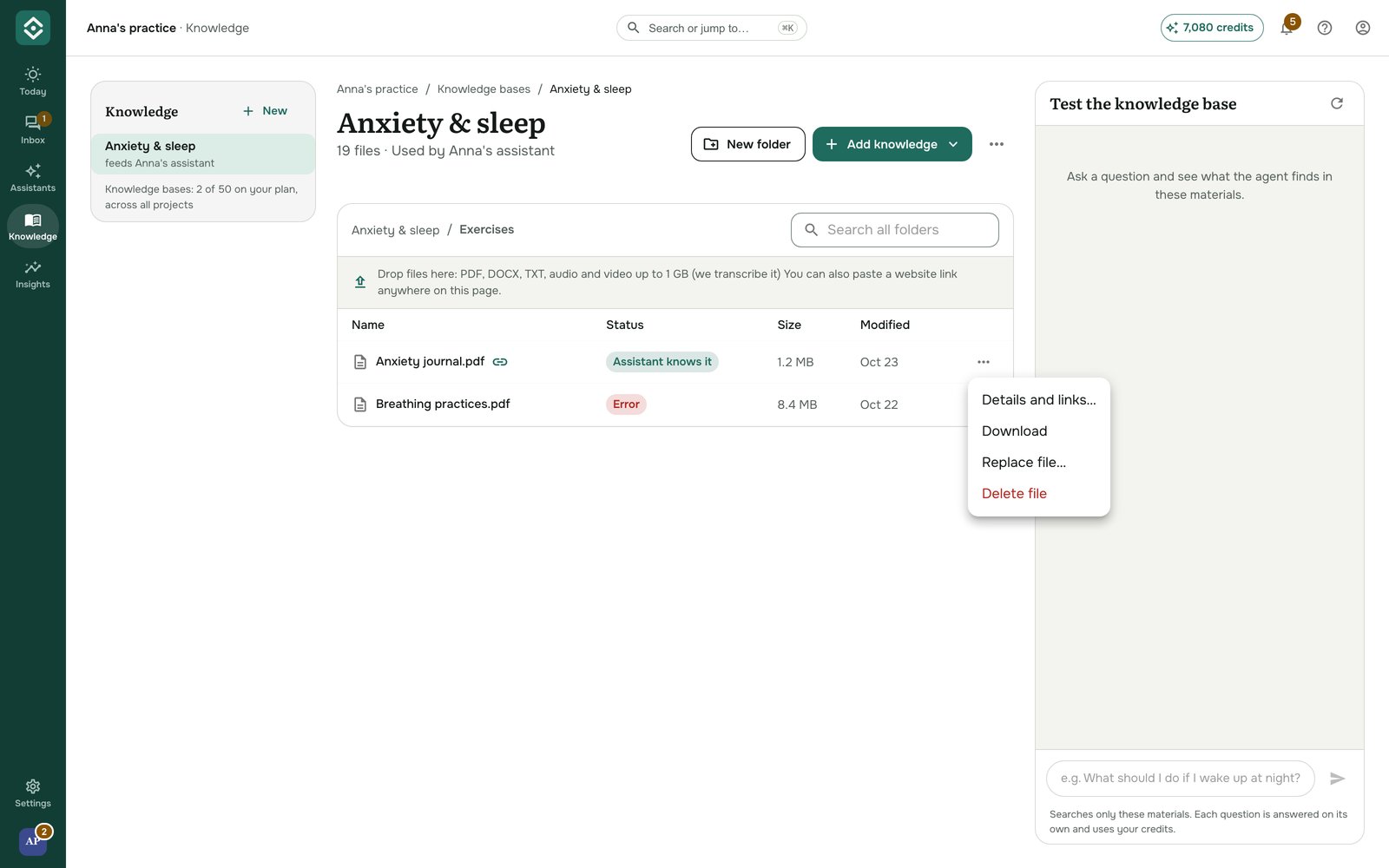
Click ⋯ next to a file:
- Details and links… adds a description, the source and buttons under answers (see below).
- Download saves the original file.
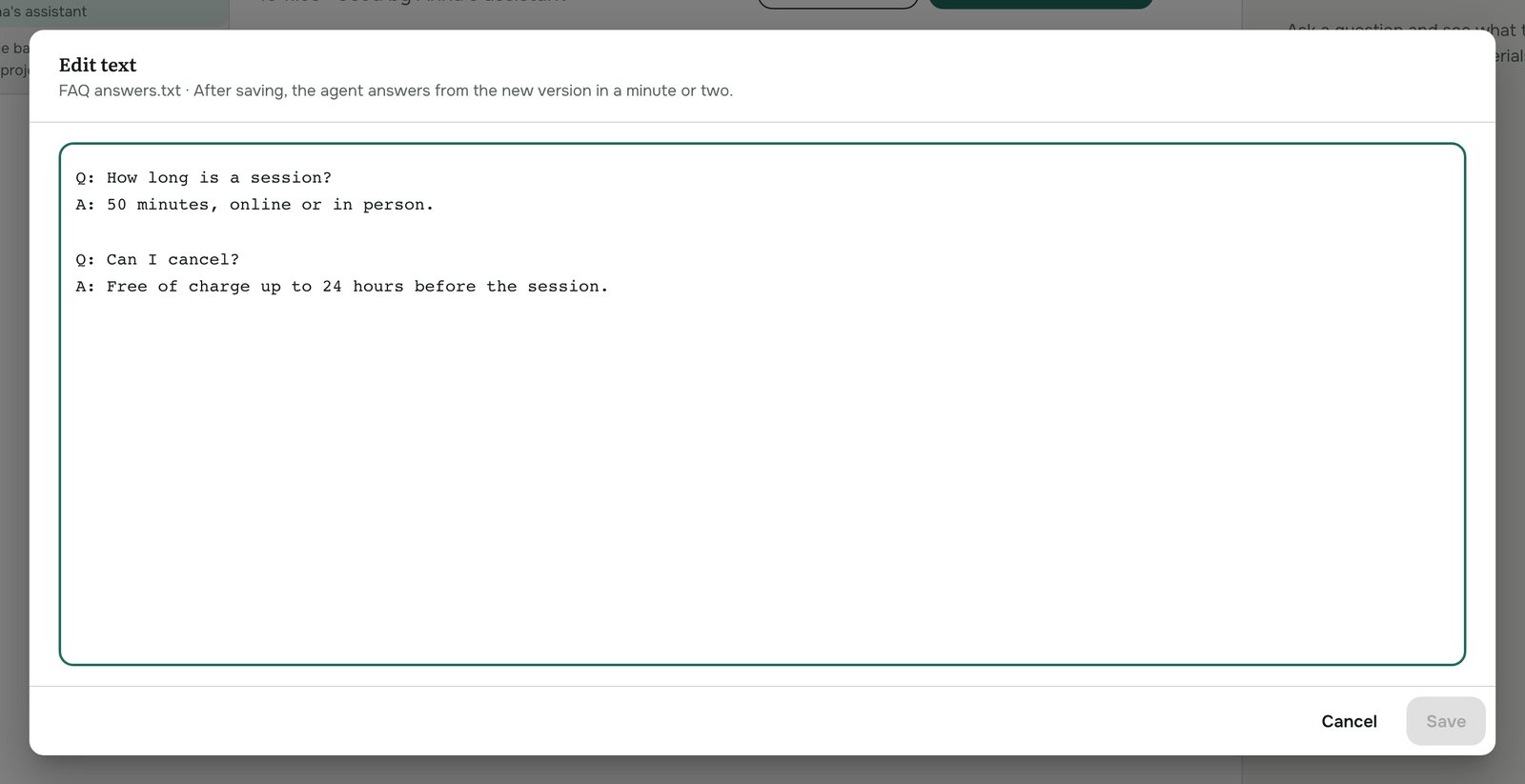
- Replace file… uploads a new version. It must be the same file type. The file keeps its name, folder and details, and the agent answers from the new version within a minute or two.
- Edit text opens TXT, Markdown, CSV and HTML files up to 1 MB in an editor. For a recording, Edit transcript does the same with its transcript.
- Delete file removes it. Your agents stop using it.
Show sources and buttons under answers
When your agent answers from a file, it can show that file as a source and offer buttons with links. Click ⋯ → Details and links… on the file:
- Buttons under the answer: up to 3 buttons, each with its own text and
https://link, for example "Book a session". Whenever an answer uses this file, clients see them right under this file in the sources list: as buttons in the chat widget, and as links in Telegram and WhatsApp. - Description is the name clients see in the sources list (linked to Link to the original, if you add one); Source is shown after it in grey, so use it for a category such as "Club" or "Website". With only one of the two filled in, that one is the name.
Under the answer, sources look like this, in the language of the answer:
📎 Sources
• Inner Support mini course · Telegram
  → Book (RU card) · Book (other cards)
• Club meeting, 19 January · Club
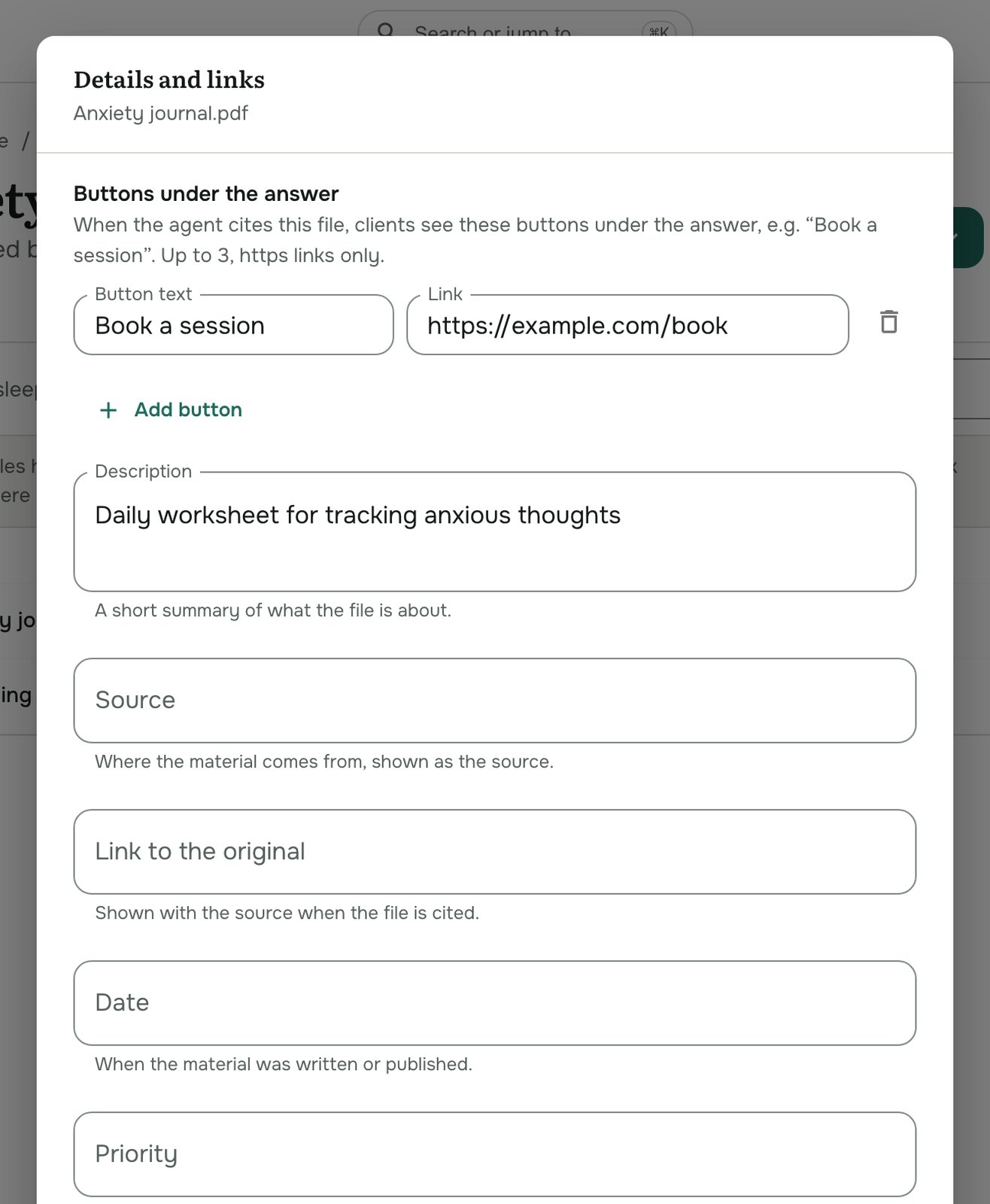
A file with buttons shows a link icon next to its name. Saving the details re-indexes the file, so the change reaches answers within a minute or two.
Test the knowledge base
Under the file list, Test the knowledge base lets you ask a question and see what is found in these materials, without any agent instructions. Each question is answered on its own and uses credits.
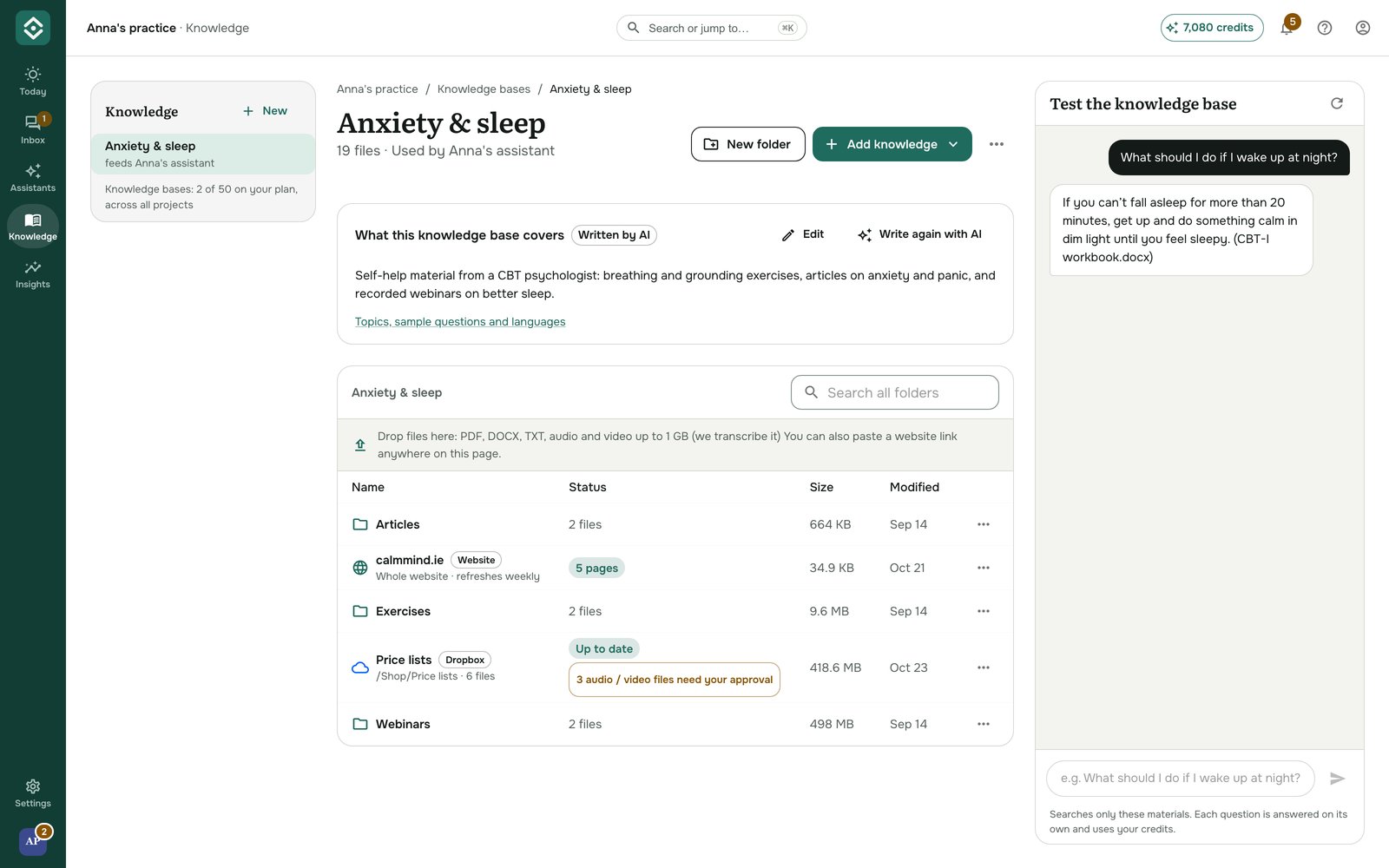
If the answer is missing or wrong, improve the file rather than the question.
Rename or delete a knowledge base
Use ⋯ at the top right of the knowledge base (or on its card in the list):
- Edit name and description.
- Delete knowledge base deletes it with all its files and folders. Agents that use it stop answering clients until you choose another knowledge base for them; the dialog names them.
Troubleshooting
- The agent doesn't use a file you uploaded. Check its status is Assistant knows it, and that the file is in the knowledge base your agent uses (the agent's Settings tab shows it).
- A file shows Error. Hover over the status to see the reason. Fix the file (for example, remove the password) and use Replace file….
- Your plan limit is reached. Plans limit the number of knowledge bases and storage; see Manage your subscription.