Collect contact details
Your assistant can ask clients for their name, phone number and email and save them, so you can get back to them. You get a notification for each new lead, and you find them all under Leads in the Inbox. Every plan includes it.
Turn it on
- Open Assistants in the rail, click the assistant, and go to its settings.
- In Collect contact details, switch it on.
- Under Ask for, tick what the assistant should ask: Name, Phone, Email, What they need. Turn on needed for the details a client must give before the assistant saves them.
- Under When to ask, choose:
- When they want to book, buy or be called back - the assistant asks only when it makes sense (recommended).
- Before answering the first question - for businesses that always want contact details first.
- Click Save.
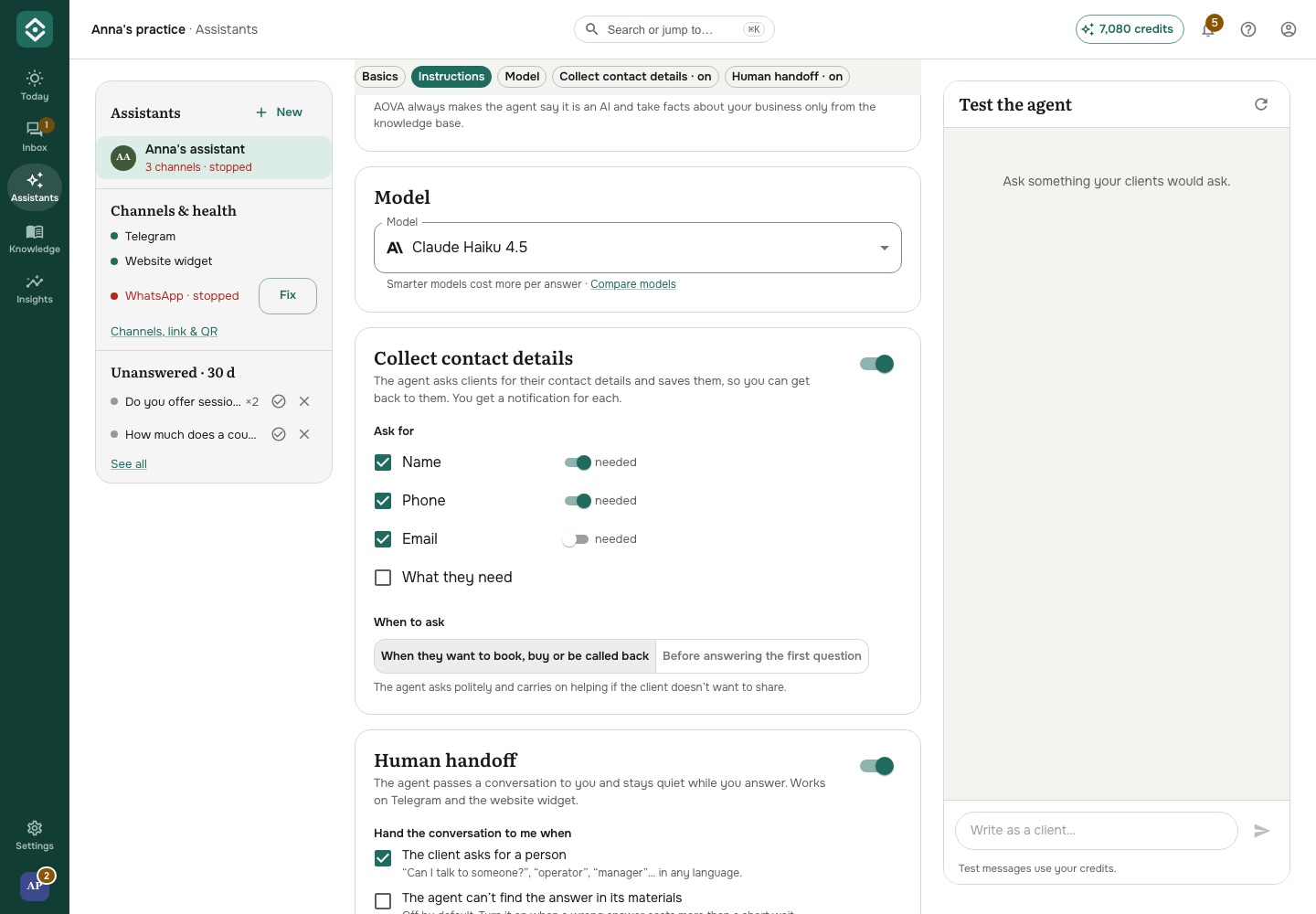
The assistant asks politely and carries on helping if a client doesn't want to share. It checks that a phone number and an email address look right, and asks again if they don't. It saves only what the client actually wrote. Try it in Test the agent on the same page: the assistant asks the same way, but a test never saves a lead.
It works on Telegram, WhatsApp, the website widget and the share link. It needs an AI model that can use tools - every model in the list does, except the ones marked as coming soon.
Find your leads
Open Inbox in the rail and click Leads above the list. A Lead label shows next to each of them, and the contact details on the right show what the client gave and when.
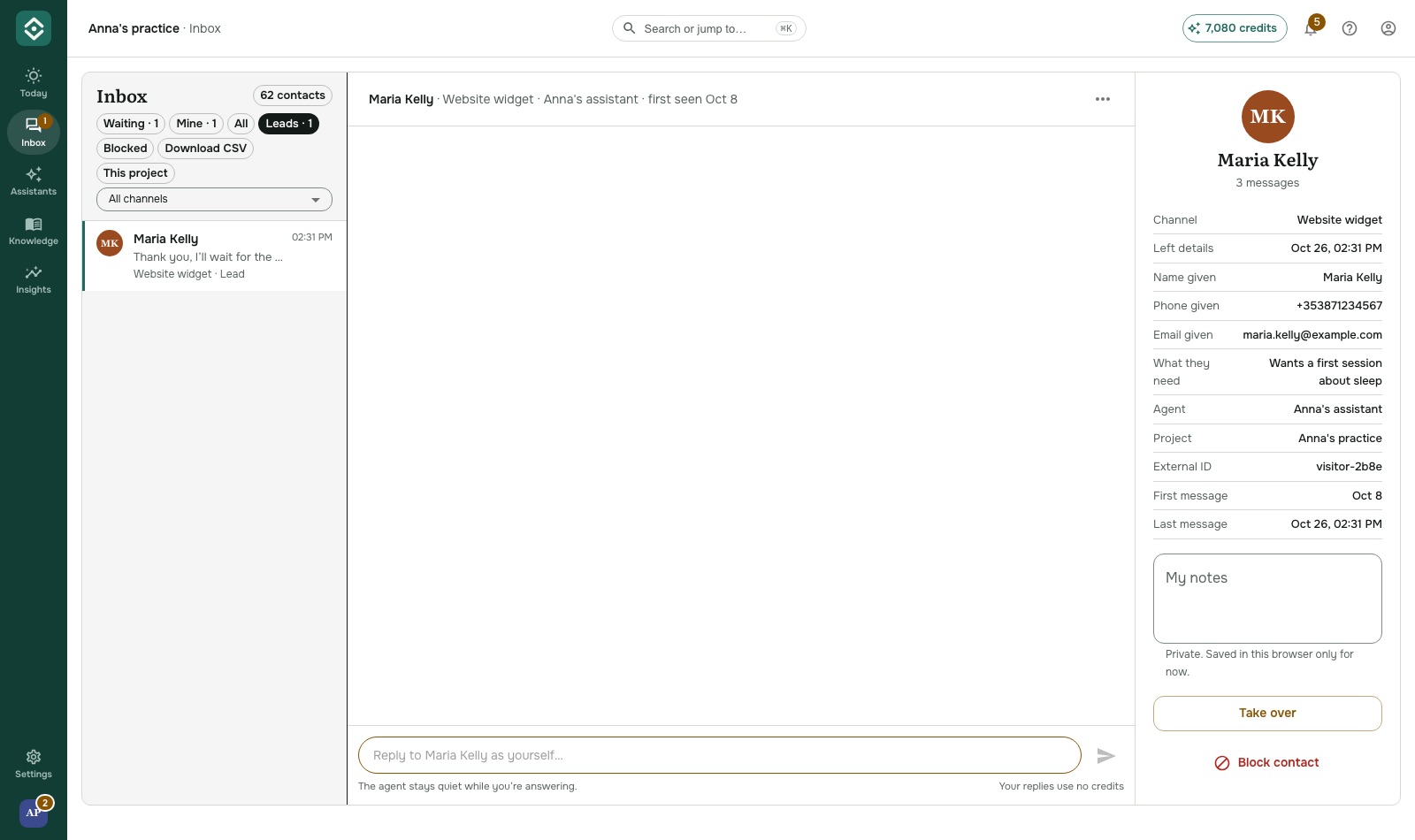
To download them all, click Download CSV next to the filters while Leads is selected. The file opens in Excel, Google Sheets or Numbers.
Get notified
A new lead sends a push notification to the AOVA app and shows in the bell, with the client's name only - never their phone number or email. Turn it off in Settings → Notification settings → A client leaves their contact details. See Get notified.
To send leads straight to your CRM or a spreadsheet, use webhooks.