Configure an agent
An agent is the assistant your clients talk to. It answers from one knowledge base, using the AI model and the instructions you choose.
Create an agent
- In the side menu, open Agents and click New agent.
- Enter a name, pick a Model and the Knowledge base it answers from.
- Click Create.
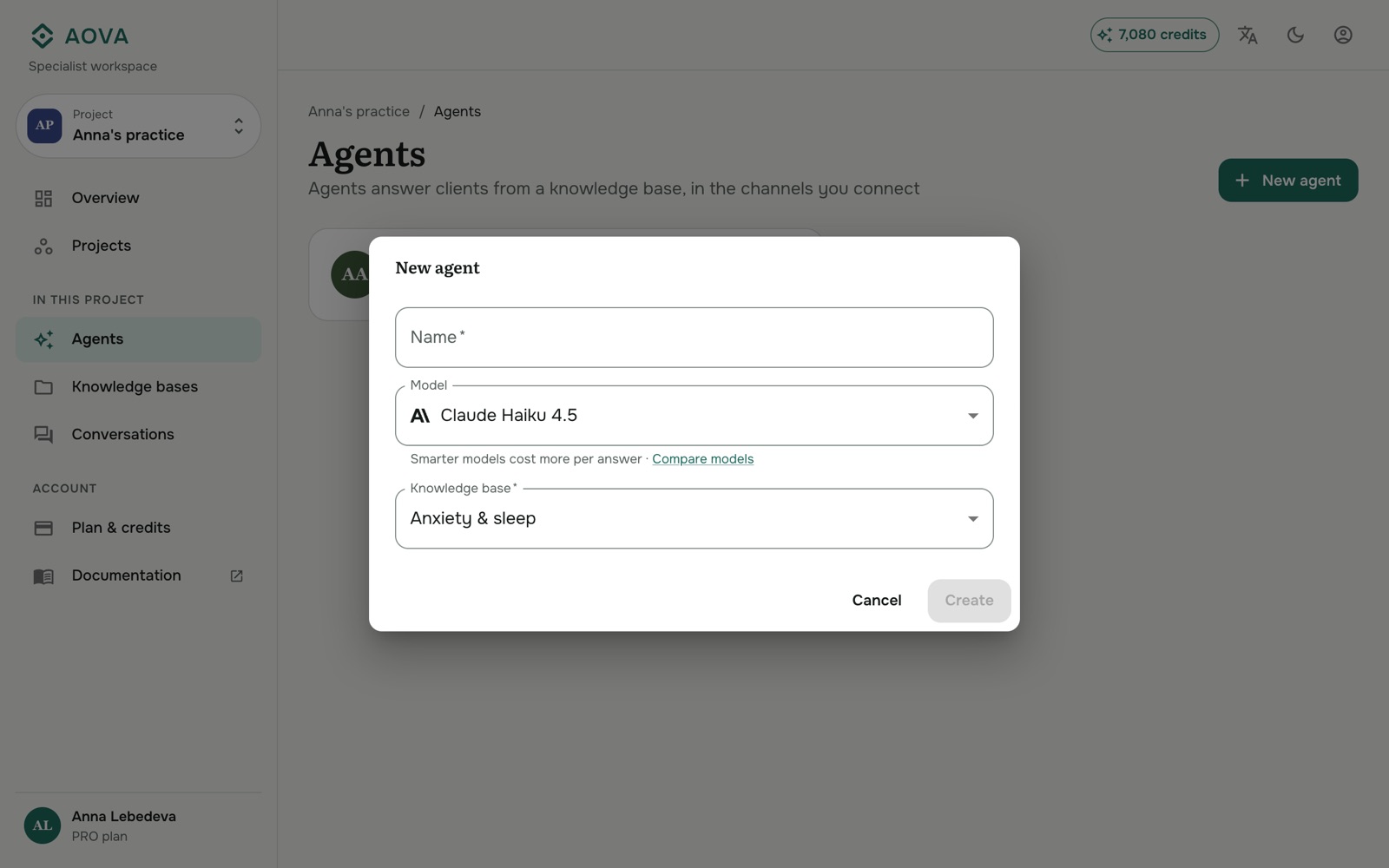
A project can have several agents, for example a short, formal one for your website and a warmer one for Telegram, both using the same knowledge base.
Change the settings
Click an agent to open it. The Settings tab has everything about how it answers, and the Test the agent panel on the right lets you try changes straight away.
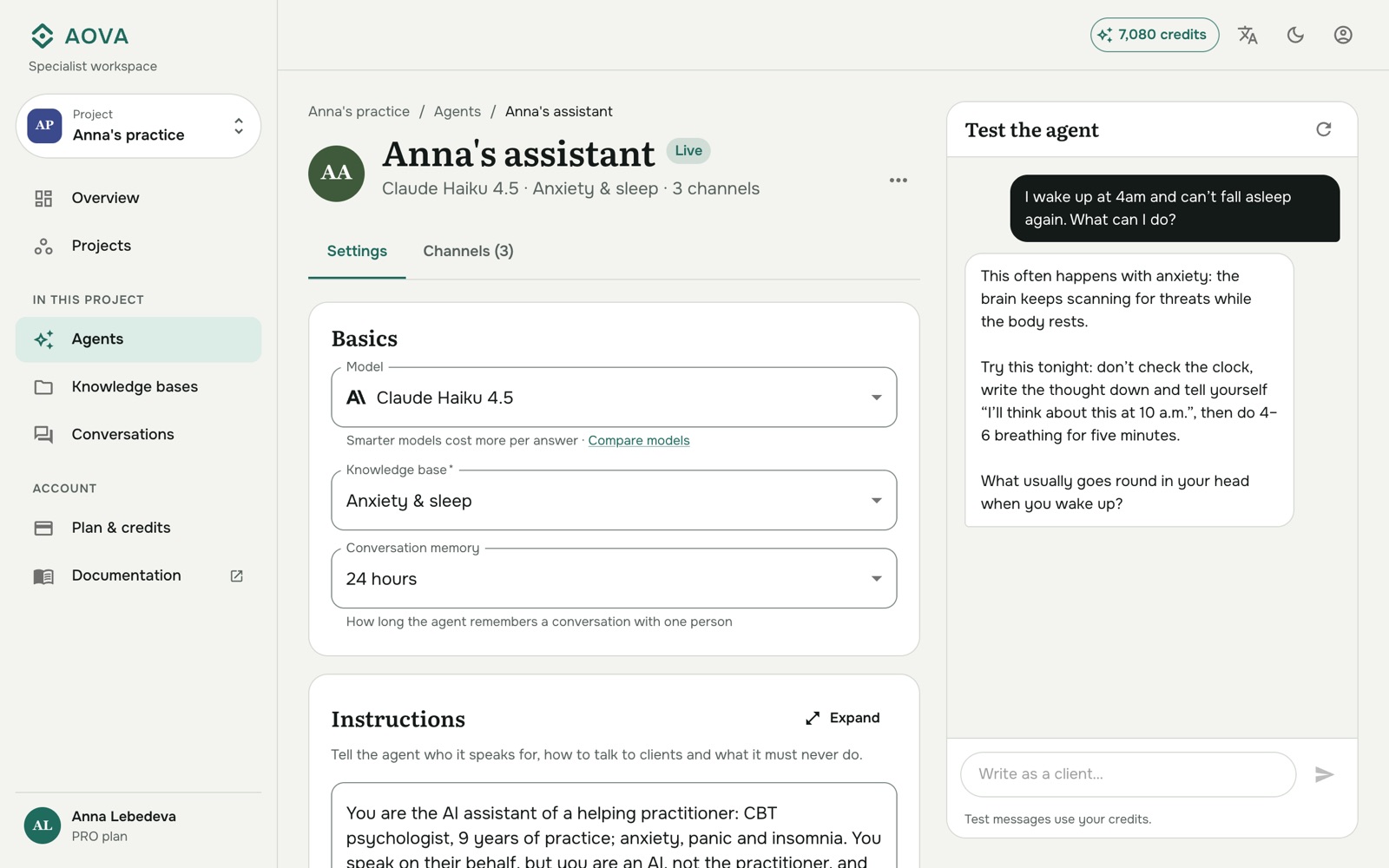
Model
Smarter models write better answers but cost more credits per answer. Click Compare models to see the price of each model in credits: an estimate per typical answer, and the exact price per million input and output tokens. Models marked Coming soon can't be chosen yet.
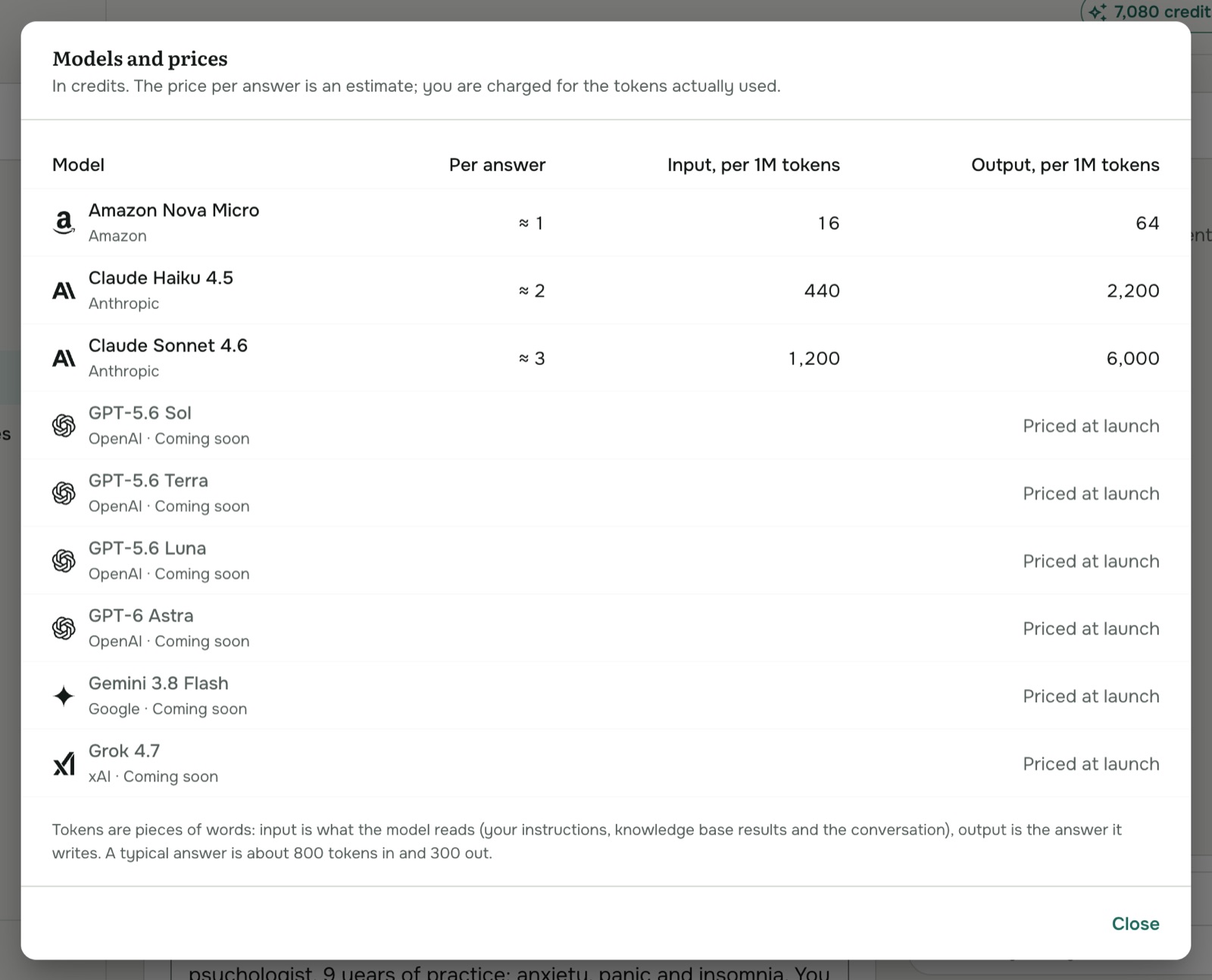
You are charged for the tokens actually used. Longer instructions, more knowledge base results and longer conversations all mean more input tokens.
Knowledge base
The materials the agent answers from. An agent without a knowledge base can't answer clients; its status shows Needs a knowledge base.
Conversation memory
How long the agent remembers a conversation with one person: from No memory (each message is answered on its own), Session only, through 1 hour up to 24 hours. With memory on, a client can ask a follow-up like "and how long should I do that?" and the agent knows what "that" means.
Instructions
Tell the agent who it speaks for, how to talk to clients and what it must never do: tone, form of address, answer length, when to suggest booking a session, topics to refuse. New agents start with ready-made instructions you can edit. Click Expand for a bigger editor.
Instructions shape how the agent answers. The facts still come from the knowledge base; see How your assistant answers questions.
When you change something, Unsaved changes appears with Save and Discard changes.
Test the agent
Write in Test the agent the way a client would. The agent uses its current saved settings and its knowledge base, exactly like in a real channel. Click the refresh icon to start a new conversation (useful after changing the memory or instructions).
Test messages use credits.
Rename, duplicate or delete
Click ⋯ next to the agent's name (or on its card in the list):
- Edit name and description.
- Duplicate creates a copy with the same model, knowledge base, instructions and memory, without channels. Handy for trying out another model or new instructions.
- Delete deletes the agent and all its channels. Clients writing to those channels stop getting answers.
Agent status
The chip next to an agent's name shows whether clients can reach it:
| Status | Meaning |
|---|---|
| Live | At least one channel is active. (Check the Channels tab too: another channel may still have an error.) |
| Paused | It has channels, but they are all stopped. |
| Channel problem | No channel is active and at least one has an error. Open the Channels tab to see which. |
| Not connected | It has no channels yet. |
| Needs a knowledge base | Choose a knowledge base in Settings. |
To connect channels, see Connect a Telegram channel, Connect WhatsApp, Embed the chat widget or Use the chat API.