Connect a Telegram channel
A channel is where clients message your agent. This page connects a Telegram bot; the same Channels tab also adds WhatsApp, a website widget and the chat API.
The whole setup in under a minute:
Create a bot with @BotFather
If you don't have a Telegram bot yet, create one first. It takes a minute:
- Open @BotFather in Telegram and press Start.
- Send
/newbot. - Send the bot's display name (shown in the chat header), e.g.
AOVA Support. - Send its username: unique, ending in
bot, e.g.aova_support_bot. - Copy the token BotFather replies with (it looks like
123456789:AAH...).
Keep the token private: anyone who has it controls the bot. If it leaks, send /revoke to
@BotFather and paste the new token into the channel (see Stop, start or change a channel).
For a full walkthrough from an empty account to a working bot, see How to create an AI Telegram bot that answers from your documents. Using the bot for customer support? See A Telegram support bot for your small business.
Add the Telegram channel
- Open Assistants in the rail, click the assistant, then its Channels tab.
- Click Add channel and set Channel type to Telegram.
- Give it a name and paste the Bot token.
- Optionally, fill in Admin chat IDs (see below).
- Click Add channel.
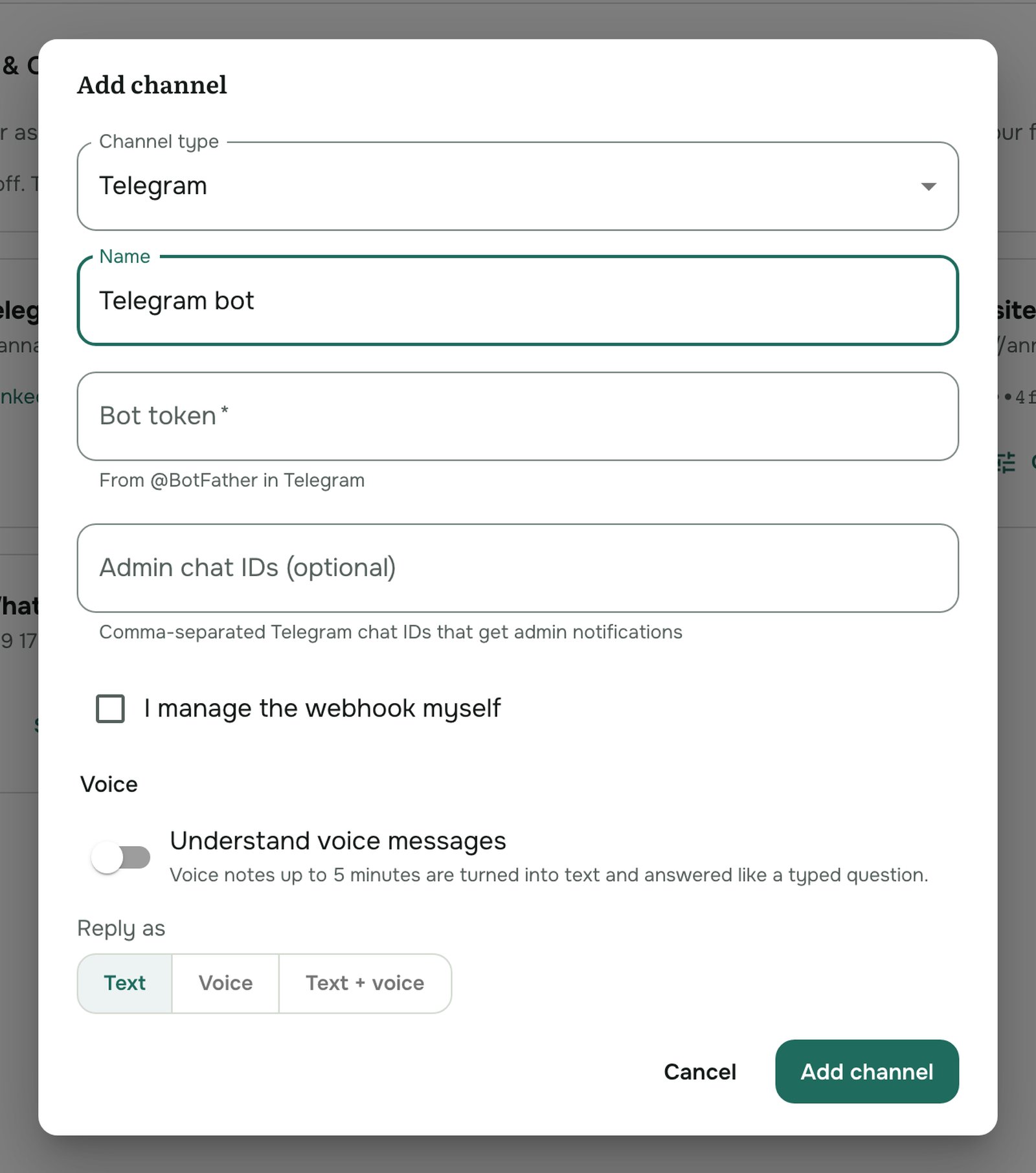
AOVA connects the bot straight away. The channel card shows the bot's username, Active and Webhook linked. Send your bot a message to check. If Telegram doesn't accept the token, AOVA says so in the dialog and doesn't add the channel: copy the whole token from @BotFather and try again.
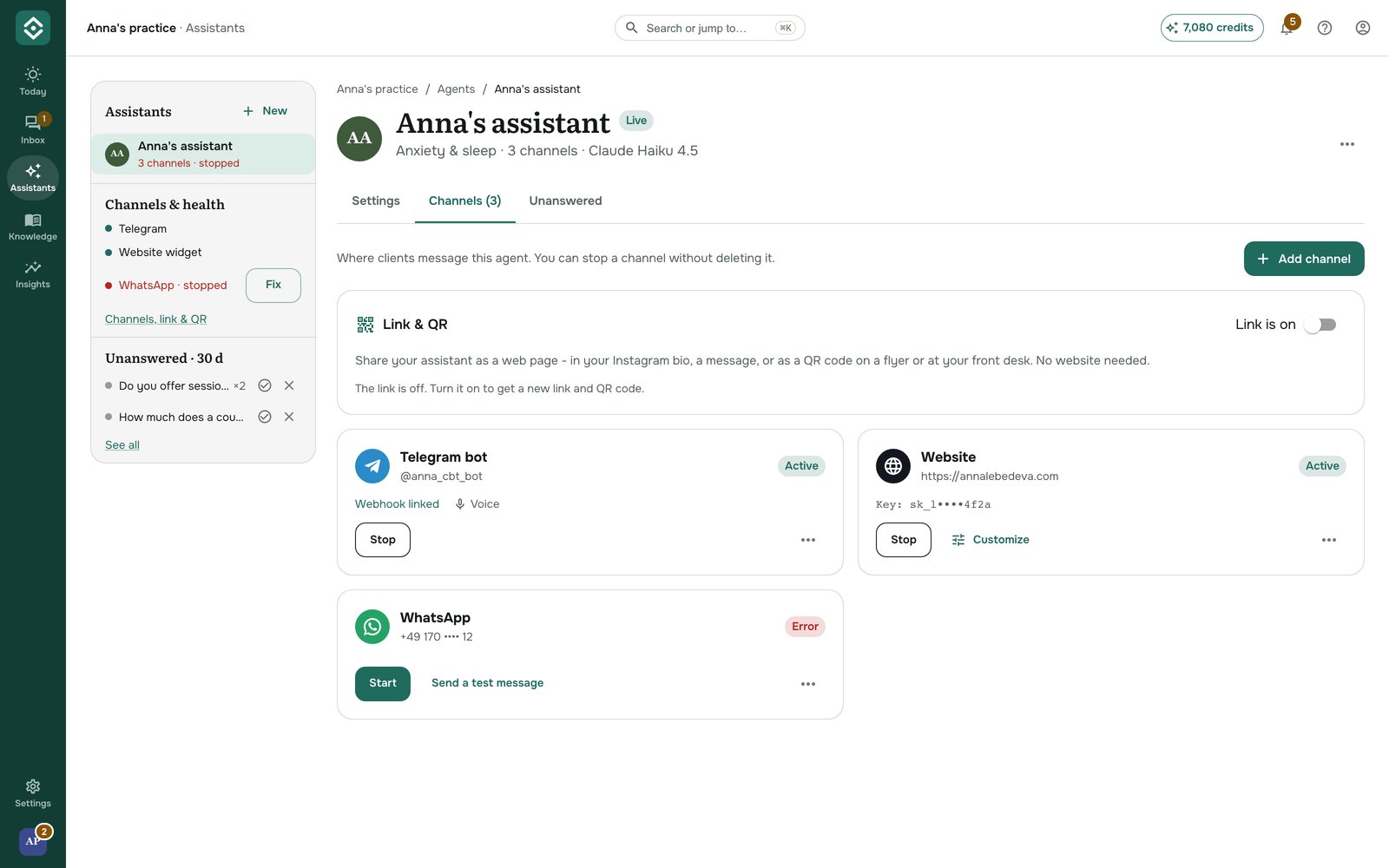
Each person who writes to the bot gets their own conversation, and the agent remembers it for the time set in the agent's Conversation memory.
Voice messages
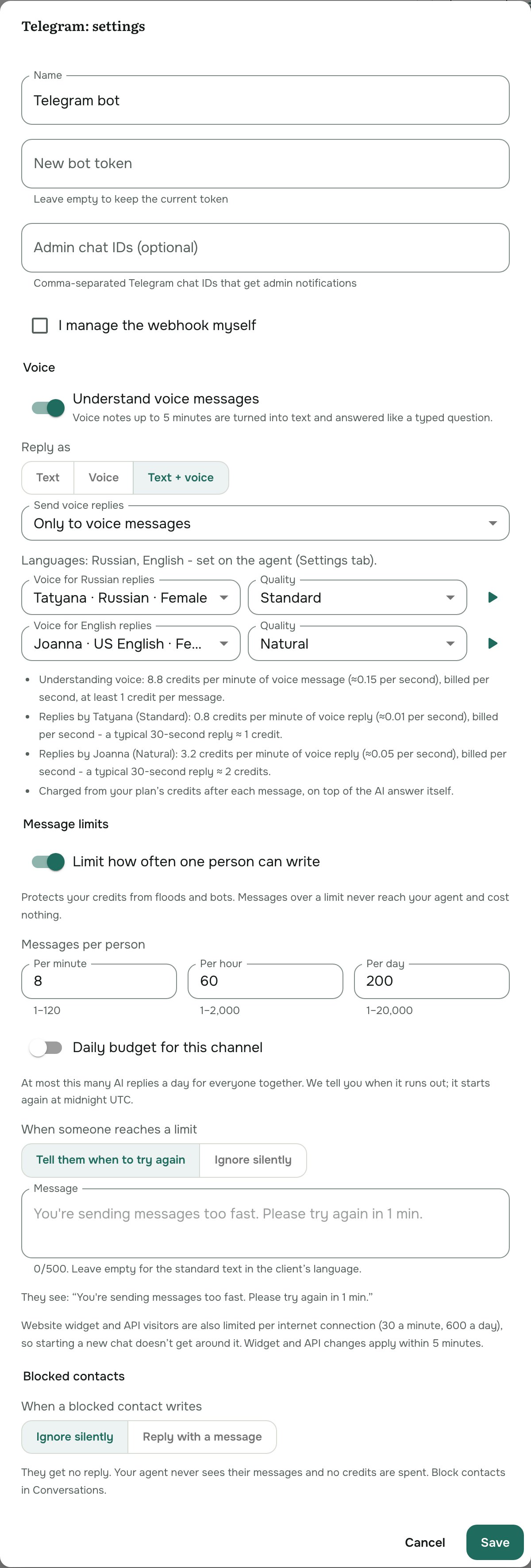
The Voice section lets the bot understand voice messages and answer by voice, in 18 languages. It is off by default; see Use voice messages in Telegram.
Get a copy of every conversation
Put one or more Telegram chat IDs, separated by commas, in Admin chat IDs. Each of those chats receives a copy of every client question and of the agent's answer. To find your own chat ID, message a bot such as @userinfobot. The admin must have pressed Start in your bot first, or Telegram won't let the bot write to them.
I manage the webhook myself
Leave this off unless you already run your own Telegram bot server and want it to forward messages to AOVA. When it's on, AOVA doesn't register itself with Telegram, so your existing setup keeps the webhook.
Check that your bot is live
Until the first client writes, Today and the assistant's page show a card with the step that's left: connect a channel, link the bot, or send a test message. Remind me tomorrow hides it for a day.
- If the channel card says the bot isn't linked, press Link the bot. It takes a few seconds.
- Once it's linked, press Run a quick check on the channel card. AOVA asks Telegram where the bot's messages go and tells you what to do if they don't reach AOVA: link the bot again, paste a new token, or disconnect another service that uses the same bot (a bot can send its messages to only one place).
- Then write to the bot from your phone. The card ticks off by itself when the first message arrives.
Stop, start or change a channel
- Stop pauses the channel: the bot stops answering, but nothing is deleted. Start turns it back on.
- ⋯ → Edit settings changes the name, the admin chat IDs, the bot token or the voice settings, and what blocked contacts see. Leave New bot token empty to keep the current one. Saving a new token reconnects the bot: it stops for a moment and starts again.
- ⋯ → Delete channel removes it. Clients can no longer reach the agent through this bot.
Troubleshooting
- The bot doesn't respond. Check the card shows Active and Webhook linked. If it shows Error or Webhook not linked, open Edit settings and paste the token again; it may have been revoked. A channel added before October 2026 may show Webhook not linked too: press Stop, then Start to connect it.
- Answers use the wrong materials. A channel always uses its agent's knowledge base. Change the knowledge base in the agent's Settings, or add the channel to another agent.
- Admins don't get copies. Each admin has to open your bot and press Start once.
- Voice messages aren't answered, or get "I couldn't make out that voice message". See Use voice messages in Telegram.
- Video messages, photos and files get no reply. The bot answers text and voice messages only.