Embed the chat widget
The website widget adds a chat button to your own website. Visitors click it and talk to your agent, without needing Telegram or WhatsApp.
Add a widget channel
- Open Assistants in the rail, click the assistant, then its Channels tab.
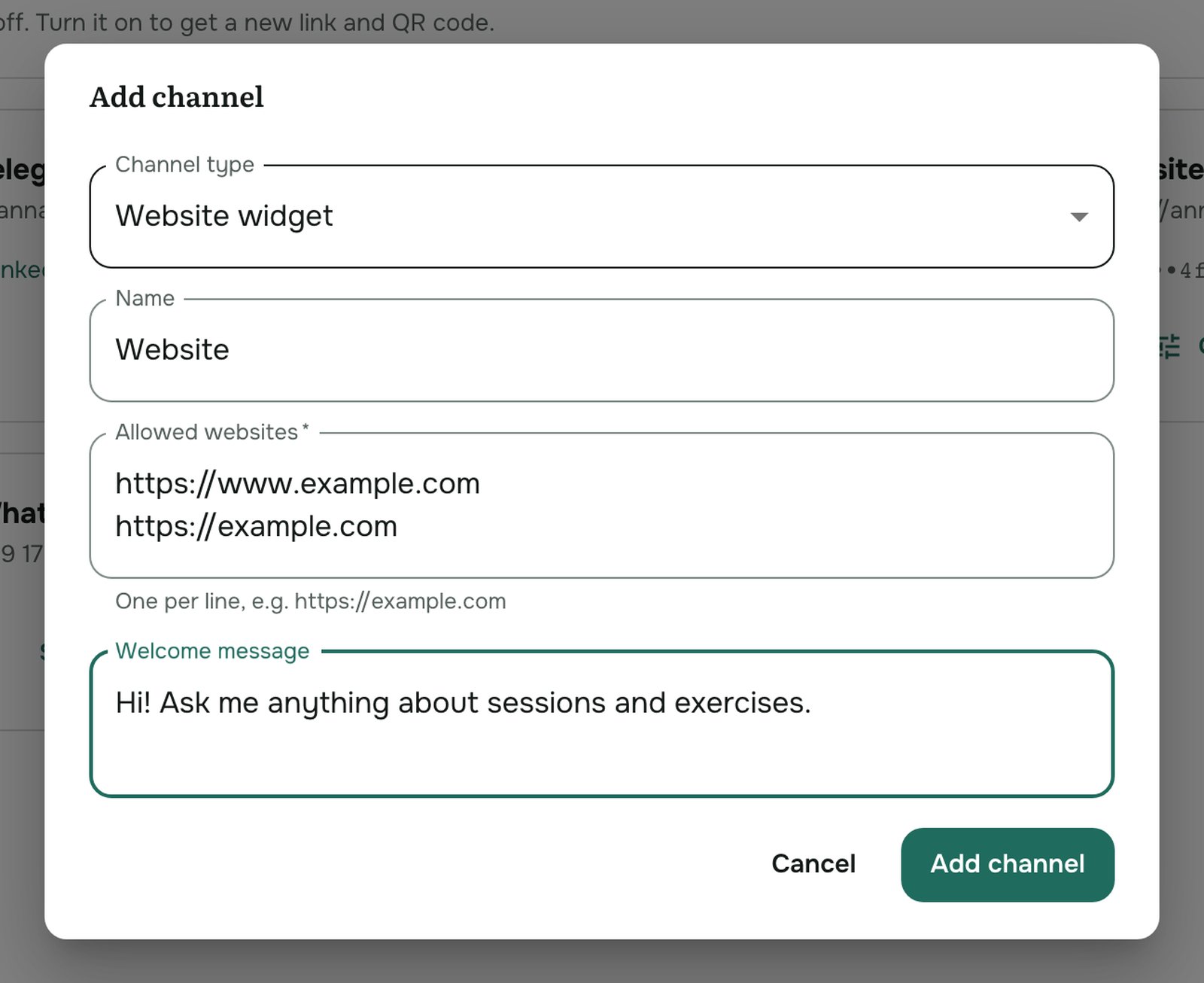
- Click Add channel and set Channel type to Website widget.
- Fill in:
- Name, for your own reference.
- Welcome message: the first thing visitors see when they open the chat.
- Allowed websites: every address the widget will run on, one per line, with
https://, for examplehttps://example.comandhttps://www.example.com. The widget only works on these sites.
- Click Add channel.
Add it to your site
- On the widget's card, click Customize and open the Install tab (or use ⋯ → Copy widget code on the card).
- Click Copy code and paste it just before the closing
</body>tag of every page the chat should appear on. The Install tab has step-by-step instructions for HTML, WordPress, Tilda, Wix, Shopify and Google Tag Manager.
That's all: the chat button appears in the corner of the page.
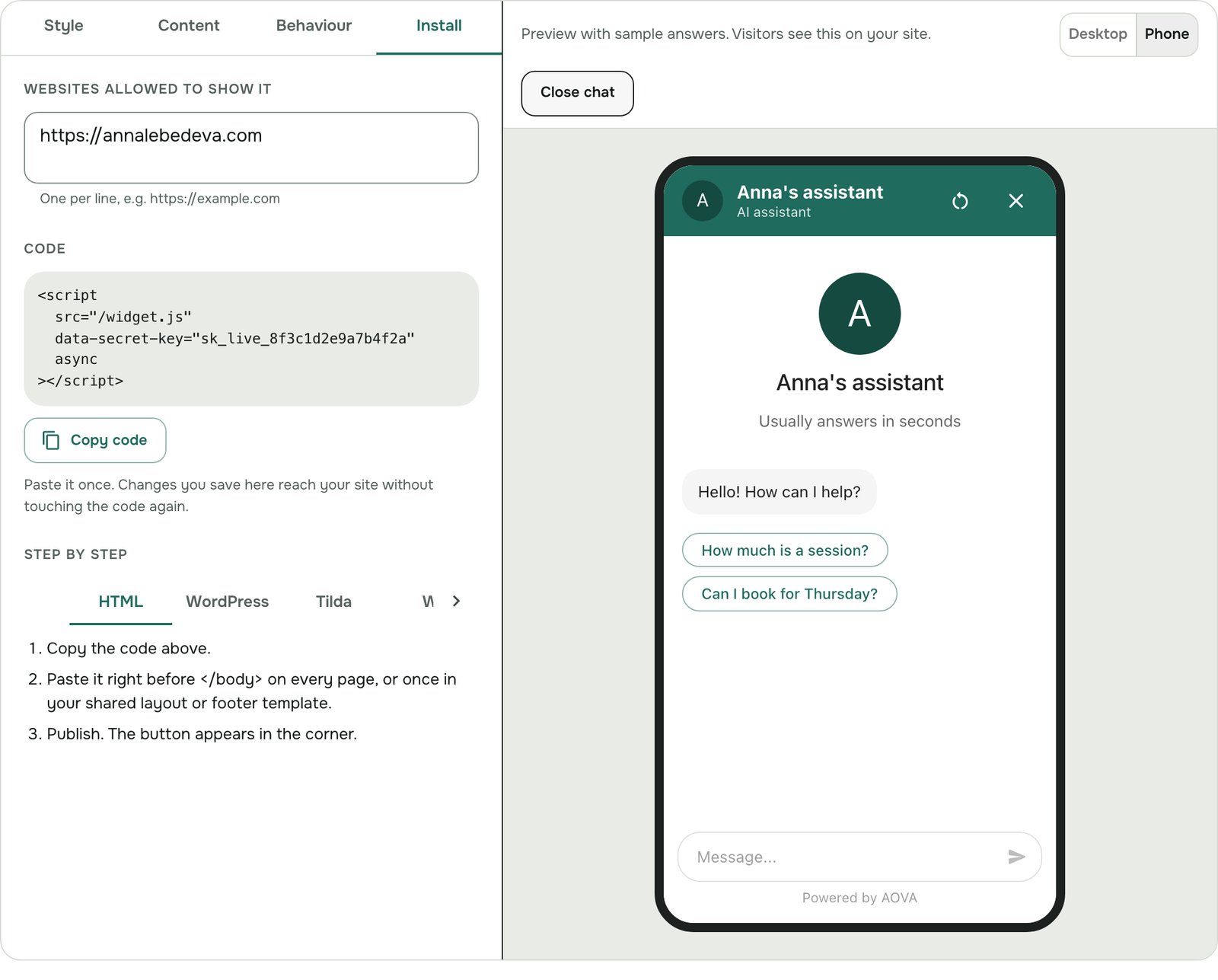
The code contains the channel's key. Anyone can read it in your page's source, and that's expected: the widget is protected by the Allowed websites list, not by keeping the key secret. Keep that list accurate.
Older codes that also have a data-channel-id line keep working; there's no need to replace them.
Open the chat from your own button
To open the chat from a button or link on your page (for example "Chat with us"), run:
window.dispatchEvent(new Event('aova:open-chat'));
To have the chat open as soon as the page loads, add data-open="true" to the widget code's
<script> tag.
Customize how it looks and behaves
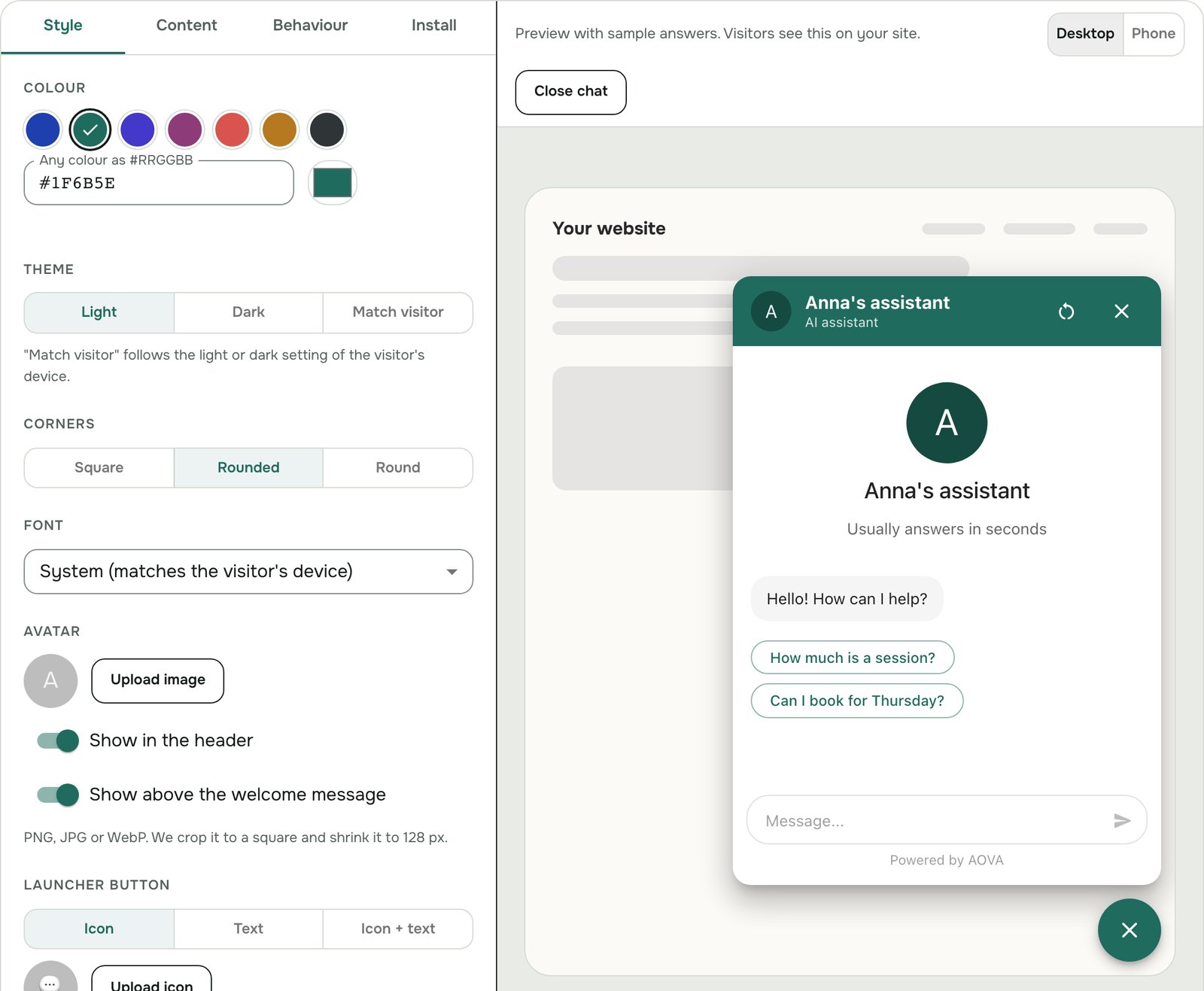
Click Customize on the widget's card. The editor shows your settings on the left and a live preview on the right, with sample answers (no credits are used). Switch the preview between Desktop and Phone, or close the chat to see the button and the greeting. Nothing changes on your site until you click Save; then every visitor gets the new look on their next page load, without pasting the code again.
Style
- Colour: pick one of the presets or enter any colour as
#RRGGBB. It colours the header, the button and your visitors' messages. - Theme: Light, Dark, or Match visitor (follows the light or dark setting of the visitor's device).
- Corners: Square, Rounded or Round.
- Font: four styles that use fonts already on the visitor's device, so the widget loads fast and nothing is downloaded from other sites.
- Avatar: upload a PNG, JPG or WebP picture (it's cropped to a square and shrunk to 128 px), and choose whether it shows in the header and above the welcome message. Without one, the widget shows the first letter of the name.
- Launcher button: an icon, text, or icon and text, with your own button text and icon.
Content
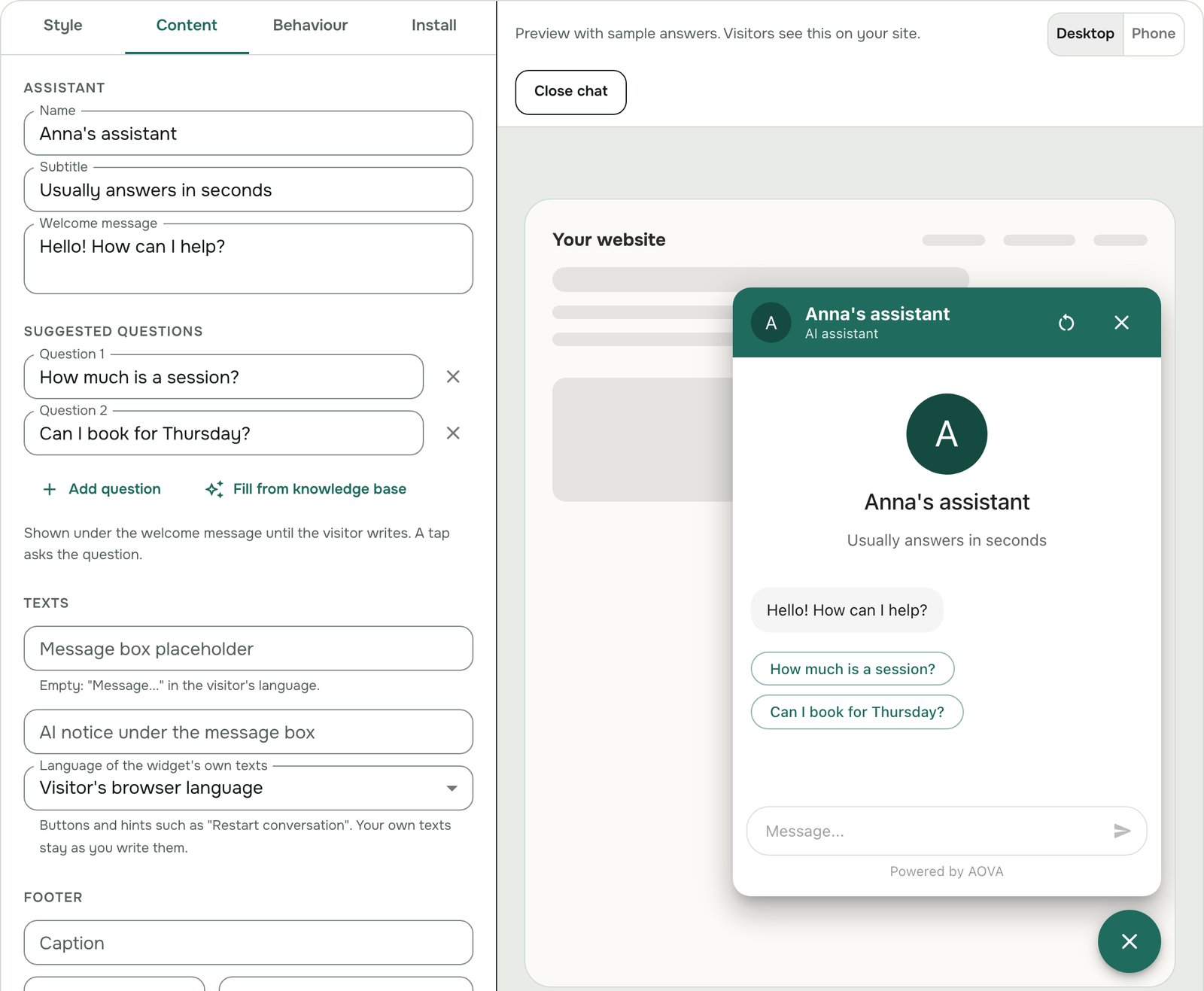
- Name, Subtitle and Welcome message. Under the name the widget always shows an "AI assistant" label in the widget's language, so visitors know they are talking to an AI (the EU AI Act and similar laws require it); it can't be switched off.
- Suggested questions: up to 4 questions shown under the welcome message until the visitor writes something. A tap asks the question. Fill from knowledge base adds questions from the knowledge base description that are short enough for the widget; check them, then save.
- Message box placeholder and an AI notice under the message box.
- Language of the widget's own texts: buttons and hints such as "Restart conversation" follow the visitor's browser language (English, Russian, German, Spanish, French, Italian, Portuguese or Ukrainian), or a language you fix. Your own texts stay as you write them.
- Footer: a caption and a link, for example to your privacy policy (the address must start with
https://). - Hide "Powered by AOVA": available on the Business and Enterprise plans.
Behaviour
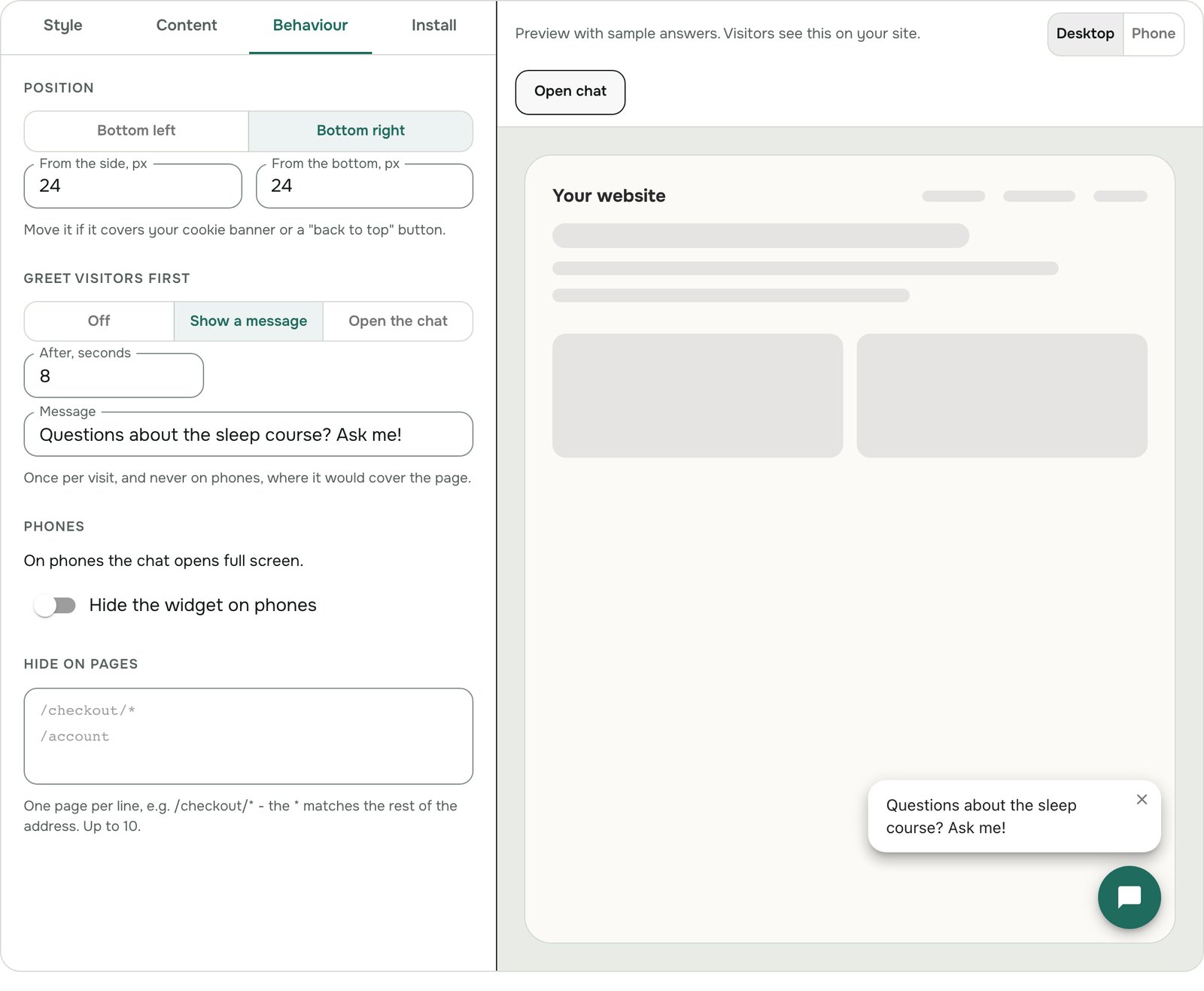
- Position: bottom right or bottom left, and the distance from the side and the bottom, for example to keep clear of a cookie banner.
- Greet visitors first: after a few seconds, show a short message next to the button or open the chat. It happens once per visit and never on phones, where it would cover the page.
- Phones: the chat opens full screen on phones. You can also hide the widget on phones.
- Hide on pages: one page address per line, for example
/checkout/*(the*matches the rest of the address).
Change the channel settings
Click ⋯ → Edit settings on the card to change the name, the welcome message, the allowed websites, or what blocked visitors see. The widget code stays the same, so there's no need to paste it again.
Stop hides the chat from your site without deleting anything; Start brings it back.
How visitors see answers
Answers appear word by word as the agent writes them. When an answer is based on a file that has buttons set up (see Show sources and buttons under answers), the buttons appear under the answer.
Each visitor's conversation shows up in the Inbox.
Troubleshooting
- The chat button doesn't appear. Check that the page's address, exactly as in the browser
(with or without
www), is in Allowed websites, and that the channel is Active. The browser's developer console shows a blocked request when the site isn't allowed. - Messages aren't answered. Try the same question in the agent's Test the agent panel. If that fails too, check that the agent has a knowledge base and you have credits left.