Let your assistant take actions
Your assistant can do more than answer from your knowledge base: during a conversation it can look something up or get something done in the tools you already use - check an order in Shopify, add a client to HubSpot, open a ticket in Freshdesk, or send a request to Zapier, Make or n8n. Each action is one secure request to an app or address you choose. Pro and higher plans.
You can add an action three ways:
| Way | For |
|---|---|
| Ready-made action | Popular apps - you only paste a key, no technical knowledge |
| Describe it, we fill it in | Any other system - describe it in plain words, AI drafts it |
| Build it yourself | Developers - address, fields and headers by hand |
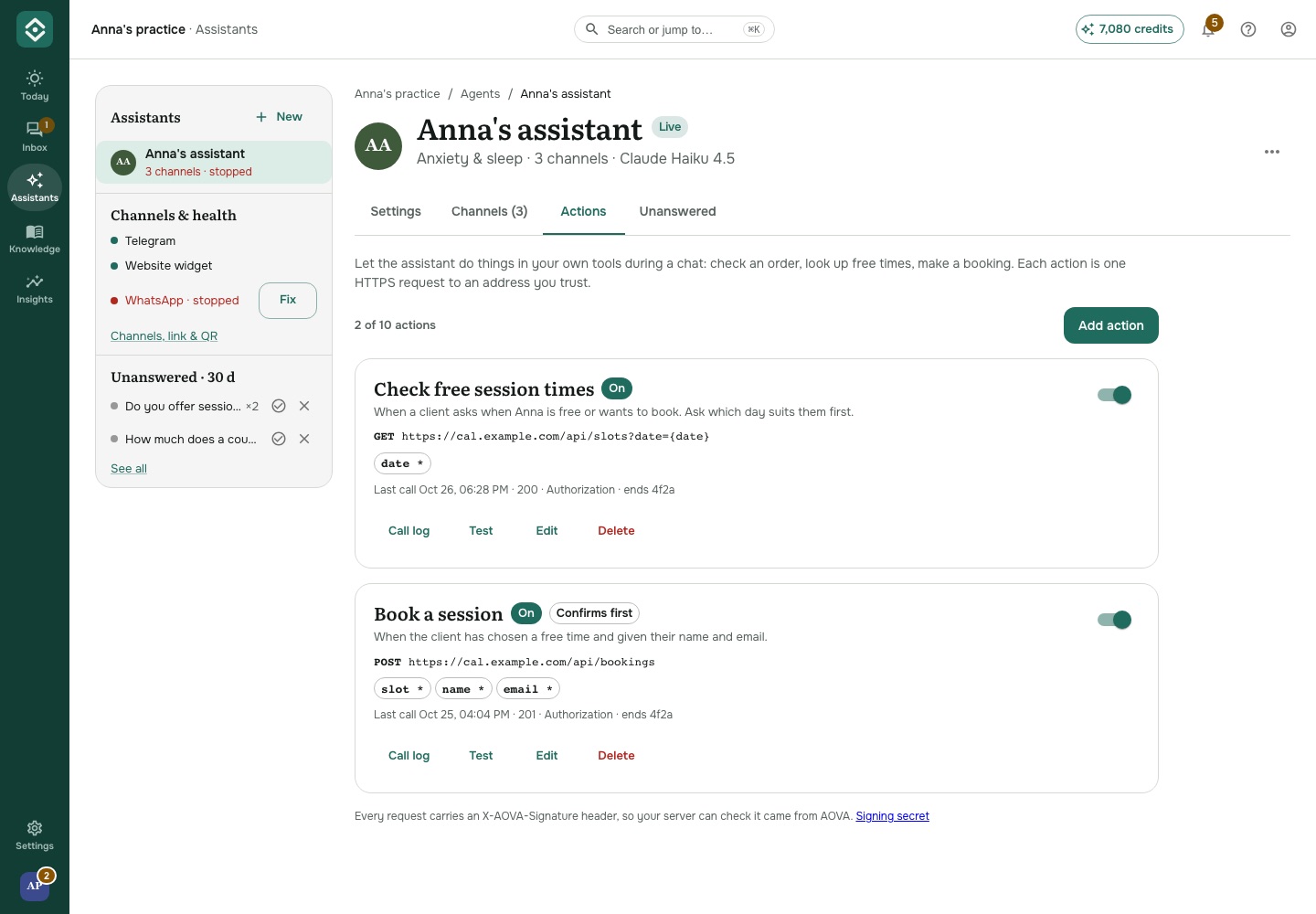
Add a ready-made action
- Open Assistants, pick the assistant and go to the Actions tab.
- Click Add action and choose an app from the gallery (search or filter by Orders, Clients & CRM, Support, Marketing or Automation).
- Fill in what it asks for - for example your shop name - and paste the app's key. The steps to find the key are right under the field.
- Check what the assistant will ask the client for and which parts of the answer it may see, then click Add action.
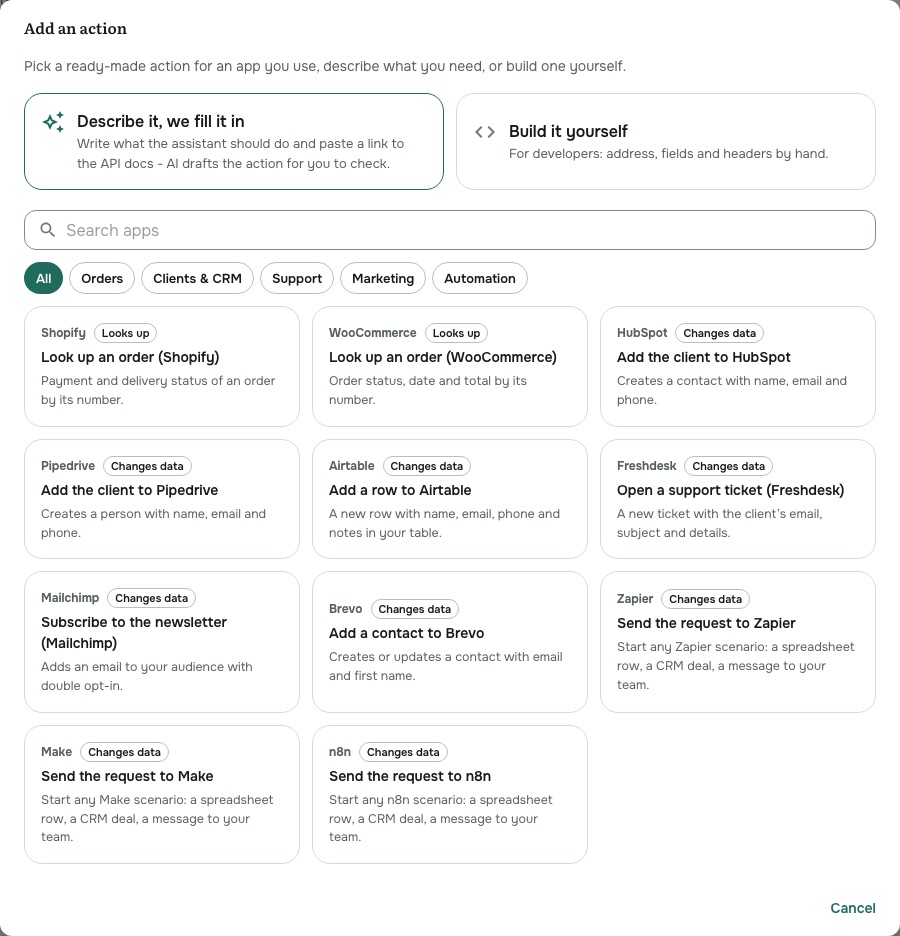
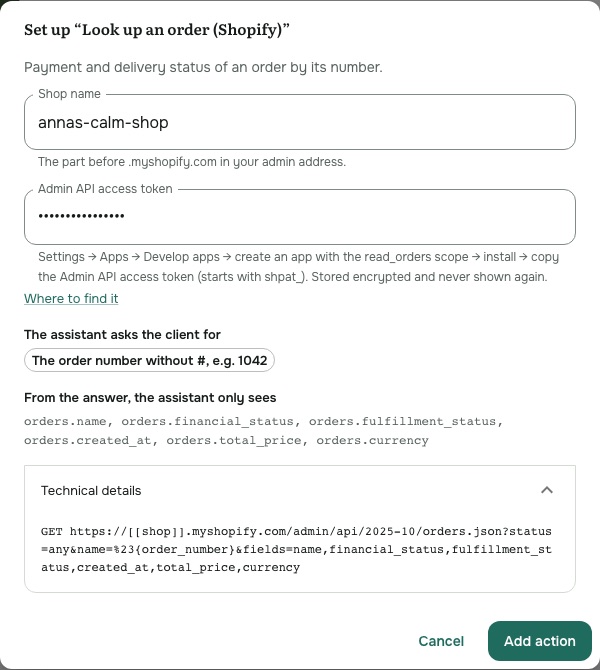
Ready-made actions available now: Shopify and WooCommerce (look up an order), HubSpot, Pipedrive and Airtable (add a client), Freshdesk (open a ticket), Mailchimp and Brevo (newsletter), and Zapier, Make and n8n (send the request on to any of your apps).
Book a session (Cal.com)
Your assistant can find free times in your Cal.com calendar and book the one the client picks - the client gets Cal.com's confirmation email, and you see the booking in the Inbox.
- Connect Cal.com once (Admins): Settings → Integrations → Connected apps → Connect Cal.com. In Cal.com, create a key in Settings → Developer → API keys and paste it. AOVA checks it with Cal.com, keeps it encrypted and never shows it again.
- Give the assistant the action: Actions → Add action → Book a session. Pick the calendar, the kind of session (your Cal.com event type) and the time zone the times are offered in.
- That's it. When a client wants to book, the assistant asks which days suit them, offers 2-3 free times, reads the chosen one back and books it once the client agrees. It needs the client's name and email.
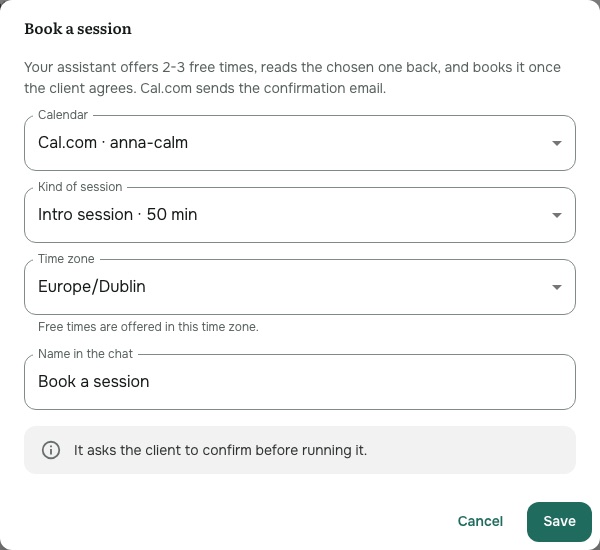
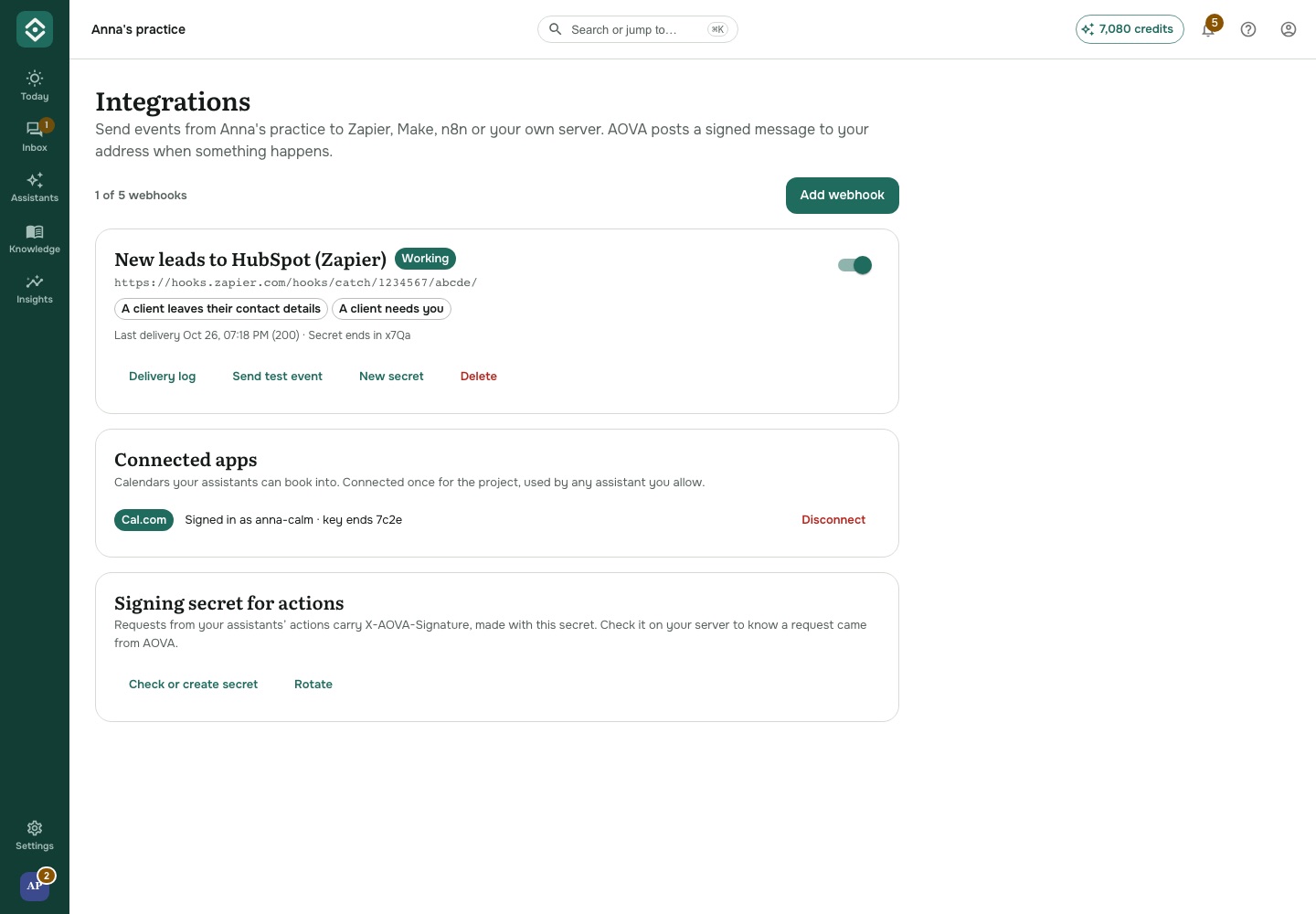
Booking takes a few messages, so keep the assistant's Conversation memory on (the assistant's Settings tab) - with "No memory" it forgets the offered times between messages. Test on the
booking action shows the next free times. You get a "New booking" notification, and webhooks can
send booking.created to your other tools. One booking action per assistant; Pro and higher.
Describe it, we fill it in
For a system that isn't in the gallery:
- Click Add action → Describe it, we fill it in.
- Write what the assistant should do - for example "When a client asks about their class pass, check how many sessions are left" - and, if you have it, paste a link to the system's API documentation. Never paste a key here.
- Click Draft it. The action opens in the editor, filled in, with notes on what to check.
- Paste the key into Secret header, click Test with an example, and Save. A drafted action starts switched off - switch it on once the test works.
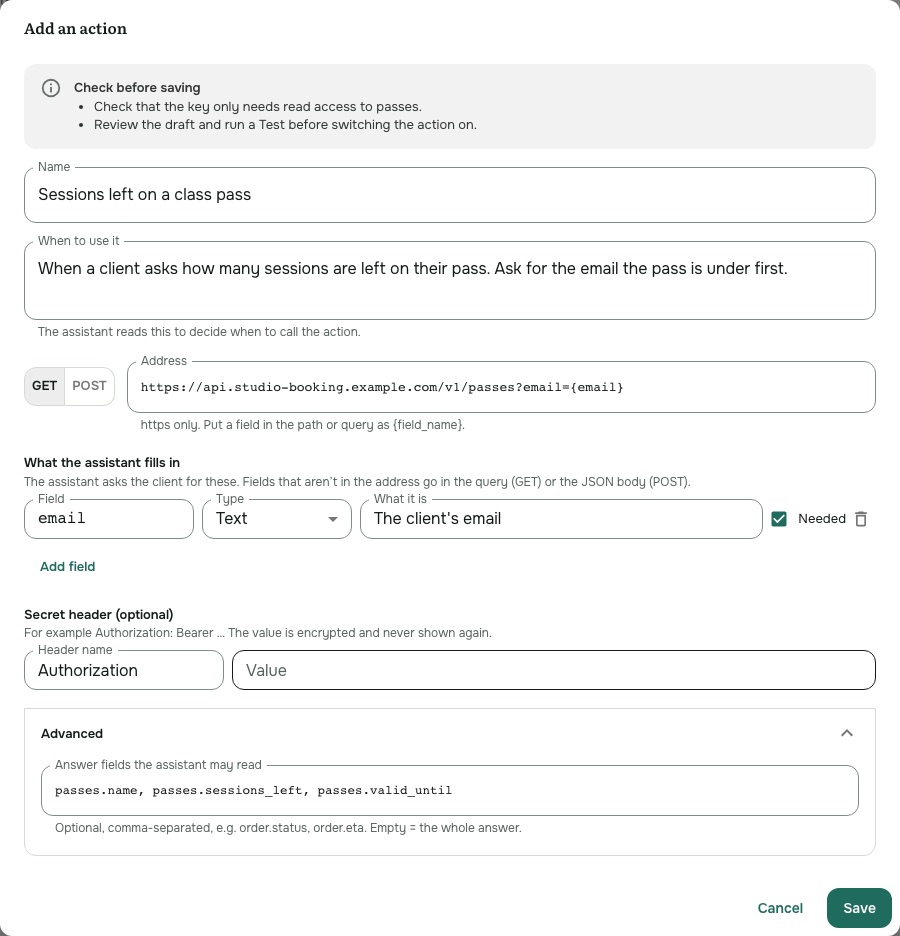
You can draft up to 20 actions a day per account.
Test an action and see its calls
- Test runs the action now with values you type in and shows the answer - it is a real request.
- Call log lists the last 30 days of calls: when, the result and how long it took. It never shows what was sent or received.
How your data stays safe
- Keys are encrypted the moment you save them and never shown again - only the last 4 characters.
- Only what you choose: for ready-made actions, the assistant sees only the listed parts of the answer (for example an order's status, not the customer's address).
- Confirm first: actions that change something (add a contact, open a ticket) ask the client before running.
- Fixed address: the assistant can fill in values such as an order number, but never choose where the request goes.
- Deleting an assistant deletes its actions and their stored keys; deleting a project also disconnects its calendars.
- Limits: up to 10 actions per assistant; each action can be called at most 20 times an hour per client and 300 times an hour in total; a request gets 5 seconds to answer.
Check that a request came from AOVA
Every request carries an X-AOVA-Signature header: t=<time>,v1=<HMAC-SHA256 of "<time>.<body>">
made with your account's signing secret. Find it in Settings → Integrations → Signing secret
for actions (Admins only). Rotating it replaces the old secret at once.
Who can do what
Team members who can edit an assistant can add, change, test and draft its actions; members who can view it see the actions and their call log. Only Admins can see or rotate the signing secret.