Manage projects and your account
Projects
A project groups the assistants, knowledge bases and conversations of one practice, course or product. Your first project is created when you sign up. To see them all, open Settings and click All projects under Plan, team and projects, or click your project's avatar at the bottom of the rail and choose All projects….
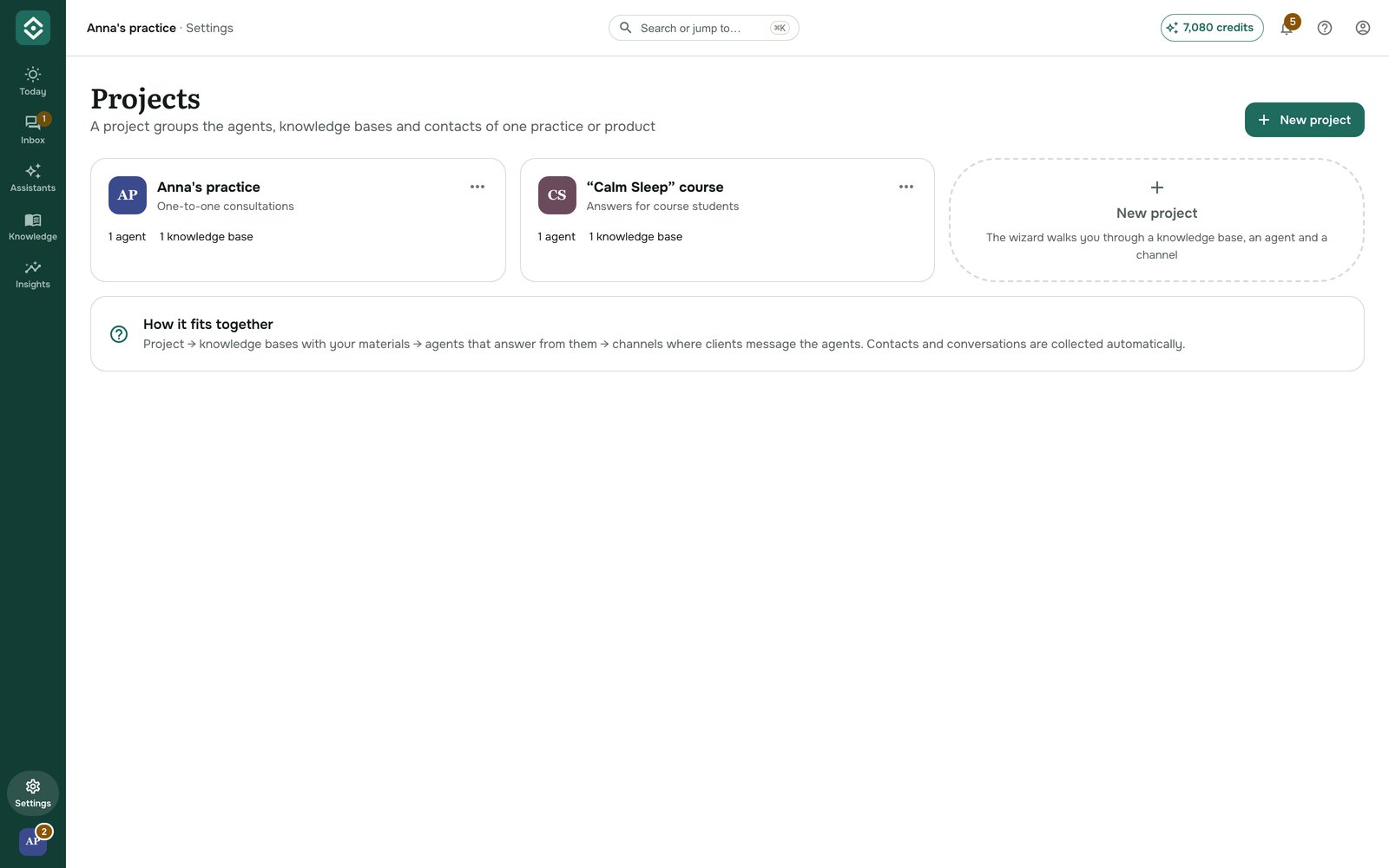
- New project opens the setup wizard, which walks you through a knowledge base, an agent and a channel for the new project.
- Switch projects with the project switcher: your project's avatar at the bottom of the rail (on a phone, at the top left next to the AOVA icon). Inbox, Assistants and Knowledge always show the project picked there; the top bar shows its name. Today and Insights cover all projects together. Search or jump to… (⌘K / Ctrl+K) also finds a project by name.
- New project in the switcher does the same as the button on this page.
- ⋯ → Edit name and description on a project's card renames it.
- ⋯ → Delete deletes the project with everything in it. The dialog lists what goes with it, and for a project that has content you type its name to confirm.
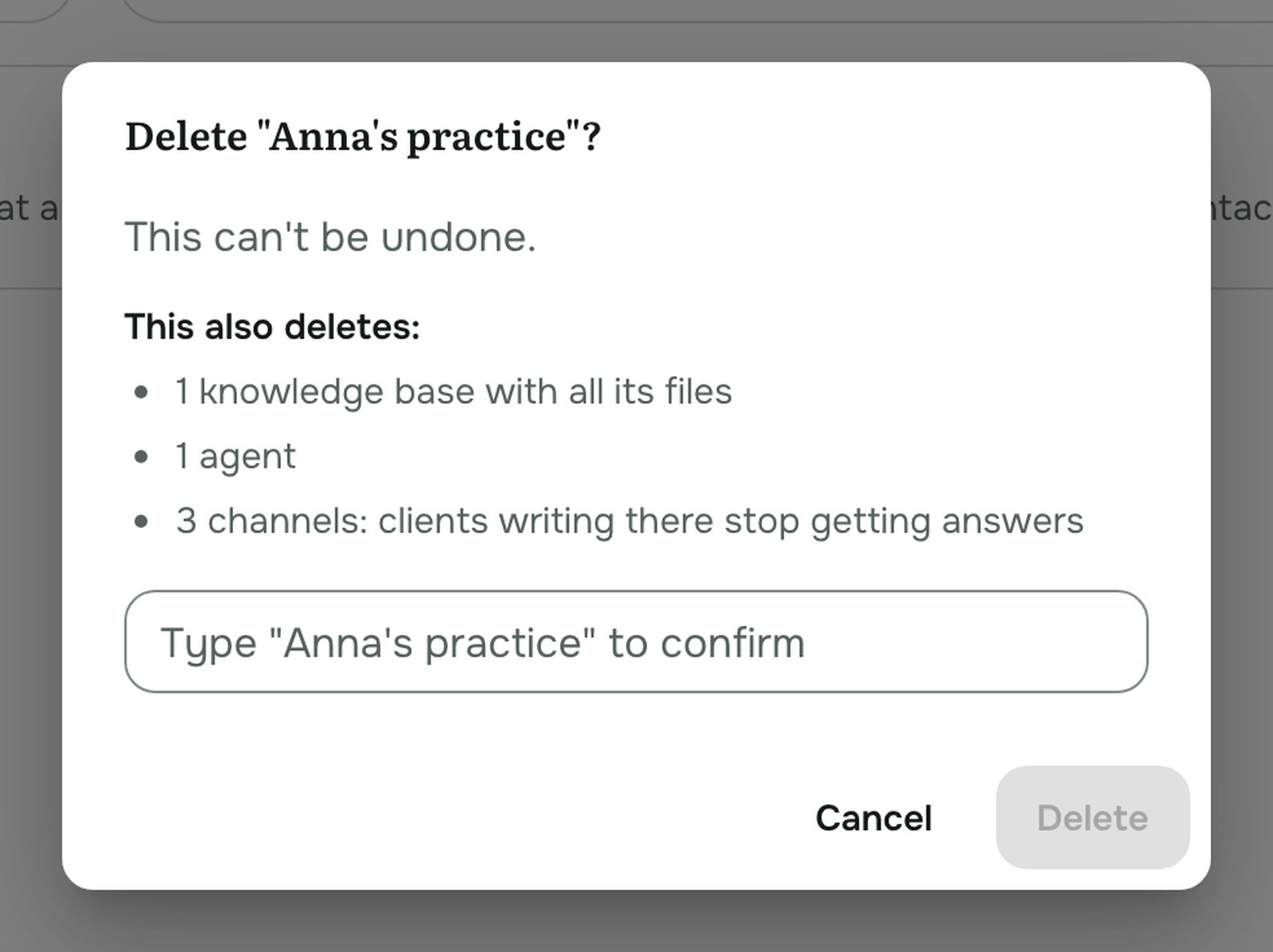
See What deleting something removes.
Your account
Click the account icon at the top right to Sign out. The same menu switches AOVA Studio between English and Russian and between the light and dark theme. Settings, at the bottom of the rail, has both too, plus your name and email, Change password, notification settings, the legal documents and deleting the account.
Forgot your password
On the sign-in page, click Forgot password?, enter your email, and set a new password with the code we send you.