Read conversations
The Inbox shows what your clients ask and what your agents answer, in every channel of the current project. Use it to spot gaps in your materials and fix them.
Find a conversation
Open Inbox in the rail. The list on the left has the newest conversations at the top, with the channel under each one (via link for people who came through your shared link); the conversation you click opens on the right. New conversations appear on their own.
The chips above the list filter it:
- Waiting - conversations the agent handed to you (see Reply to clients yourself).
- Mine - conversations you're answering yourself.
- All - everyone.
- Blocked - blocked contacts only.
The last chip switches between This project and All projects. By default you see the project picked with the switcher at the bottom of the rail. Under the chips, All channels lets you show one channel only.
Read it
Click a conversation to open it at the latest message. Messages are grouped by day, and the agent's replies are marked AI. Click Show earlier messages to go further back.
If the client writes while you're reading, new messages appear automatically. If you've scrolled up, a N new messages button takes you down to them.
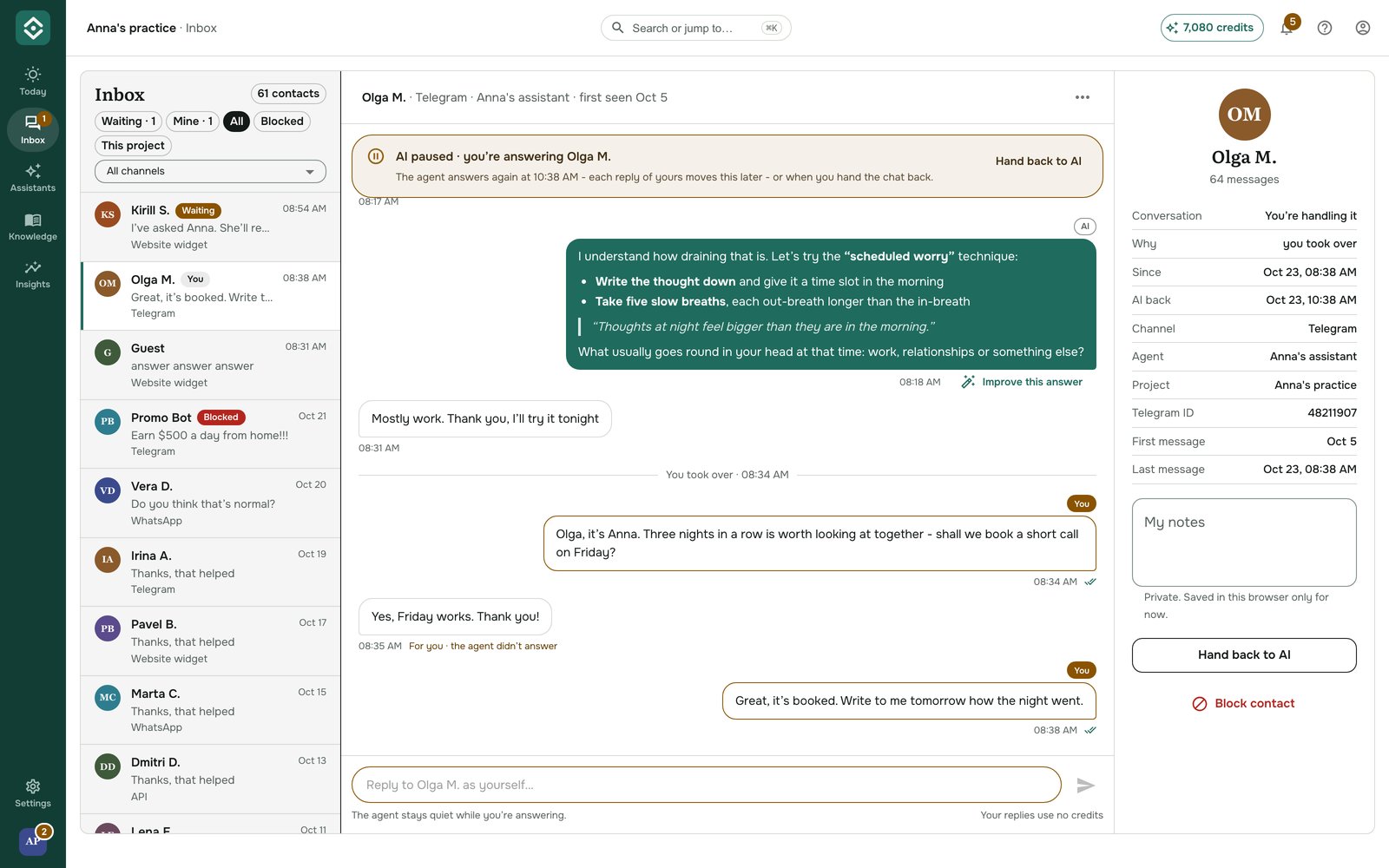
On a wide screen, the contact details are on the right of the conversation: its state, the channel, agent and project, the channel's ids, when they first and last wrote, and your private My notes, with Take over or Hand back to AI and Block contact at the bottom. The ⋯ menu at the top right of the conversation has the same actions on any screen.
The agent replies to the client. To answer yourself, see Reply to clients yourself.
Improve an answer
Under each agent reply, click Improve this answer. It offers two ways to fix it, both carrying the client's question with them:
- Add or fix materials opens the agent's knowledge base, where you can upload what's missing or edit a file.
- Adjust the instructions opens the agent's settings to change the tone, length or rules.
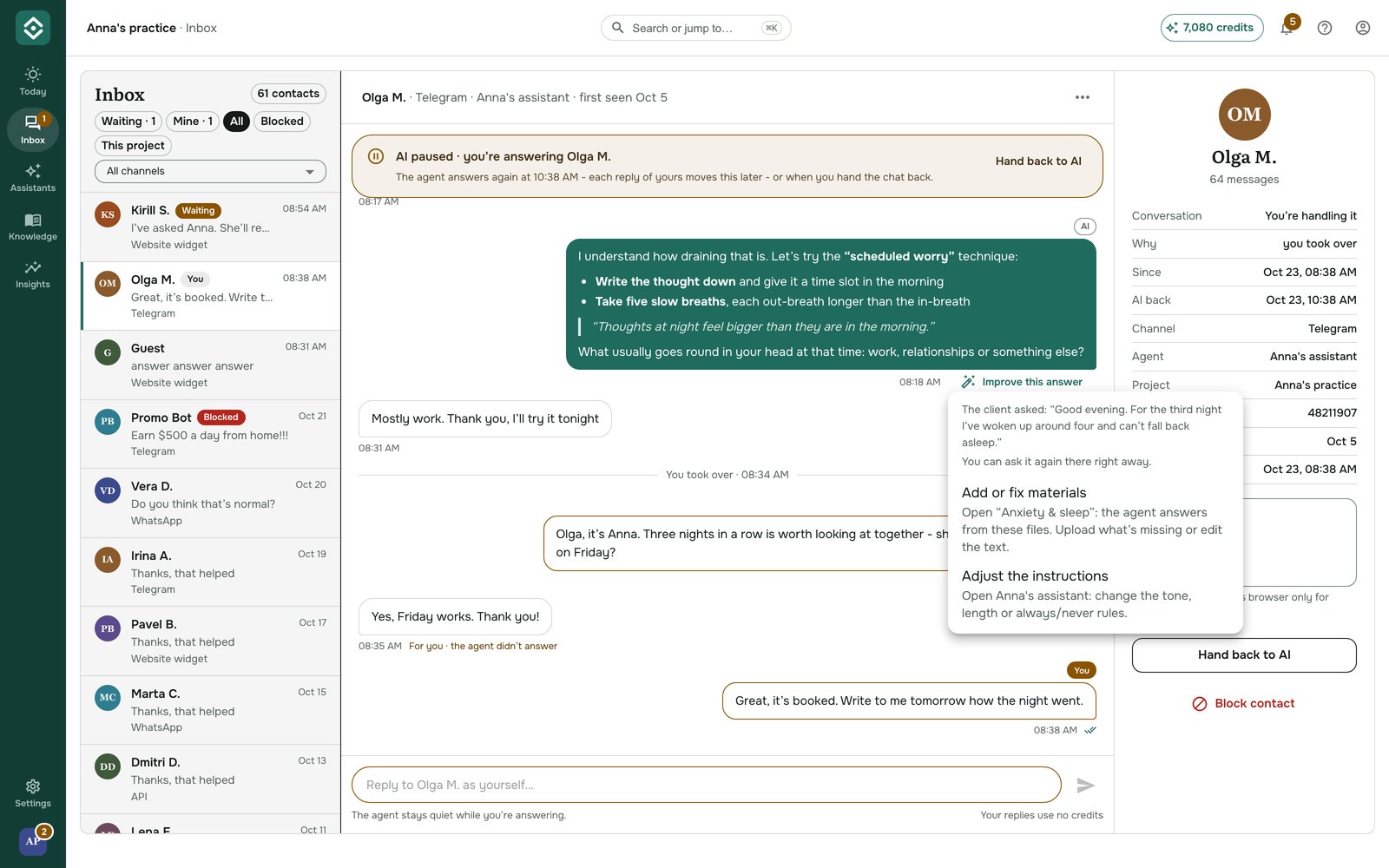
Either way, the client's question is already filled into the test chat on that page, so you can ask it again right after your change and compare.
Block someone
If someone spams or abuses your agent, click ⋯ at the top right of the conversation and choose Block contact. Their messages are still saved here but no longer reach the agent, and cost no credits. See Block a contact.
Who is in the list
A conversation appears once a person has written to an agent through a channel: Telegram, WhatsApp, the website widget, or the chat API in async mode. Your own messages in Test the agent aren't listed.
Names come from the channel where it provides one, for example the Telegram profile name. People without a name are shown as Guest.