Work as a team
Invite colleagues to your AOVA account and decide what each of them can do: answer clients, keep the knowledge base up to date, build agents, or just look. Everyone signs in with their own AOVA login, and everything they do uses your account's credits.
Invite someone
-
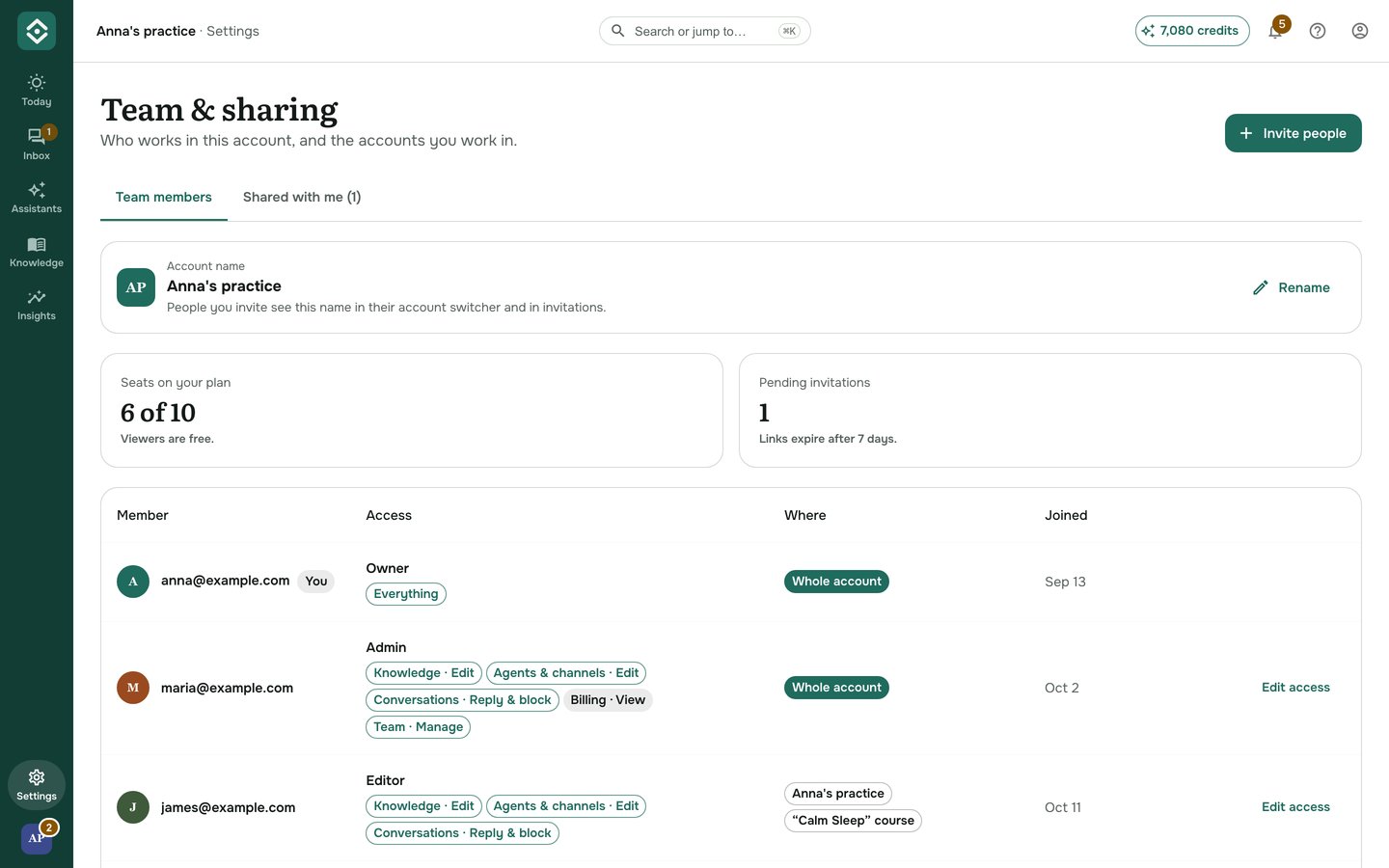
Open Settings in the rail and click Team & sharing under Plan, team and projects (it is also in the account menu at the top right, and Invite a colleague on Today opens it too).
-
Click Invite people and type one or more email addresses (up to 10 at a time).
-
Pick what they get:
Access What it gives Admin Everything except changing billing. Invites and removes people. Editor Builds agents and knowledge bases, answers clients. Support Answers clients and blocks spam. Nothing else. Content editor Keeps knowledge bases up to date. Viewer Sees everything, changes nothing. -
Under Where, keep Whole account, or choose Chosen projects and agents to limit them to some projects - or to only some agents of a project (for example, Support for your reception bot only).
-
On the right you see exactly what this gives in each area. Change any level to make it Custom. Click Send invitation.
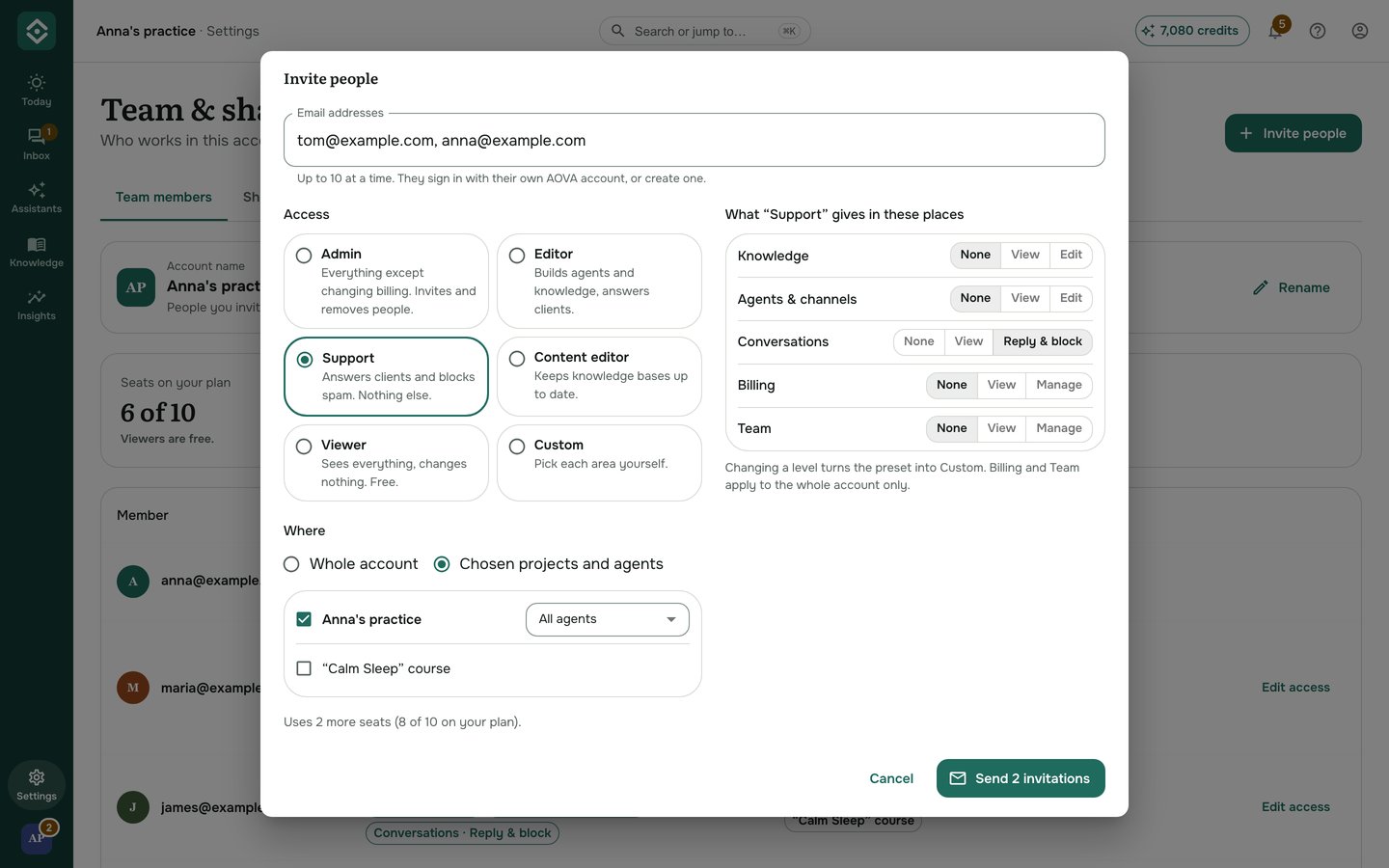
They get an email with a link that works for 7 days, only for that email address. Until they accept, they show as Pending; you can Resend or Cancel the invitation.
Name your account
The people you invite see your account by its name - in their account switcher, in the invitation and in the "Working in" banner. Until you name it, that's your email address. On Team & sharing, click Rename next to Account name (owners and Admins can).
Seats
Everyone who can change something - including replying to clients - uses a seat on your plan: Free 1 (just you), Pro 3, Business 10, Enterprise unlimited. Viewers are free. The team page shows how many seats are in use.
Change someone's access
Click Edit access next to a person. Each row is a place - the whole account, a project, or one agent - and each column an area. The most specific row wins: an agent row overrides its project, and a project overrides the whole account. Billing and Team apply to the whole account only, and only the owner can give Billing · Manage.
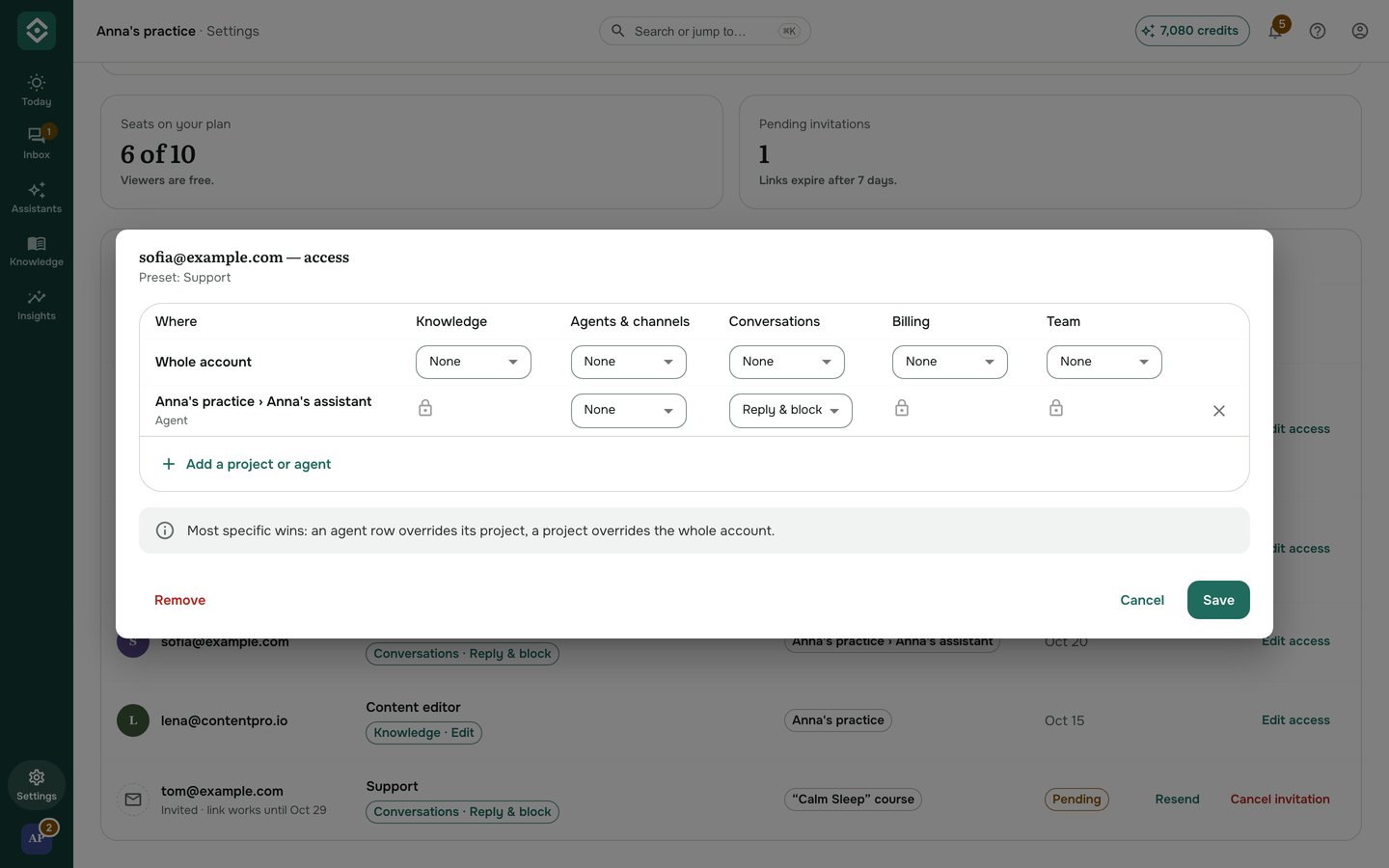
Changes apply on their very next click. Remove takes their access away at once; their own AOVA account isn't touched.
When you're invited
Open the link in the email, sign in (or create an account) with the invited address, and click Accept. You can also accept from Team & sharing → Shared with me.
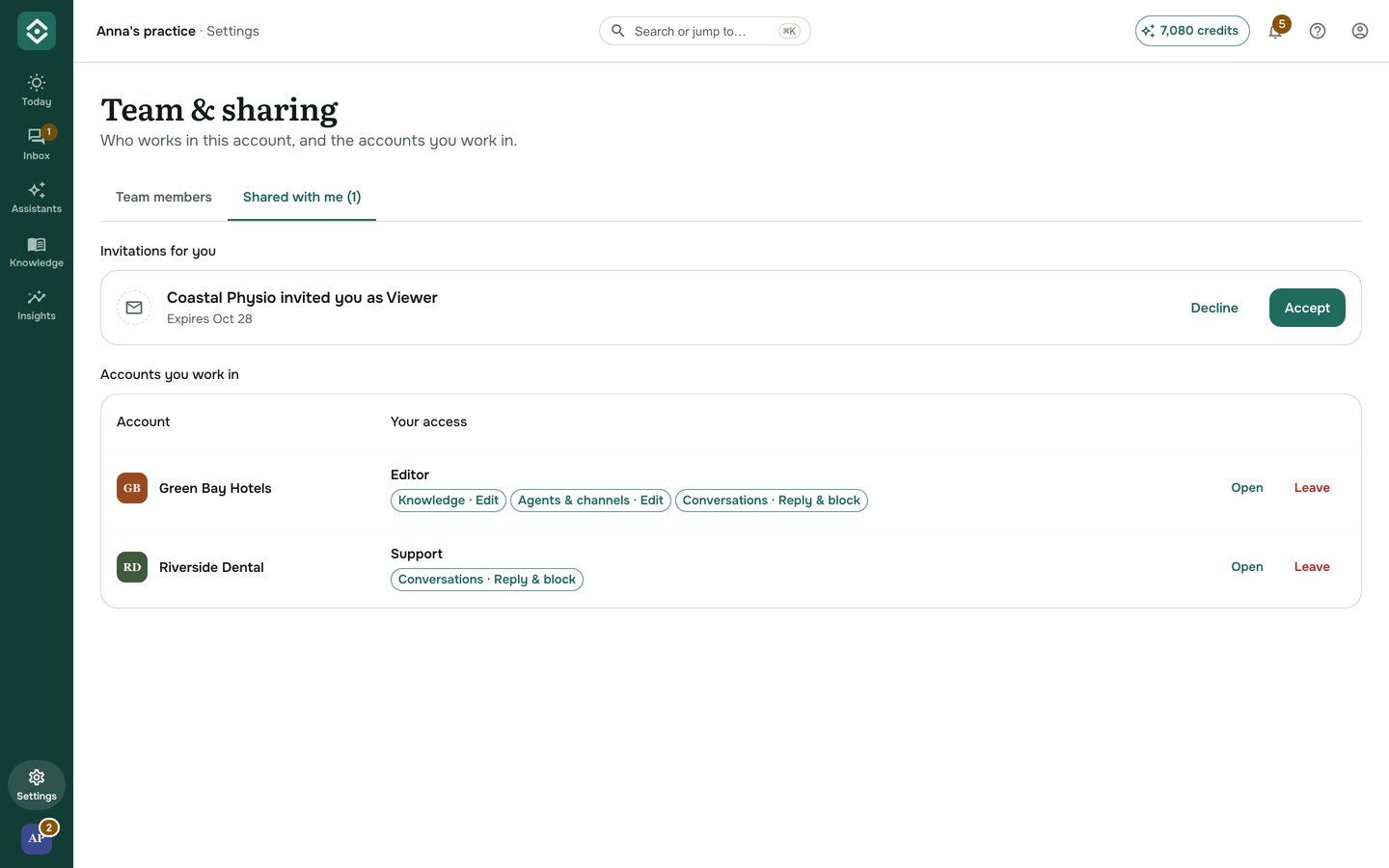
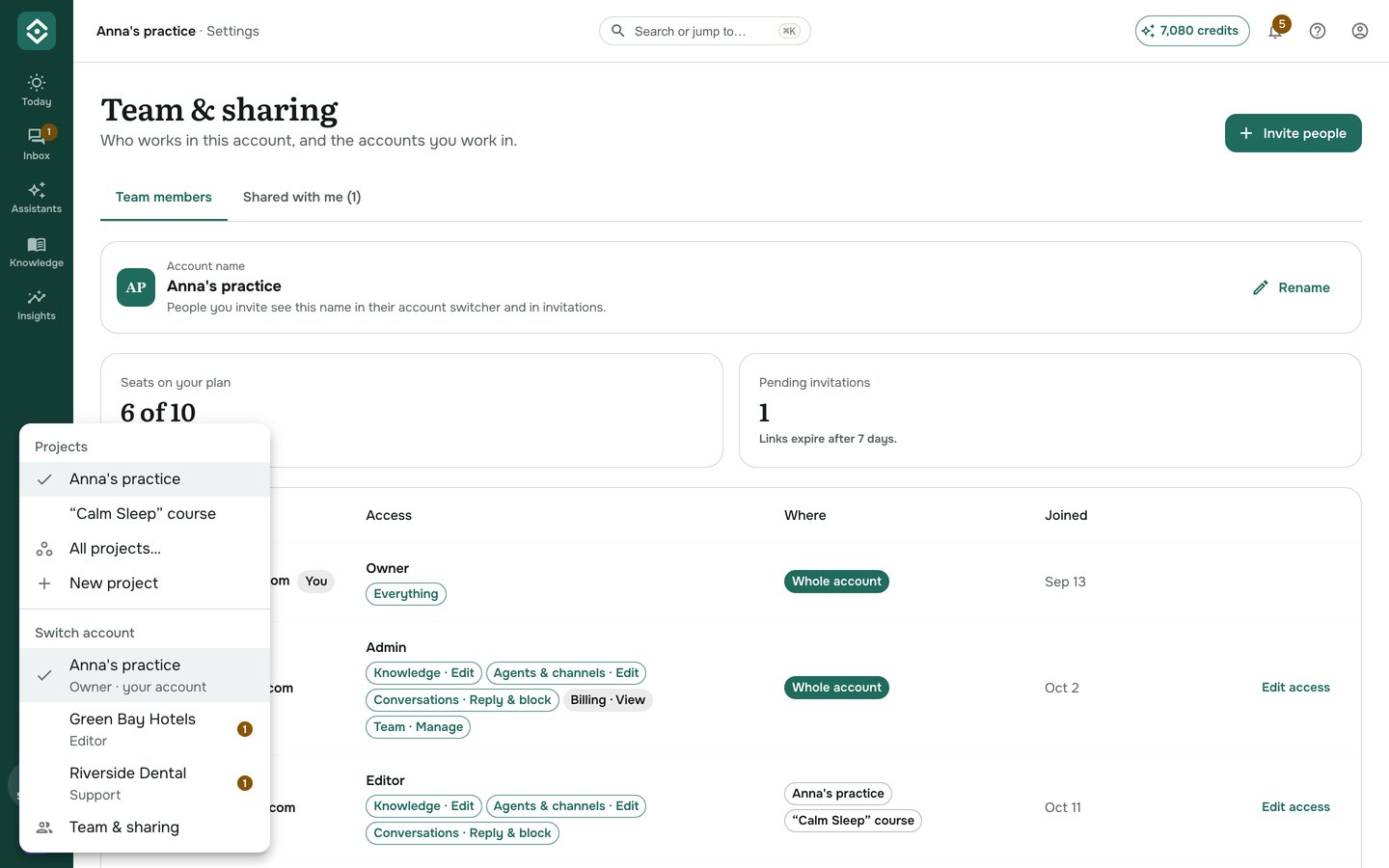
Accepting opens that account straight away - and next time you sign in, on any device, AOVA opens the account you last worked in. Switch between your own account and the teams you belong to with the project switcher - your project's avatar at the bottom of the rail (on a phone, at the top left): its menu lists your projects and then Switch account. Each switch takes you to where your work is: if you only answer clients there, straight to Inbox. A banner reminds you whose account you're working in, with a link back to yours. You only see what your access covers, and you can Leave a team at any time.
If clients are waiting for a reply in an account you're not looking at, the switcher shows how many - next to that account, and on the avatar itself. This counts only accounts where you can reply to clients.