Add audio and video
Recordings such as sales calls, webinars, lectures and voice notes can go into a knowledge base next to your documents. AOVA turns the speech into text, and your agent answers from that transcript like any other file.
Supported files
| What | Details |
|---|---|
| Audio | MP3, WAV, M4A, FLAC, OGG, AMR, WEBM |
| Video | MP4 (only the soundtrack is used) |
| Size and length | Up to 1 GB and 4 hours per file |
| Languages | Detected automatically: English, Russian, Ukrainian, German, French, Spanish, Italian, Portuguese, Polish, Turkish |
| Cost | 5 credits per minute of recording, rounded up per file |
QuickTime (.mov) and other formats that can't be transcribed are rejected as soon as you
drop them. Convert them to MP4 or M4A first.
Upload a recording
- Open your knowledge base and click Upload.
- Drop one or more recordings into the dialog. You can mix them with ordinary documents.
- Check the Audio and video will be transcribed panel. It shows each recording's length, the estimated credits, the total, and your current balance.
- Optionally, set Spoken language. Leave it on Detect automatically unless the recording is very short or mixes languages, which can make auto-detection pick the wrong one.
- Click Upload.
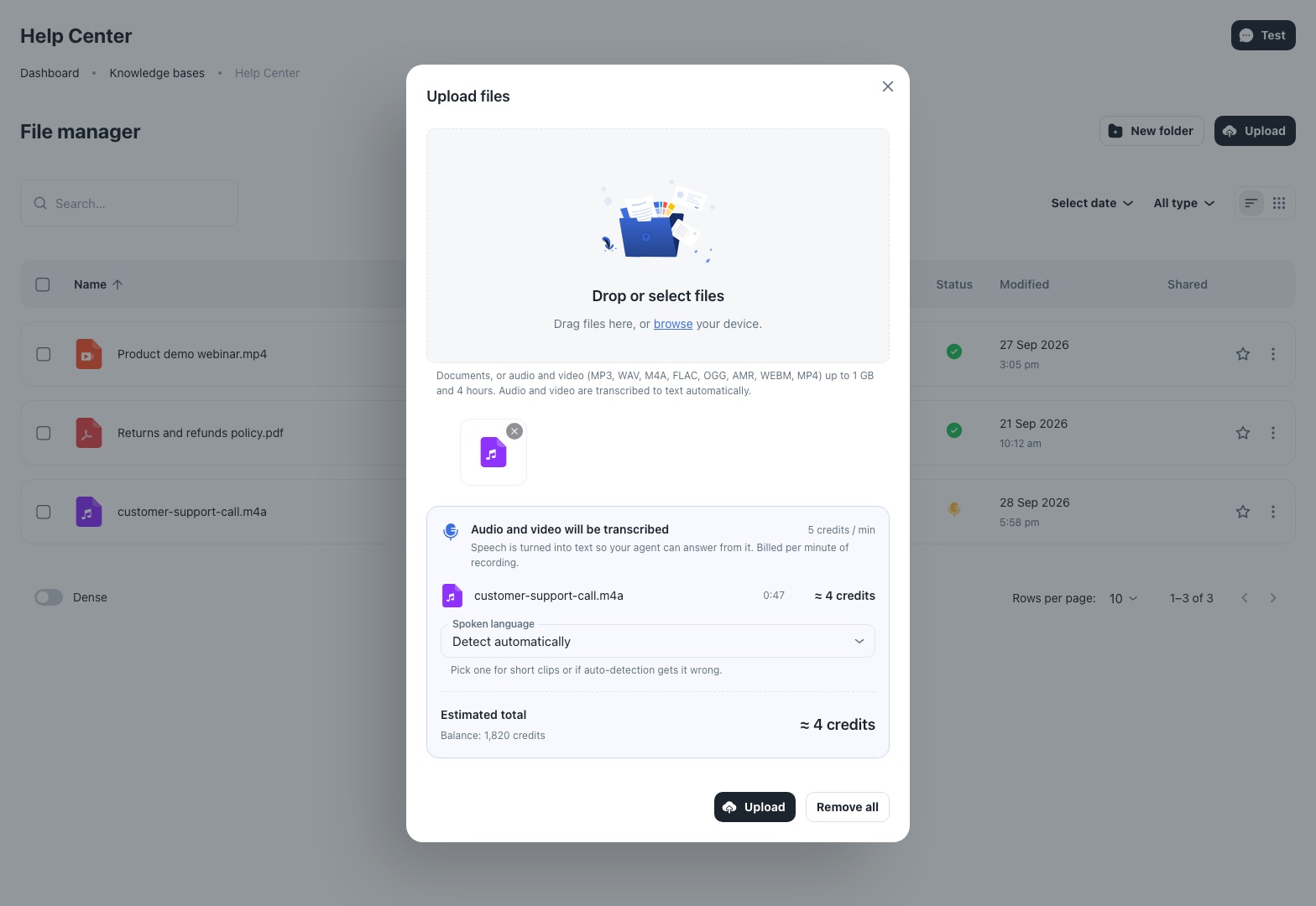
If the estimate is more than your balance, Upload is disabled and a Top up link appears. Remove some recordings or add credits first.
Follow the transcription
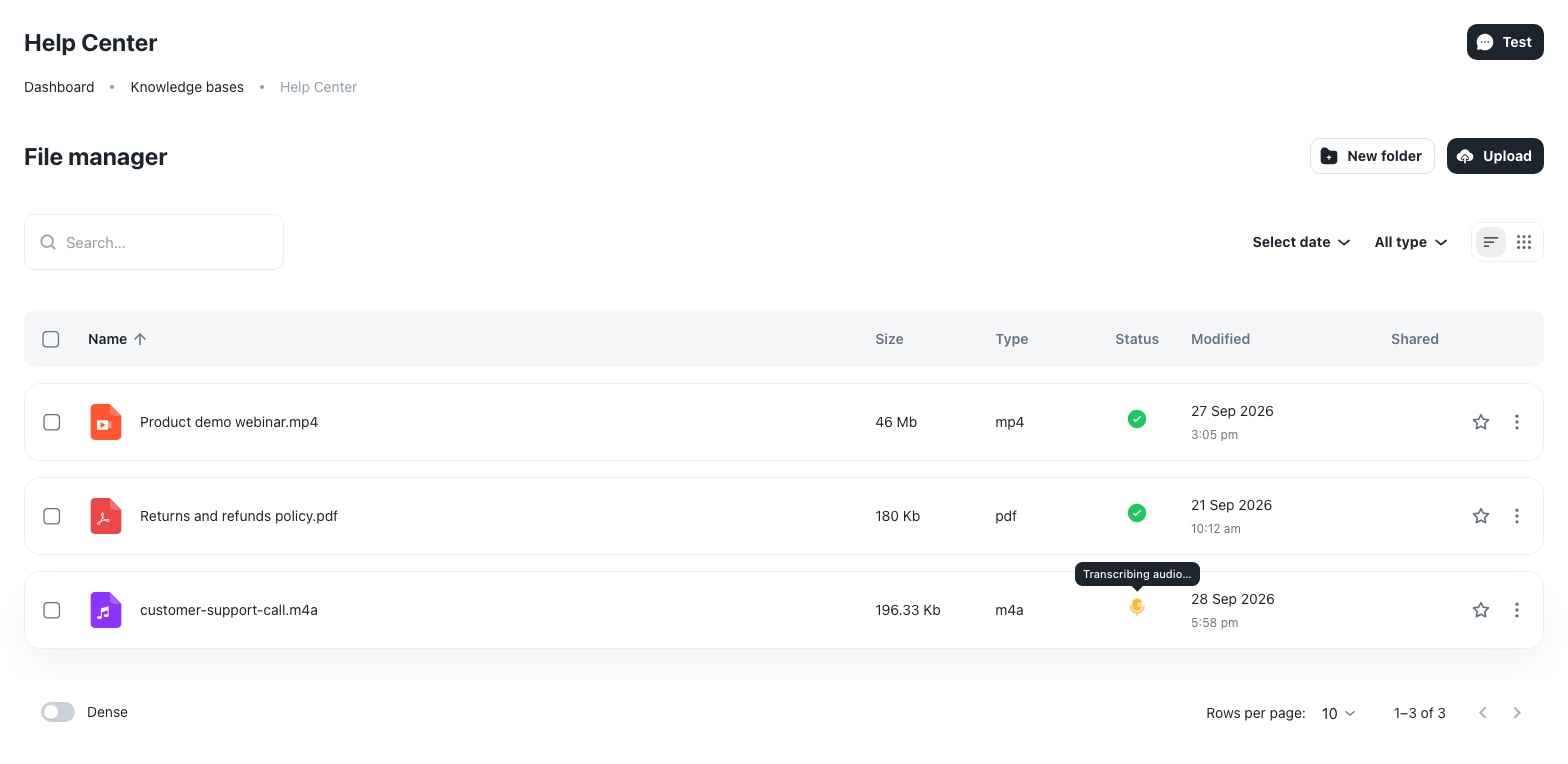
A new recording first shows a pulsing microphone in the Status column while it's being transcribed. After that it goes through the normal indexing states, like any uploaded file: a spinning icon while indexing, then a green check once your agent can use it. A few minutes of audio is usually ready within a minute or two.
See what it cost
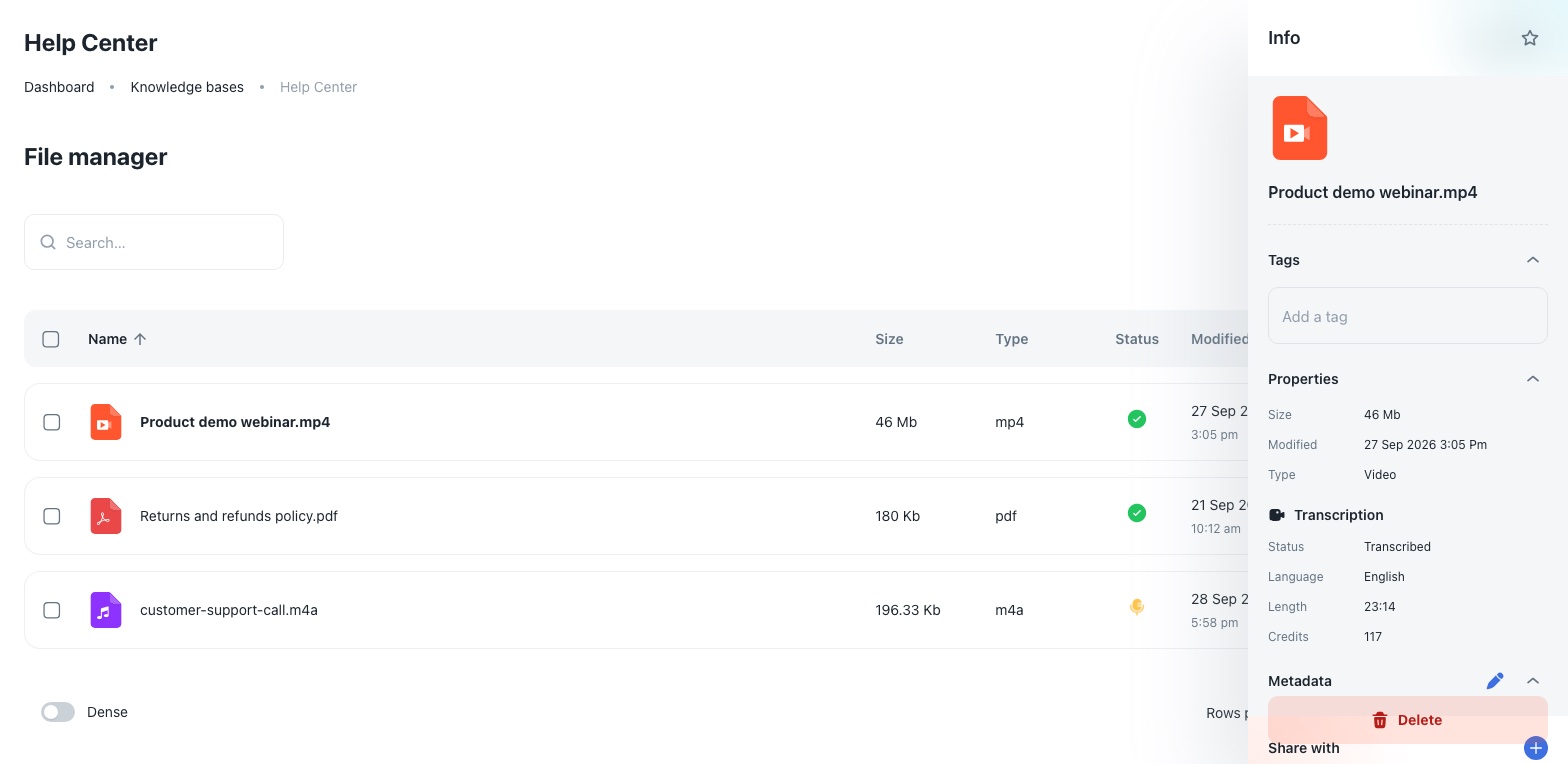
Click a recording to open its details. The Transcription section shows:
- the status,
- the detected (or chosen) language,
- the recording's length,
- the credits actually charged.
The credits appear a few seconds after transcription finishes. They are also counted in Credits used in the sidebar.
The original audio or video file isn't kept after transcription. Only the text transcript stays in your knowledge base. Deleting the item removes the transcript too.
Troubleshooting
- Length says "measured after upload". Your browser can't read that format's length (common with AMR, and with FLAC or OGG in Safari). The upload still works: AOVA measures the length itself and charges for the real length.
- The status shows an error. Hover the icon to see why:
- Not enough credits: nothing was charged. Top up and upload again.
- No speech detected: the recording is silent or music only.
- Unsupported or damaged file: re-export the recording as MP3, M4A or MP4.
- Names or brand words are misspelled in answers. Speech recognition can mishear unusual words. Add a short document to the same knowledge base that spells them correctly.