Connect a Telegram channel
Channels let people reach an agent somewhere other than the dashboard preview — Telegram, WhatsApp, or a chat widget embedded on your own site.
Create a bot with @BotFather
If you don't have a Telegram bot yet, create one first — it takes a minute:
- Open @BotFather in Telegram and press Start.
- Send
/newbot. - Send the bot's display name (shown in the chat header), e.g.
Acme Help. - Send its username — unique, ending in
bot, e.g.acme_help_bot. - Copy the token BotFather replies with (it looks like
123456789:AAH...).
Keep the token private: anyone who has it controls the bot. If it leaks, send /revoke to
@BotFather and paste the new token into the channel.
For a full walkthrough from an empty account to a working bot, see How to create an AI Telegram bot that answers from your documents.
Add a Telegram channel
- Open the agent you want to expose — its page has a Channels panel next to its details.
- Click Add channel, and set the channel type to Telegram.
- Name it, and paste in your bot's token from the step above.
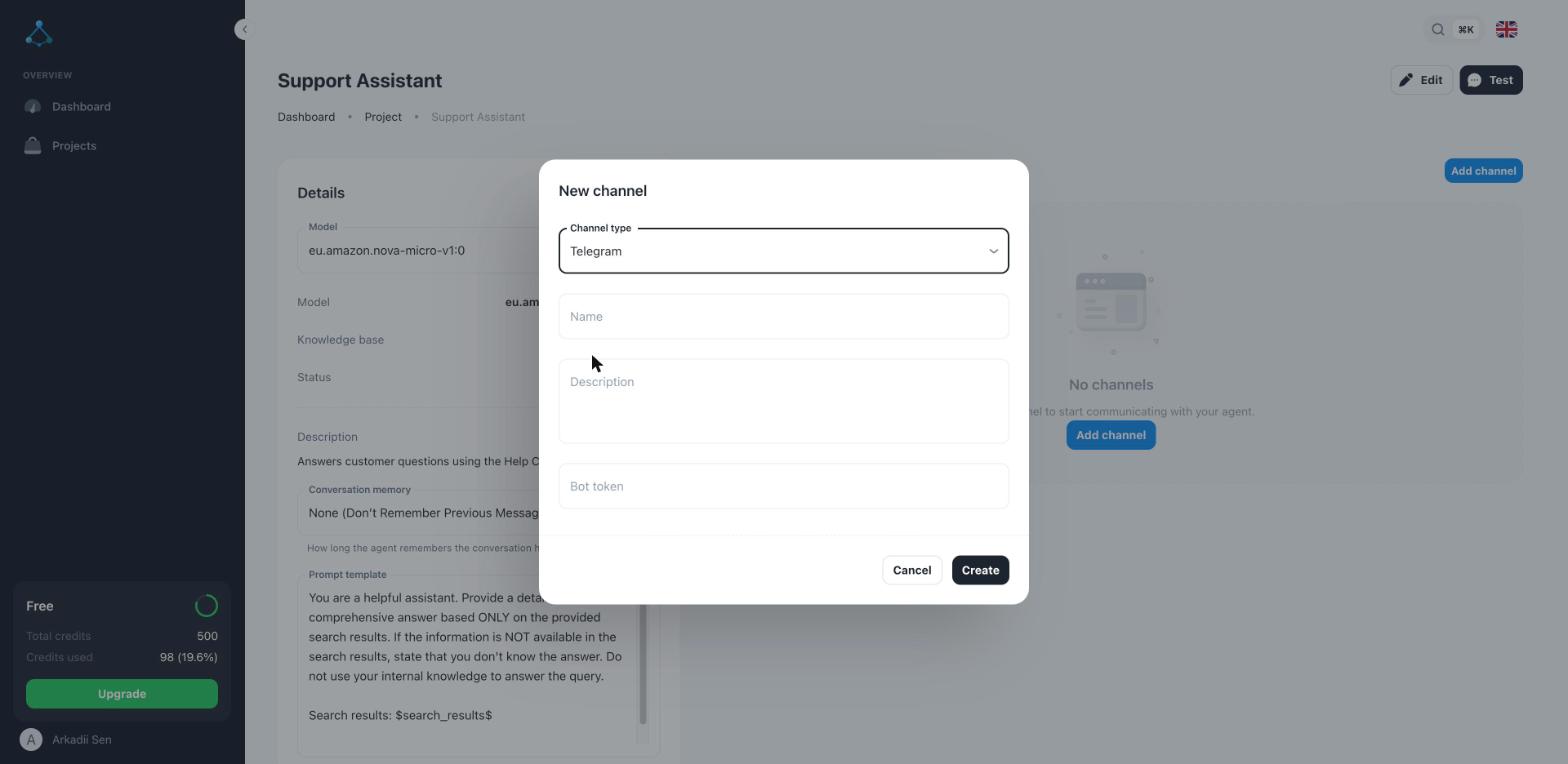
- Click Create. New messages sent to your bot are now routed to this agent.
Add a WhatsApp channel
Add a channel the same way, setting the channel type to WhatsApp and supplying your WhatsApp Business/Meta Cloud API credentials when prompted.
Embed the chat widget
See Embed the chat widget to add a chat bubble to your own website instead of (or in addition to) a messaging app.
Troubleshooting
- The bot doesn't respond — double-check the token was saved correctly and that the channel shows as connected, not pending.
- Responses reference the wrong knowledge — a channel always uses its agent's knowledge base; switch the agent, not the channel, if you need different content.