Connect WhatsApp
Your agent can answer clients on a WhatsApp Business number through Meta's WhatsApp Cloud API. WhatsApp needs more setup than Telegram, because the number and the app belong to your own Meta business account.
What you need from Meta
In Meta for Developers, with a Meta app that has the WhatsApp product added and a business phone number registered to it, collect:
| Field in AOVA | Where to find it in Meta |
|---|---|
| Phone number ID | WhatsApp → API Setup, under the phone number. Not the phone number itself. |
| WhatsApp Business account ID | WhatsApp → API Setup, next to the phone number ID. |
| Access token | A permanent token of a system user with the whatsapp_business_messaging and whatsapp_business_management permissions (Business Settings → System users). The temporary 24-hour token from API Setup stops working the next day. |
| App secret | App settings → Basic → App secret. AOVA uses it to check that incoming messages really come from Meta. |
Your Meta app's webhook also has to point to AOVA, with the messages field subscribed. Contact
AOVA support for the webhook URL and verify token to enter under WhatsApp → Configuration.
Add the WhatsApp channel
- Open the agent and go to its Channels tab.
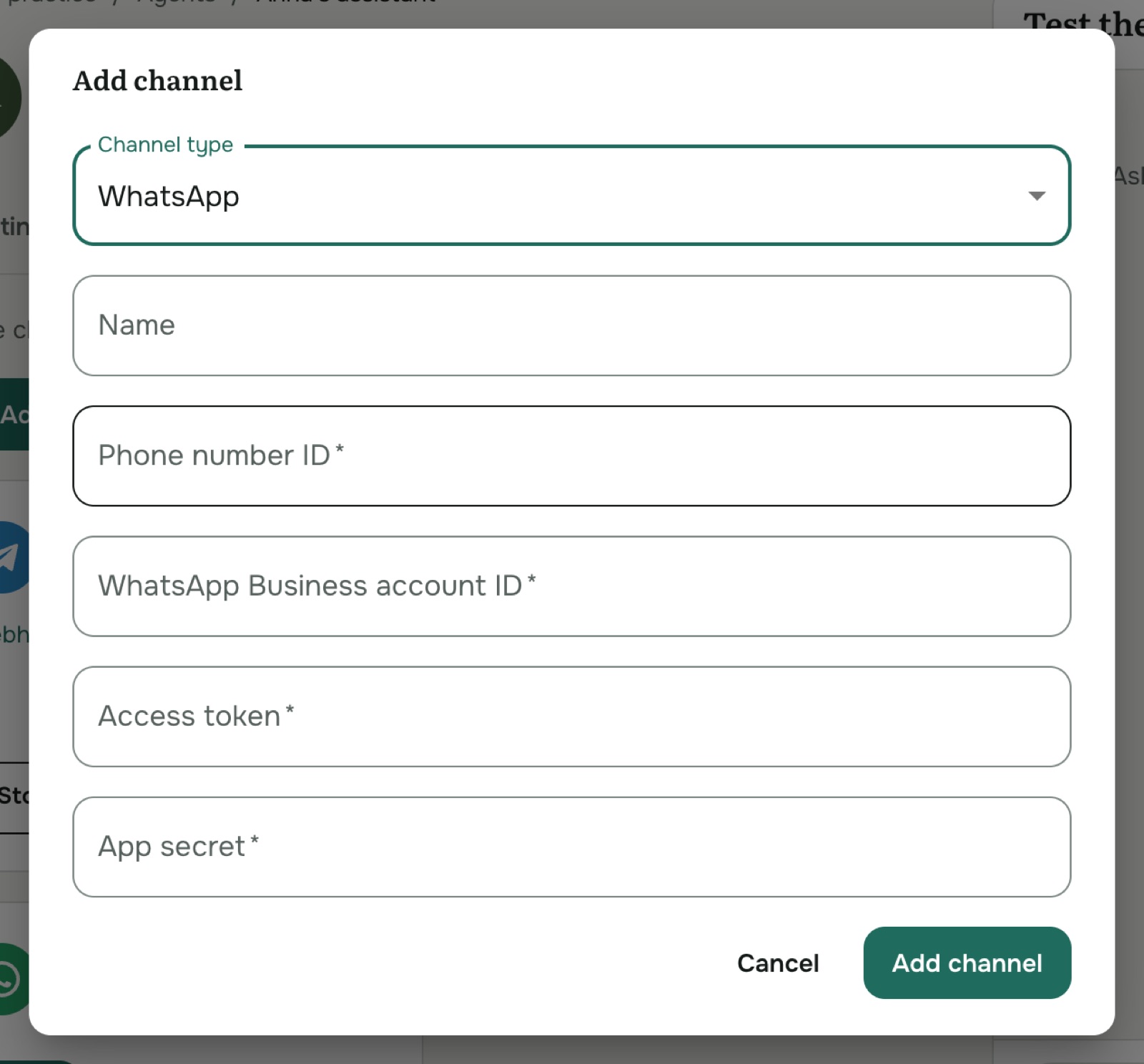
- Click Add channel and set Channel type to WhatsApp.
- Fill in the four fields from the table above, and optionally a name.
- Click Add channel.
Check it works
On the channel card, click Send a test message and enter your own phone number. You should receive a WhatsApp message from the business number. This checks the credentials and the number without involving the agent.
Then send the business number a message from your phone. The agent should answer within a few seconds.
Good to know
- Only text messages are answered. Voice notes, images and files sent by clients are ignored.
- WhatsApp only lets a business reply within 24 hours of the client's last message, so the agent can always answer, but it can't start a conversation.
- The credentials are stored encrypted and can't be changed later. To use other credentials, delete the channel and add it again. ⋯ → Edit settings only changes the name.
- WhatsApp's own business messaging policy applies to what your agent says.
Troubleshooting
- The card shows Error. The access token may have expired (for example, the temporary token) or lack a permission. Delete the channel and add it again with a permanent token.
- The test message arrives, but the agent doesn't answer. The webhook in your Meta app isn't
set up or the
messagesfield isn't subscribed. - The channel is stopped. Click Start on the card.