Read conversations
Conversations shows what your clients ask and what your agents answer, in every channel of the current project. Use it to spot gaps in your materials and fix them.
Find a conversation
Open Conversations in the side menu. The newest conversations are at the top, with the channel and the agent under each one. Use the chips at the top to show one channel only. More conversations load as you scroll, and new ones appear on their own.
Only conversations of the project picked in the side menu are shown. Switch the project to see another one's.
Read it
Click a conversation to open it at the latest message. Messages are grouped by day, and the agent's replies are marked AI. Click Show earlier messages to go further back.
If the client writes while you're reading, new messages appear automatically. If you've scrolled up, a N new messages button takes you down to them.
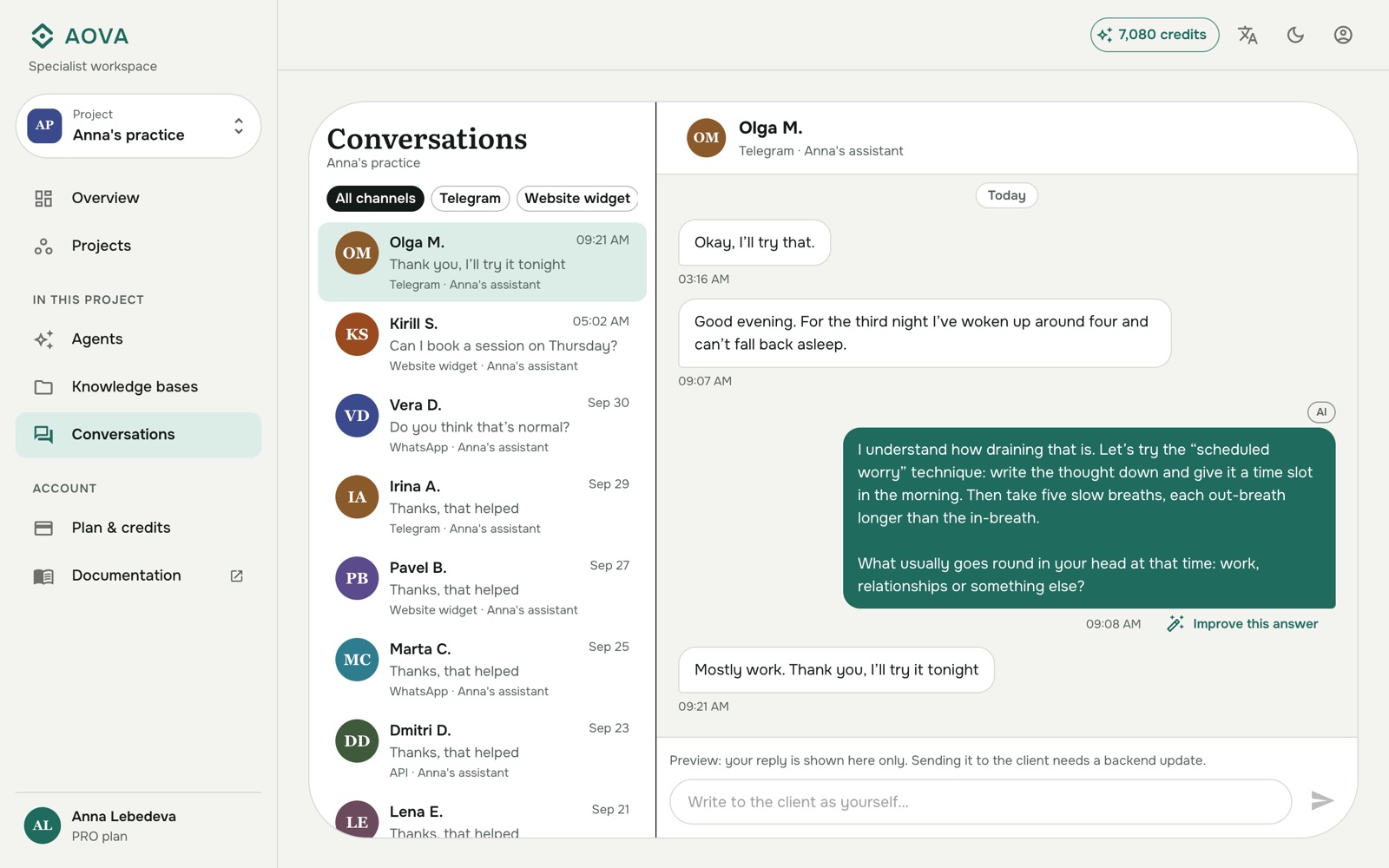
The conversation is read-only: the agent replies to the client. Replying yourself is coming soon.
Improve an answer
Under each agent reply, click Improve this answer. It offers two ways to fix it, both carrying the client's question with them:
- Add or fix materials opens the agent's knowledge base, where you can upload what's missing or edit a file.
- Adjust the instructions opens the agent's settings to change the tone, length or rules.
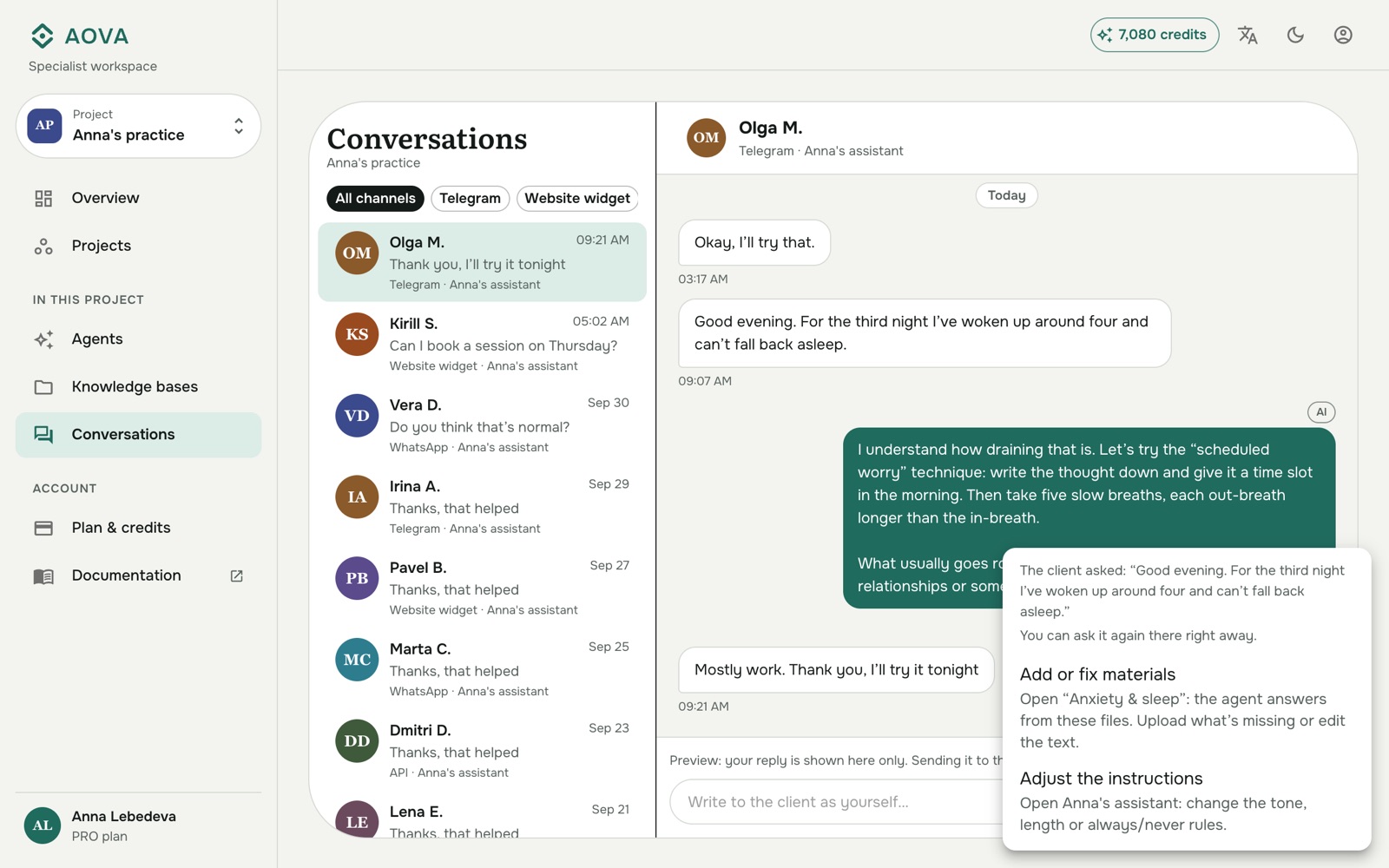
Either way, the client's question is already filled into the test chat on that page, so you can ask it again right after your change and compare.
Who is in the list
A conversation appears once a person has written to an agent through a channel: Telegram, WhatsApp, the website widget, or the chat API in async mode. Your own messages in Test the agent aren't listed.
Names come from the channel where it provides one, for example the Telegram profile name. People without a name are shown as Guest.